15.6 User groups
The OpenEMM is organized in such a way that it is not necessary to assign each right individually to each user, as this can be quite time-consuming and error-prone. Instead, you can define rights sets for specific user groups. If you assign the corresponding group to a user, he automatically has all rights of this group. It is not possible to create a user without a user group.
Note: The individual user can still be assigned rights by the administrator that exceed the standard rights of the group, but no group rights can be withdrawn from the user. If this is necessary, either all users in the group must have their rights revoked, a group with fewer standard rights must be used as a basis, or a completely new user group must be created for it.
Please note: In OpenEMM only a standard user group called OpenEMM is offered. This group has all rights available for OpenEMM. The group is not read-only, so be careful not to accidentally delete the group. You can define individual user groups as described below, which has only a selection of the available rights. A user group can contain one or more users, each of whom then has certain default rights. If you are interested in the full version of the EMM, please contact our customer advisors.
You can also define any number of your own user groups. You can edit an individual user group by clicking on the list entry. If you want to remove an individual user group, you can either use the recycle bin icon in the overview or click on the Delete button in Edit mode.
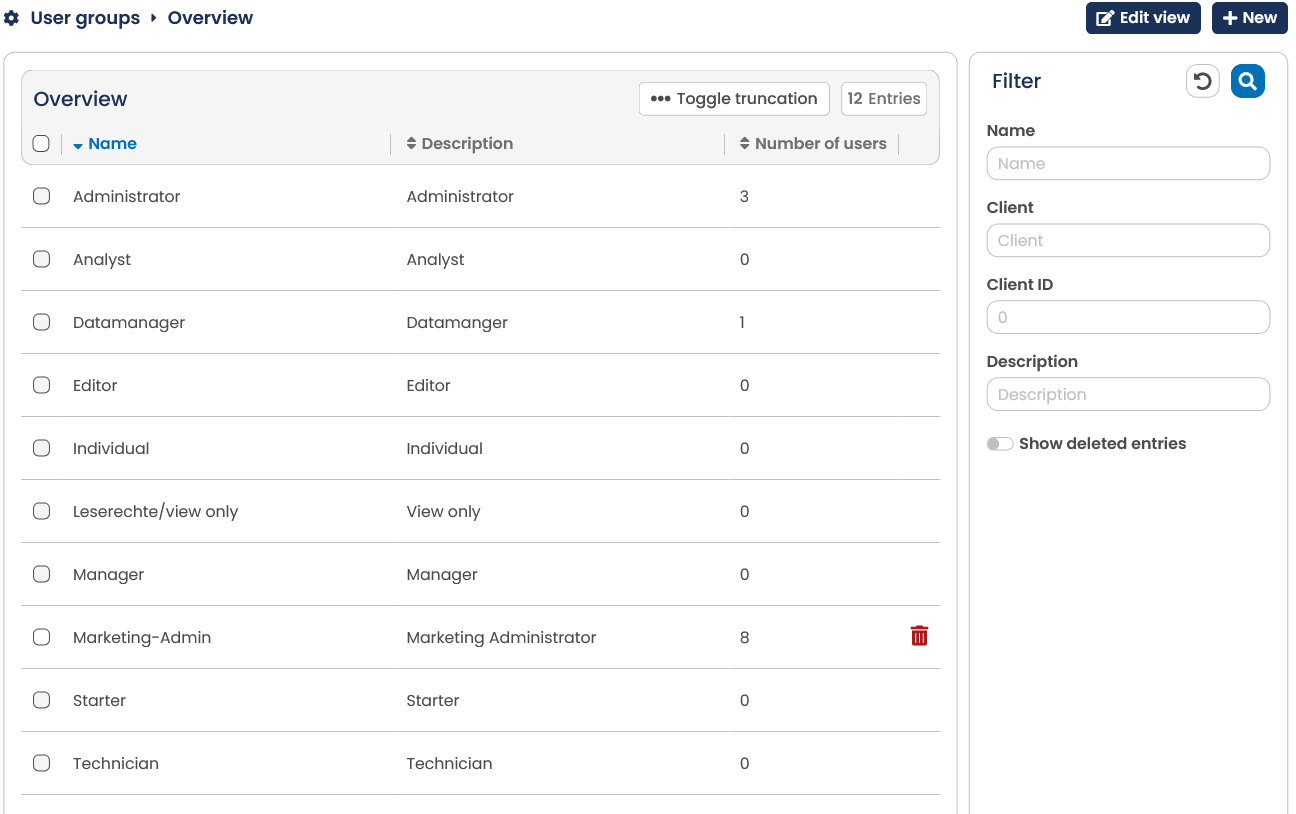 Fig. 15.14: As well as the predefined user groups Editor, Technician, Data Administrator, Analyst, Manager and Administrator, you can also set up your own user groups.
You create a new user group by clicking on New. First enter a name and optionally a description and then select the rights that the owners of this user group should have. The rights are sorted thematically into boxes such as Mailing, Data management, Target groups and Recipient, and in their entirety include all functions of the OpenEMM. You can assign or remove all rights of one category with one click using the Toggle on/off slider.
For the sake of clarity, you also open and close the boxes individually. You can recognize assigned rights by an activated slider. If you want to add or remove a right, simply click on the corresponding right.
Grayed out sliders indicate that this right cannot be granted. There are several possibilities why a slider is grayed out:
-
The right belongs to a premium feature that has not been booked for your client.
-
It is a special right that can only be activated after consultation with <%FIRMA OHNE> via the master, because it requires e.g. further database settings or should only be used after prior instruction.
With a click on Create the new user group is created and can be assigned to users.
Please note that individual user groups are not automatically extended with new rights. In this case, the account admin must regularly check whether he has to give a group additional rights so that the users can also use new features. The Filter for type on the right helps you identify new rights or unassigned rights with just one click and add them as needed.
Note: One user can be assigned to several groups. In addition, you can also bundle several subgroups to define a user group. For example, it is possible that you combine a user group Mailing creation with the group Target group creation. The new parent user group then has the rights of both the one and the other group. In addition, user groups can be copied.