7.4 Profile fields
Personal data for each mailing recipient are stored in a separate profile in the E-Marketing Manager database. This profile contains some data as default, e.g. name, title and e-mail address. However, for many applications that is not enough information. If, for instance, you would like to mail your customers for their birthday, you need to save the date of birth as well. Sending out mailings by fax or letter require a fax number and a street address. You could also enter data on customers’ interests.
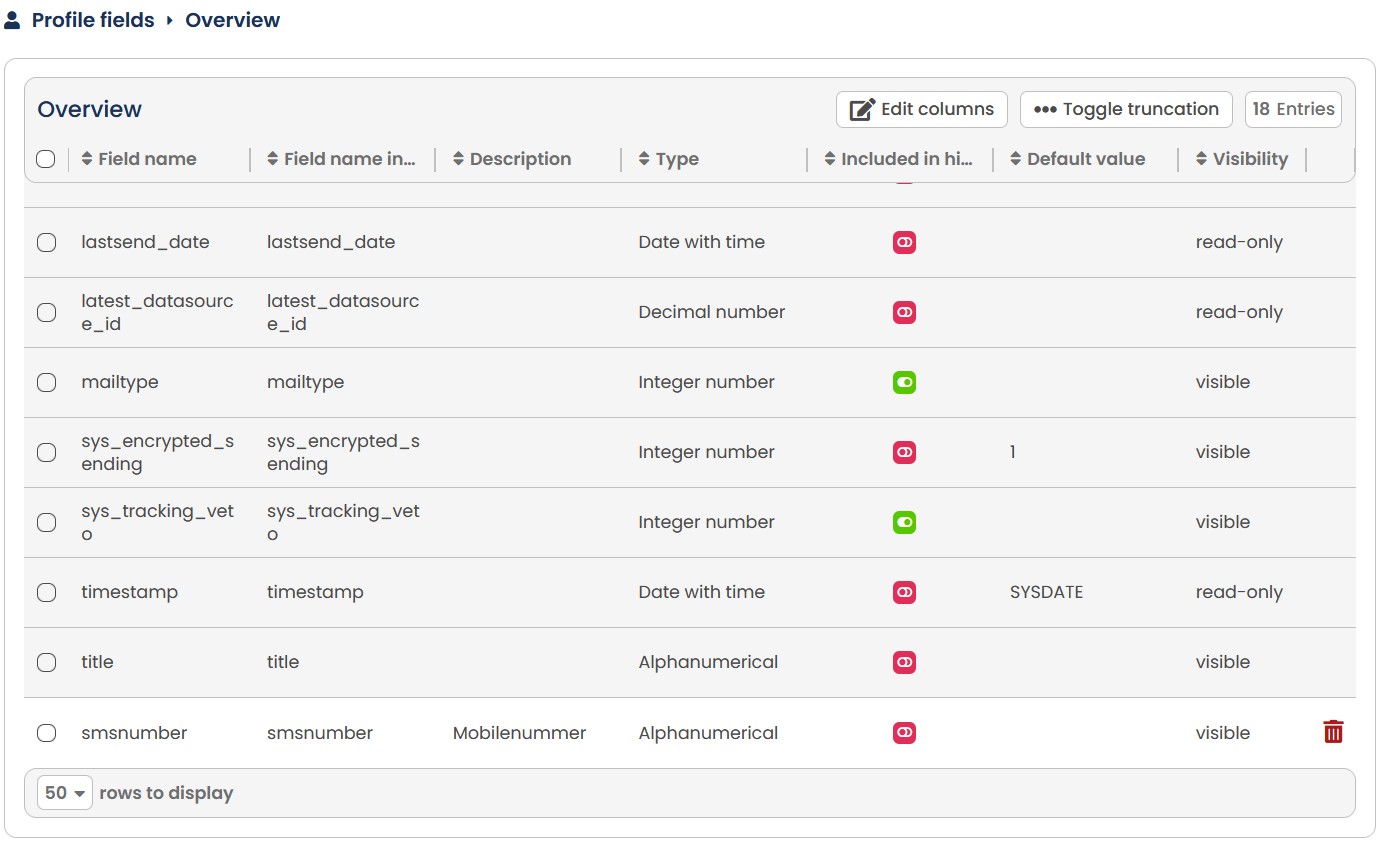
Fig. 15.1: The profile database can be expanded to include a number of individual fields.
Since the required fields in the profile database differ according to their usage, E-Marketing Manager offers you a great deal of freedom here. You can expand the profile by up to 50 individual fields. If you require additional fields, please contact our AGNITAS support. Alongside these individual profile fields, there are a number of system fields that are automatically provided by EMM and are not counted. You can recognize these in the overview by the fact that they are grayed out and cannot be edited or deleted. However, you can still view the requirements that apply to these fields, their data type, and the field names you can use to address these fields for exports and target groups. You can find out more about the system fields in the chapter Other profile data.
Various data types are available. Dates, for instance a date of birth, are stored in a different way from, say, a town or street name. Individually added profile fields are generally valid for all recipients stored in your database. You should therefore decide in good time which fields you will require. It is not a problem to add fields to the profile database at any time. However, if you delete a field this may have consequences for many sections of EMarketing Manager.
Note: If a recipient is unsubscribed from all mailing lists, you can use the Recipient Cleanup slider under Administration under the submenu Clients to specify that the profile fields are to be cleared automatically after 30 days for reasons of data economy. If you are using Master-/ Subclients or DataAgents, please only enable this feature after contacting AGNITAS AG.
For each profile field in the Edit view there is a tab Used in. In this tab you can see in which campaigns and target groups this profile field is used. This helps to judge whether a field is still needed or not.
7.4.1 Extending recipient's profiles
The prerequisite for e-mail-based dialog marketing is a freely configurable database set up according to your requirements and containing up-to-date recipient data. A database contains entries describing customer profiles. Usually, a recipient’s entry consists of the properties last name, first name, gender and email address. Customers’ properties are saved in profile fields in the database. If you want to define new characteristics for your customers in preparation for planned marketing campaigns, you need to accommodate new data in the database and create new fields to do so. You may want to define fields for shoe size, favorite color or special interests.
7.4.1.1 Planning fields properly
Before you start creating new fields, you should take some time to think about their future use. The planned use determines the required field type. The fewer fields you have in your profile database, the clearer it is. You may want to read chapters Closed-loop marketing An example and Automatic mailing - An example first; they contain precise examples.
You may want to consider some basic rules:
-
Use meaningful field names. This will make it much easier to work with the Profile Database, especially if several people will maintain the data.
-
The field type you will use most often is a Numerical type (Integer number or decimal number) which may only contain numbers. Despite the restriction, this is a truly universal field type. You can, for instance, enter whether a recipient is interested in a particular topic. The value 0 means „not interested“, while the entry 1 will mean „interested“ (an example can be found in chapter Closed-loop marketing - An example). You may want a field for fixed values, like for instance the GENDER (sex) field. Recipients marked 0 are male, a 1 means female and recipients whose sex is unknown are characterized as 2. Such a field only makes sense if properties are mutually exclusive. Recipients could be interested both in travel and in cars. In this case, you will need one field for each topic.
-
The use of Date fields (Date without time or Date with time) is self-explanatory. They could contain birthdays or a contract’s expiry date. All dates are entered in the yyyyMMdd format, i.e. 19650905 for September 5th, 1965.
-
The field Alphanumerical should only be used for truly free entries without any restrictions. Such a text field could contain holiday destinations or nicknames. Please note, however, that such text fields are difficult to evaluate with the search function or the target group drop-down list. Very often, entries are just slightly different, for instance if the user mistyped his or her entry.
7.4.1.2 Creating new fields
To create a new field in the profile database, proceed as follows:
-
Click on Recipients in the navigation bar, then on the submenu Profile Fields.
-
In the overview area, the system will display a list of all defined fields. Fields managed by E-Marketing Manager like FIRSTNAME are invisible, but still there. Click on the New button. You will need to enter definition into six entry boxes: Field name, Description, Field name in database, Type, Length and Default value.
-
Next to the Field name, insert the name E-Marketing Manager will use to characterize the user. The system will use this name each time you can select fields from a dropdown list, for instance. You should therefore select a meaningful name. All characters are valid. However, the field name should not be too long. Lengthy explanations can be entered into the Description box where you can explain the meaning of a field in one or two sentences.
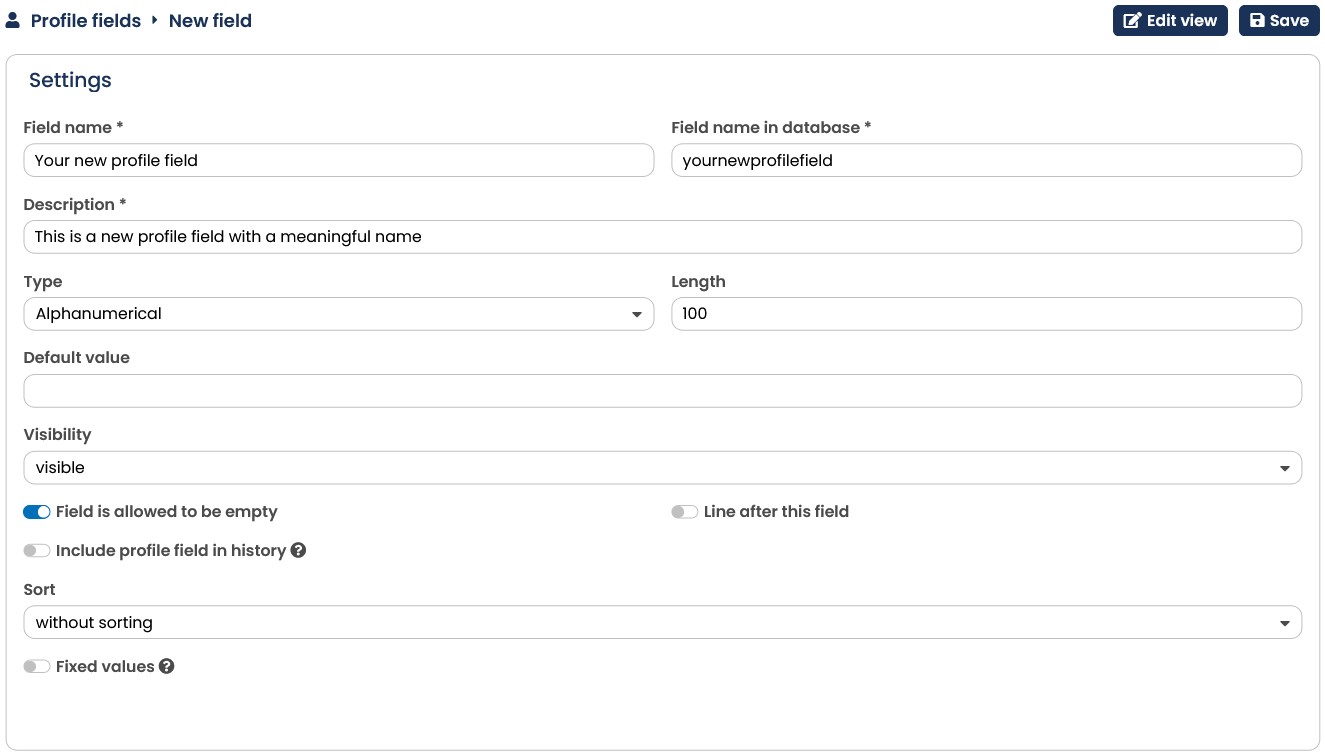
Fig. 6.19: A new field must first be given a meaningful name.
- Next to Field name in database, you will enter text which the E-Marketing Manager database should use internally. This name will only be displayed in connection with field management. The user will never see this name. Experienced users like to select twoword names separated by an underscore (_) delimiter. You may want to select Interest_Cars or Age_in_Years. This prevents conflict with internal E-Marketing
Manager field names. The name spelling need not be case-sensitive. E-Marketing Manager converts everything into upper-case letters anyway.
-
In the column Type you have a selection list of the formats Integer number, decimal number, Alphanumeric, Date without time and Date with time. This allows you to specify the format in which the new information about the particular customer will be created in the database. While for Numeric only numbers and for Date types only a date is allowed, in the Alphanumeric format any common Unicode character can be entered.
-
The Length field defines the maximum number of characters that may be entered into the new field. This only concerns Alphanumerical fields where any type of character may be entered. Since Alphanumerical does not have a default length, you must specify a length for this field. Otherwise, the system will give out an error message.
-
The Default value field defines the value the new field will initially have. For each new recipient, for instance, E-Marketing Manager will fill in the default value for the profile. Numerical fields should have a default value of 0. For fields like a Alphanumerical field indicating the main country traveled to, a default value of none would be useful. Then you can use the search function (chapter Searching for fields) after a few months to filter all recipients who have not entered anything into that field yet. You can specify the default value of a field only when creating a new one, after saving this field will be grayed out.
Please note: No standard value is assigned for fields of the type Date (with or without time).
- If you change Visibility to not visable, this has an effect in various places. On the one hand, the field is no longer displayed in the recipient profile, on the other hand, the field cannot be selected for imports in the import profile and in the import wizard. Also, this field cannot be selected for exports. However, the content of the fields is still preserved in the background. Invisible fields are also not available for target group definitions. If the field is subsequently set to invisible and it already occurs in target groups, then these target groups can still be used but are locked for editing. To edit the target group, the field must be changed completely or temporarily to visible. As a further option, you can set the field as read-only. This function is essentially similar to invisible fields, except that the field and its contents are displayed in the recipient profile and the profile fields overview.
Note: There is an option to allow both viewing and editing of the field for individual users (e.g. for RESTful users). If you are interested in this, please contact our support team.
- The slider Field is allowed to be empty is enabled by default. As long as this setting is selected, your profile field does not necessarily have to contain values.
10.To display the profile fields in the recipient overview structured into groups, you can activate a dividing line after the field. This has visual advantages.
-
By activating Include profile field in history, the original contents of this field are archived when a change (automated or manual) takes place. This can also be used as a campaign trigger (selectable in the start icon). Please note that you can only activate a maximum of 5 fields for historization. If further fields are required, please contact your account manager.
-
If there are many profile fields in your recipient database, the recipient profiles quicklybecome confusing. To prevent this, you can mark individual profile fields as not visible. These no longer appear in the recipient overview although they are, of course, still
present.
Note: Fields that are marked as invisible are also not offered for selection in the recipient search, when creating target groups, and in import profiles. If a field is subsequently changed to invisible, target groups with this field will of course continue to function.
To also increase the clarity of the recipient profiles, there exists the possibility of sorting the profile fields into sequence by using Sort. This allows you to place important fields in the profile at the front.
- Once you have made all your entries, click on the Save button. The system will now display an overview with the new field added at the bottom.
Please note: Once you have created a field, only the field name and the description may be changed. Other parameters (Length, Type, etc.) can no longer be amended. All you can do is to delete the field and start again.
- You can create up to 100 profile fields in this way. If you require more fields, pleasecontact the AGNITAS support.
Important: Some field names can cause problems with the database. You can find invalid designations here https://mariadb.com/kb/en/reserved-words/ and here https://docs.oracle.com/cd/B19306_01/em.102/b40103/app_oracle_reserved_words.htm
Please note: After a field has been created, the specified default values can no longer be changed. On top of that, the Used in tab will appear in the detail view, listing the areas in which your profile field is used.
7.4.1.3 Deleting existing fields
-
If you have mistakenly created a field, call up the field overview by clicking on Administration and Edit profile fields in the navigation bar.
-
At the end of the line with the field you want to delete, click on the Delete symbol.
-
For security reasons, there is an intermediate step where you are asked for confirmation that you do indeed want to delete that field. Possible answers are the Delete or Cancel buttons.
-
Before deletion, the E-Marketing Manager checks whether the field in question is used in target groups or in campaigns. For example, if you have defined a target group that uses the field, the system does not accept the deletion request. You must then first delete the target group.
Note: The field can also be used in other areas, for example, for imports and exports, forms, mailing content (via tag agnDBColumn), actions, or interfaces. Here the EMM does not issue a warning.
Please note: You should be extra careful before you delete a database field. Deleting the field also deletes all data entered into that field in the meantime. Once deleted, data cannot be restored.