7.3 Searching for recipients
Your recipient list will soon be very long. As soon as you have several hundred profiles in your database, it will be rather awkward to find a particular profile in the list. For this purpose, E-Marketing Manager offers you an advanced filter function which you can use to filter and list user profiles. Search requirements can be very different. This is why EMarketing Manager offers several search methods:
-
A field search will search for details in user profiles, for instance all users with the same last name, or all recipients with German shoe sizes between 40 and 43.
-
Various filters allow you to search specifically for recipients on a particular Mailing list or in a specific Target group. You can also filter by a specific Recipient status or search only for recipients who belong to a certain Recipient type. With the latter option, you can search for multiple types at the same time.
-
Best of all: both search methods can be combined.
Please note: E-Marketing Manager displays a maximum of 10,000 entries in the recipient
list as standard. This value can, however, be modified to fit individual needs after discussion with AGNITAS Support, but this affects the speed of display.
If the number of available recipients is too large, the program only displays the first page and by means of a message makes you aware that the displayed selection must be limited.
In the following, we present the search criteria in detail.
7.3.1 Search for first name and last name (basic search)
The simplest way to search for a recipient or a group of recipients is to specify the first or last name as a filter criterion. You do this by utilizing the input fields with these names positioned next to the recipient list. Correct capitalization is not required. In addition to first name and last name, you can also start a search for the email address of the recipient.
After you have finished inputting, E-Marketing Manager comes into operation after clicking on Apply filter and automatically updates the recipient list.
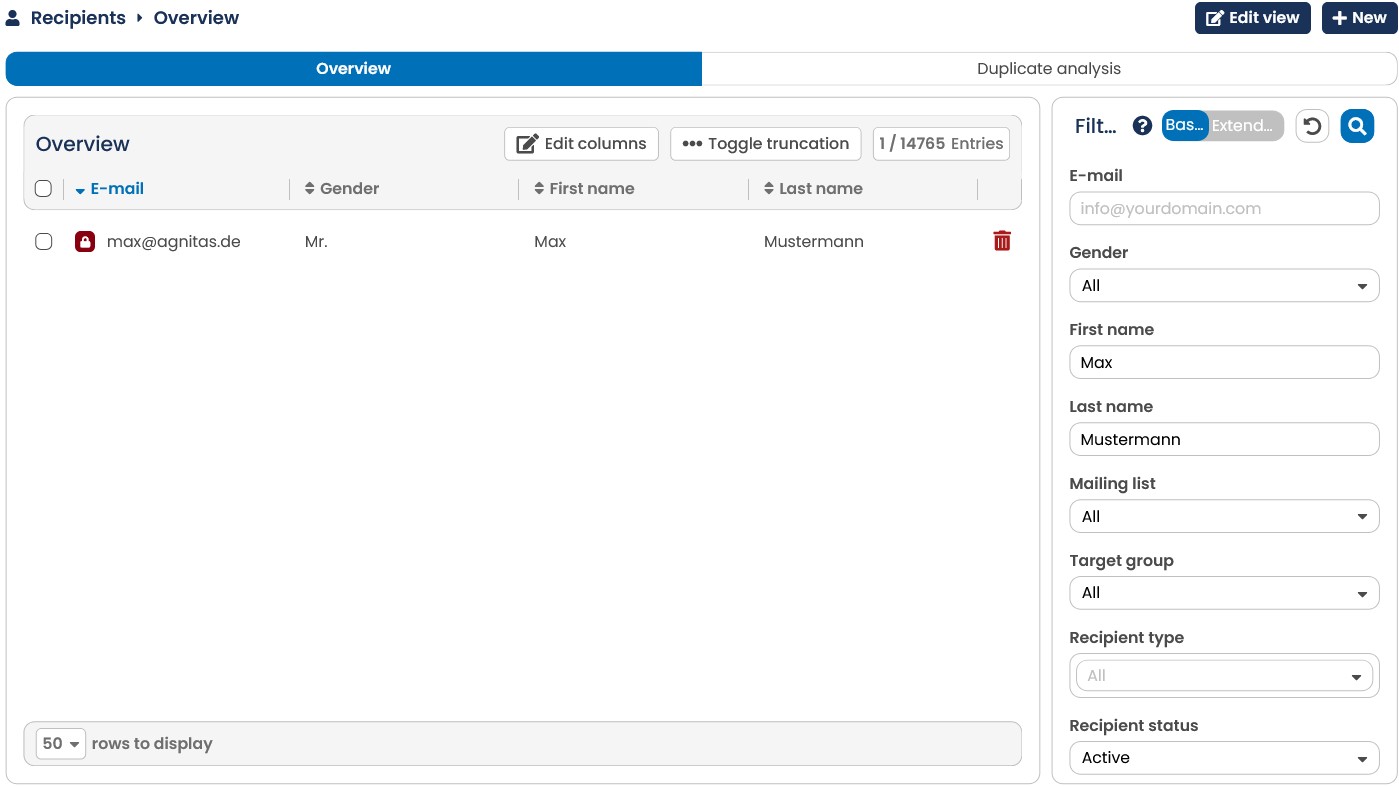
Fig. 6.14: A direct search for first and last names leads very quickly to the desired result.
If you have an especially big list of recipients, the search for first or last names does not necessarily immediately lead to the desired results. An example: You have filtered the recipients for all persons with the last name Doe, but the results list still comprises more than 200 entries and does not help you to find the desired entry. However, you can refine the search at any time by using new criteria such as first names. In the example, you instruct the program to additionally search for the first names John by means of the First name field. After a renewed search and update of the display, the results list is now considerably smaller and you can see the recipient being searched for at a glance.
7.3.2 Searching for fields (extended filter)
With the extended filter you can filter recipients according to any criteria. If you have previously made entries in the Basic filter these will be transfered in the extended filter. You select the field and the relational operator in two drop-down lists. The next entry field takes the reference value. The three entries together form the search rule. Once you have defined a search rule, you can apply it by clicking on the Add button. You can, in the same way as for the target groups definition, combine multiple search criteria with one another.
When you have entered all of your criteria, click on the Apply filter button. E-Marketing Manager will display a new list containing only those recipients matching the search rule.
Here you can also use wildcards when searching via the fields First name, Last name and E-mail. The wildcards * and % represent any number of characters, whereas _ and ? only represent one variable character. Unless using wildcards the exact entry will be searched.
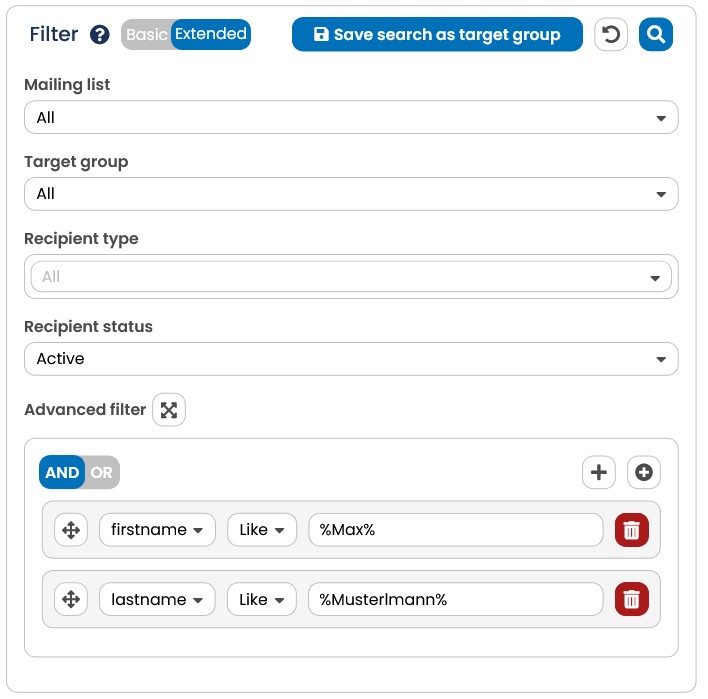
Fig. 6.15: This search rule only displays recipients whose first name is "Max" and last name is "Mustermann".
7.3.2.1 Field drop-down list
The field drop-down list contains all profile fields that are displayed in the profile, both fields defined by E-Marketing Manager for internal use as well as user-defined fields. You can easily identify user-defined fields by the name which you have selected for them. Fields for internal use have the following names (see list):
| Field for internal use | Description |
|---|---|
| CREATION_DATE | Date when the recipient was entered into the database. |
| CUSTOMER_ID | E-Marketing Manager will automatically assign a customer ID to all new recipients. This ID is unique. Each recipient can be identified unmistakably by his or her CUSTOMER_ID. |
| Field for internal use | Description |
| DATASOURCE_ID | ID of the data source from where recipient data were imported. If CSV data is imported, E-Marketing Manager will automatically assign an ID (see chapter Import function for recipient data). |
| Recipient’s e-mail address. | |
| FIRSTNAME | Recipient’s first name. |
| GENDER | Recipient’s sex (gender). E-Marketing Manager uses numbers to identify a recipient’s sex: 0 means male, 1 means female, and all recipients whose sex is unknown are marked 2. |
| LASTNAME | Recipient’s last name. |
| MAILTYPE | The mailing type selected by the recipient. 0 means text, 1 is HTML and 2 means Offline-HTML. |
| TIMESTAMP | Date of last profile change. |
| TITLE | Recipient’s title (Dr. etc.). |
7.3.2.2 Drop-down list for relational operators
Relational operators define a relation between the field content and the reference value. EMarketing Manager supports the operators listed in the chapter Searching and Filtering trough Operators.
Using the relational operators LIKE and NOT LIKE, you can select recipient addresses, for instance searching for similar-sounding names or identical address elements. If you wanted to search for all recipients in your database who use T-Online as their service provider, you could use this operator. Such a search works with so-called wildcards or replacement characters for any other character.
-
The wildcard character _ (underline character) and ? (questionmark) replace any single character.
-
The wildcard character % (per cent character) and * (Star) replace a string of characters of any length.
If you enter %@t-online.de as the reference value and select the LIKE operator, only recipients who have a T-Online e-mail address will be listed. Examples would be john@tonline.de and doe@t-online.de. If you select NOT LIKE, all recipients who do not have a TOnline e-mail address will be displayed.
7.3.2.3 Combining search rules
Many searches cannot be performed using just one search rule. E-Marketing Manager allows you to combine any number of search rules . Search rules are linked with the AND and OR operators. If, for instance, one of the additional fields defined in the recipient profile is AGE_YEARS and you wanted to list all recipients aged 20 to 30 and having a GMX email address (@gmx.de, @gmx.net etc.), you would need to define three search rules:
-
EMAIL LIKE %@gmx.%
-
AND AGE_YEARS > 19
-
AND AGE_YEARS \< 31
The GMX search rule contains two % wildcards. GMX allows you to select your own country ID like .de or .net. The search rule filters all e-mail addresses containing the character string @gmx.. To specify the search, proceed as follows:
-
By clicking on Recipient in the navigation bar, call up the overview.
-
Open the input mask for the Extended filter.
-
The first search rule checks the email address. In the Advanced filter area, select the email field. Select the LIKE operator. As a reference value, enter %@gmx.% into the field at the end of the line.
-
By clicking on the Add rule button you can now apply the search rule. E-Marketing Manager will now display the email search rule below the drop-down lists with their entry fields.
-
The search rule line now features an additional drop-down list. The selections AND and OR determine how E-Marketing Manager links the search rules.
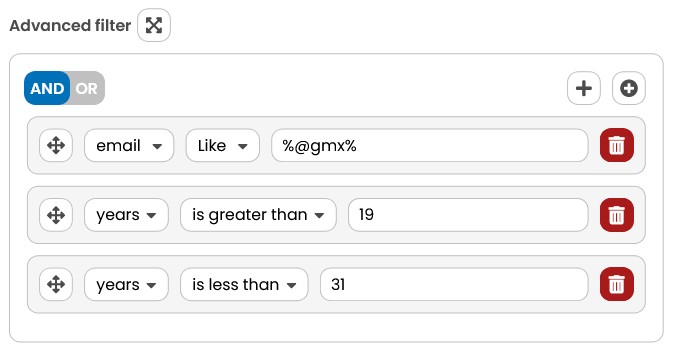
Fig. 6.16: Three combined search rules.
-
The second search rule checks whether the recipient is older than 19 (i.e., at least 20). In the first drop-down list, select AND. As a field, select the user-defined years (details on user-defined fields can be found in chapter Extending recipient's profiles). Select the “greater than” relational operator (>). The reference value is 19.
-
By clicking on the Add rule button you can now apply the second search rule. The second search rule and the AND link now appear below the drop-down lists.
-
The third search rule filters recipients whose age is less than 31 (i.e., no more than 30). Select the AND operator and the field years. Select the “less than” relational operator (\<) and the reference value 31.
-
Clicking on the Add rule button again adds the third search rule.
10.The recipient list now displays only those profiles matching all search rules selected.
Note: You will receive the same results with the comparison operators >= 20 or \<= 30.
If you want to delete a search rule, click on the Delete button behind that rule. In order to delete all search rules, click on the Reset filter icon. If you subsequently adjust your values, you can use Apply filter to display the results for your adjusted search.
Please note: This will cause E-Marketing Manager to delete all search rules in the selected overview.
7.3.2.4 Creating a target group from a field search
Having created a combined search rule in the Advanced search area, you can save it as a target group. In order to do so, click on the button Save search as target group in the upper right of the extended filter area. Give the new target group a name and optionally a description. Clicking on Save, E-Marketing Manager will adapt the settings.
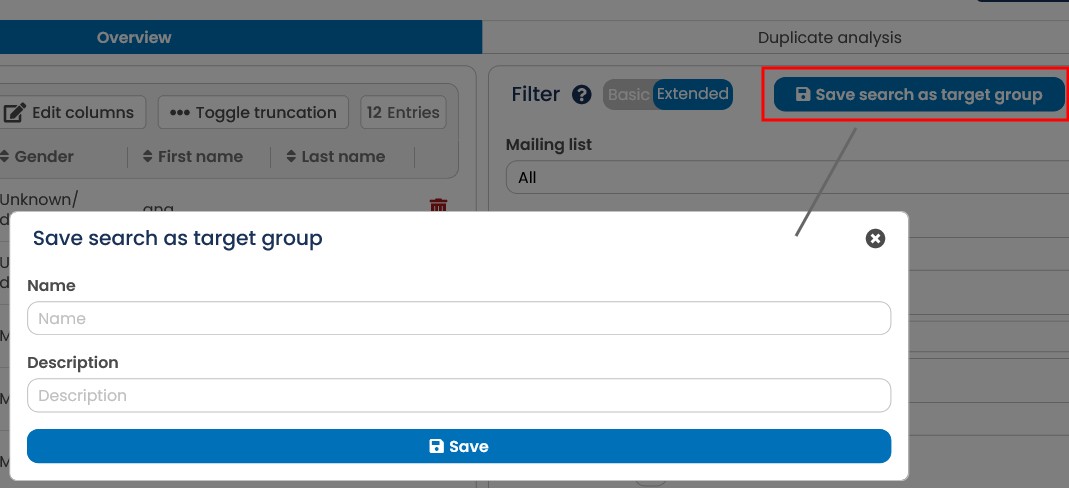
Fig. 6.17: In the Extended filter area, you can save a search rule as a new target group.
7.3.2.5 IS and NULL or NOT NULL
There are two special comparison values for the operator IS: NULL and NOT NULL. To use this operator correctly, you must understand the following logic: The two comparison values NULL and NOT NULL have nothing to do with the number 0, but generally refer to the field contents. The database makes a difference between an empty profile field and a profile field containing any value. The comparison value NULL returns all empty profile fields. Similarly, NOT NULL finds the fields that are not empty.
Depending on which database is included behind your \<productname>, it may also be possible to distinguish between unused fields and an empty character string (symbolic ""). This distinction mainly concerns MariaDB and MySQL. In other words, the LASTNAME IS NULL rule, for example, filters out only those recipients who do not have their last name in your system. LASTNAME = "", on the other hand, captures the recipients where the last name once existed, but was then deleted or replaced by an empty string.
7.3.3 Duplicate analysis
Duplicate analysis is a function that allows you to identify duplicate records in your client. The email-based analysis is available by default for all. Duplicate determination via other profile fields is also possible, but this is a premium right. Basically, you should always avoid duplicates in your distribution list, as this can lead to the same recipient receiving your mailings more than once in addition it bears the risk of data inconsistencies.
To perform this analysis, first click on the Recipients menu item. Initially, you will be presented with a list of your recipients. At the top right, next to the Simple Search and Advanced Search tabs, you will find the Duplicate Analysis. By clicking on the tab, you will be shown an overview of all duplicates based on the e-mail address. Above the table you can see how many duplicate entries are contained in your client. You can also run the duplicate analysis when creating a new recipient.
By default, the table contains the following columns:
-
customer_ID: The customer number automatically assigned by the E-Marketing Manager is a unique distinguishing feature, as it cannot be overwritten and is assigned only once.
-
Email: By default, the list is sorted alphabetically by email, so all identical entries appear directly below each other.
-
Timestamp: This date tells you when the respective record in the E-Marketing Manager was last updated.
-
Salutation, First name, Last name: With these three columns you can already see in the overview whether a data record possibly contains higher quality or more complete information about the recipient.
-
Trash symbol: At the end of the line you will find a delete function for the respective data record. However, it is advisable to decide which data record to keep only after looking at the respective profile.
Use the Display drop-down menu to the right of Duplicate analysis to specify the displayed list length (20 / 50 / 100) per page. The Fields drop-down menu allows you to display additional profile fields in the table.
In the selection field Field for duplicate analysis you can also select any other profile field to be checked for duplicates. For example, you may want to check a customer number from your CRM system for duplicate values. The case sensitive slider ensures that case sensitivity is used.
Note: If there are no duplicates for the field you selected, the information "Congratulations you have no duplicates in your database. Keep it up!"
For detailed information on the respective data record, simply click on the line concerned. The corresponding recipient profile will open.
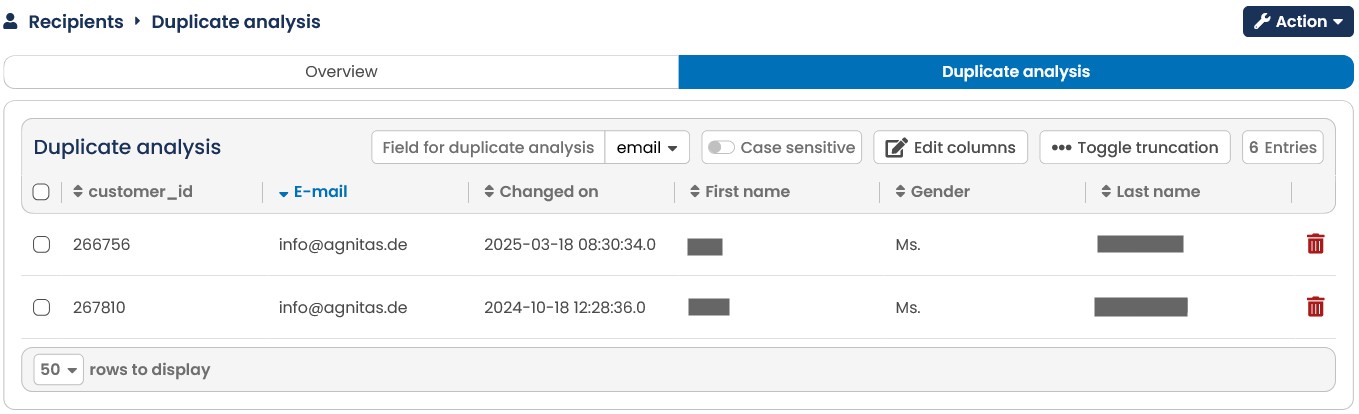
Fig. 6.18: The duplicate analysis shows all records that are contained more than once in the database.