3.2 User Self-Administration
In the lower left-edge of the window, underneath the navigation area, OpenEMM shows the name and the client information of the currently logged-in user. By clicking on this data, you call the User Self-Administration, in which you can make settings for your user account.
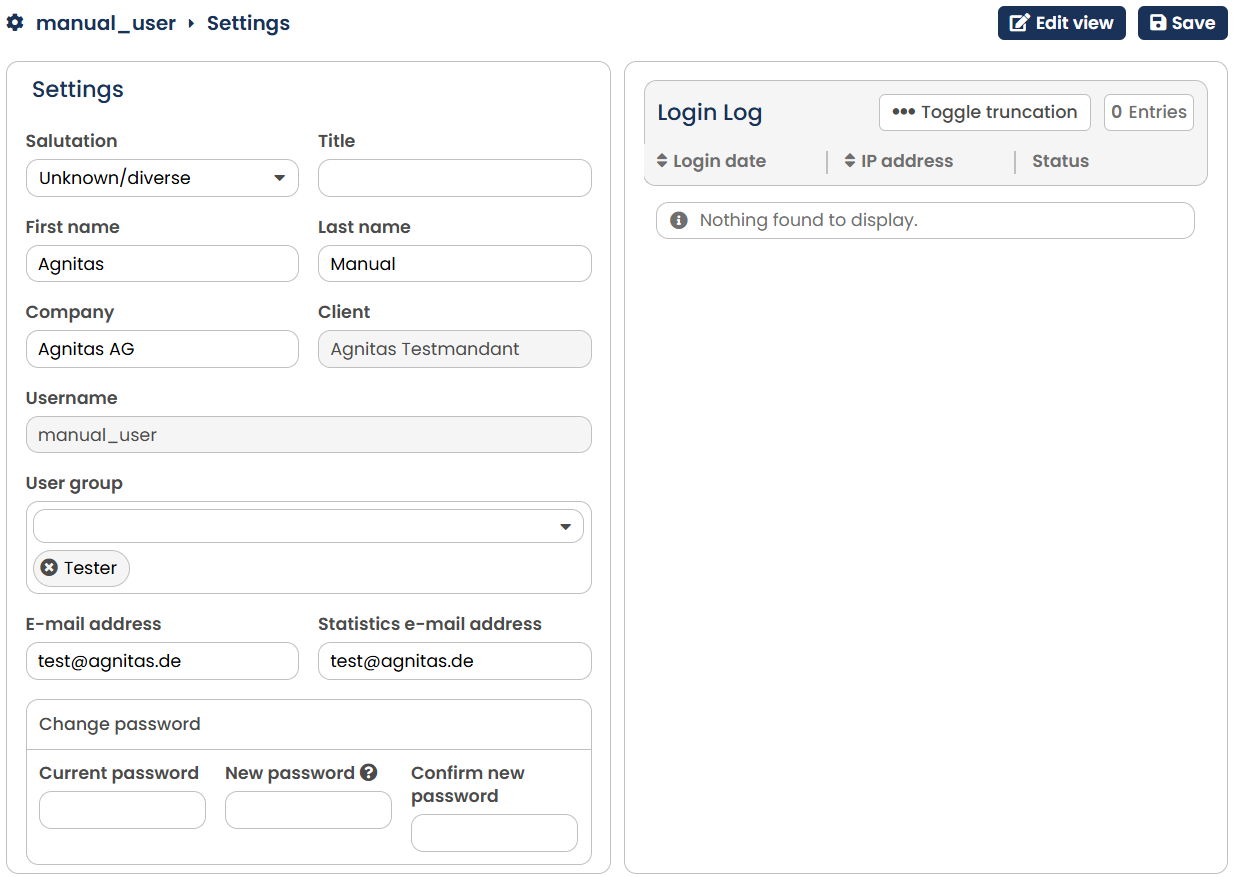 Fig. 2.10: You adjust your account settings in the User Self-Administration.
The two most important settings in the User self-administration are to be found right at the start: As well as your Name and your Company, you can also define your user Group. In this last setting, you can choose from the user groups that the administrator assigned to you. You can read more about user groups in the Defining own user groups chapter.
Furthermore, you can set your user name, email address and password in the user self-administration. If you want to change your password, you must first enter your currently valid password under Current password. Then, under New Password and Confirm new Password, enter a new password. When you do this, OpenEMM shows you, using a progress bar, how secure the password you have chosen is.
Please note: The Name, Company and E-mail address fields are mandatory.
Further settings in User Self-Administration include the Statistics e-mail address, the Language, the Layout, the Time zone as well as the Statistics Summary. Statistics Summary refers to the mailing statistics (individual). Clicking on the Save button stores your settings.
Further down you will see a list with successful and unsuccessful login attempts for your user account. You can see at a glance whether an unauthorized person has deliberately attempted to access your account.