10.6 Recipient statistics
In the Recipients statistics area, you can find out all changes as well as the composition of your distributor. You can restrict the inquiries more precisely on the basis of previously defined Target groups or Mailing lists. The selection list Media type restricts recipients in the statistics after message delivery. As well as E-mail, the further media types Post and SMS can be selected.
On the right of Select Statistics, you may choose a time period for which E-Marketing
Manager should deliver the recipient statistics. In the standard setting, E-Marketing Manager uses a complete Month as the analysis period. You can change the month via the drop-down menus next to Select Statistics. Alternatively you can select a weekly output by choosing Week as the time frame or set an individual time period by calling the Period option.
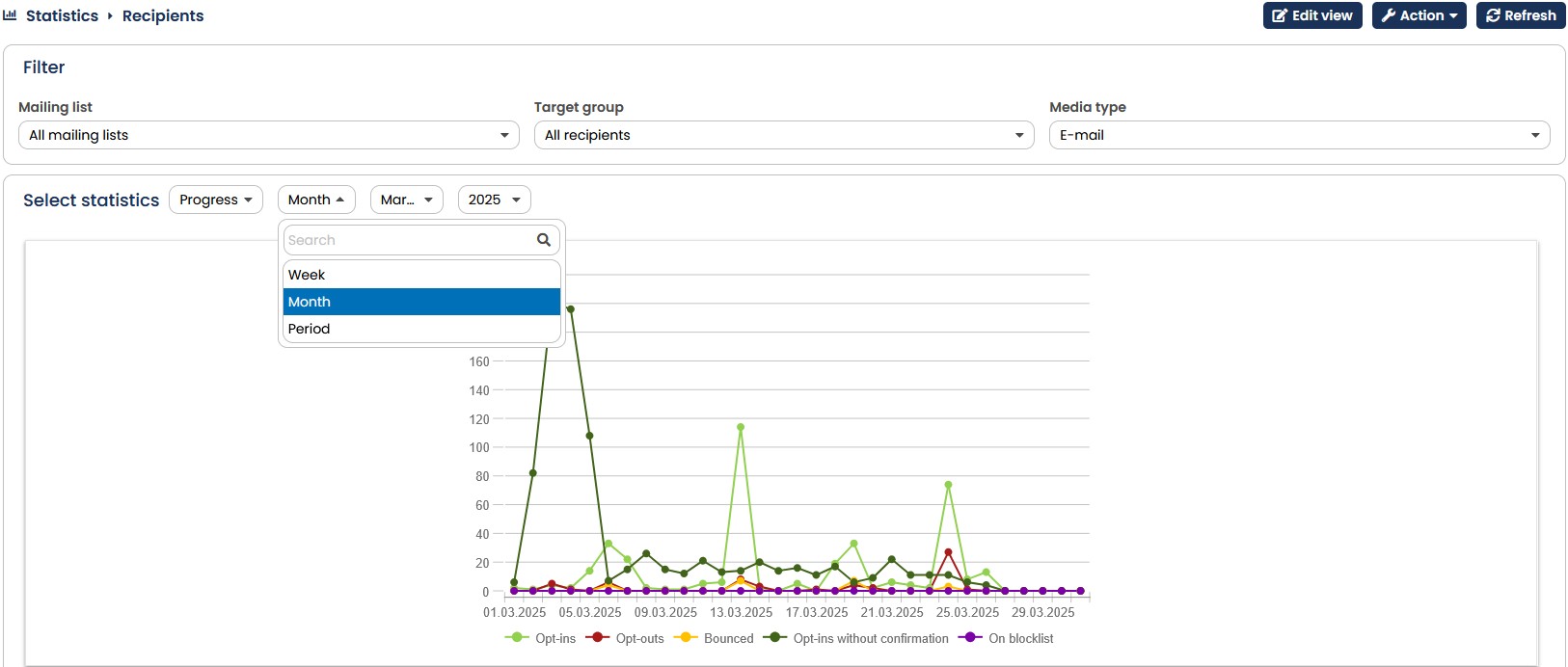
Fig. 9.21: Select for which recipient group and for which period you would like to see statistical
For your statistics, you can choose between the options Progress, Status, Mail format, Status info, Double Opt-in, Opt-outs Detail and Opt-ins Detail, for each of which you receive an exact graphical analysis.
In the Progress statistics, E-Marketing Manager shows you the course of the registrations, registrations without confirmation and bounces as well as the Blocklist entrys for the selected period (max. 180 days).
| Column header | Meaning |
|---|---|
| Opt-Ins | Total number of all opt-ins in the statistics period. |
| Opt-Outs | Total number of all opt-outs in the statistics period. |
| Bounces | Total number of all undeliverable mails, for example through invalid addresses, etc. |
| Opt-Ins without confirmation | Total number of all registrations without confirmation in the statistics period. |
| On Blocklist | Total number of all new blocklist entries in the statistics period. |
Once you choose Status, E-Marketing Manager displays a graphic overview of the status of the recipient and at the same time organizes this according to the following categories:
| Status | Meaning |
|---|---|
| active | The current total number of all active recipients. |
| bounced | Number of recipients with status Bounced. |
| no mailing list assigned | Total number of recipients not contained in a mailing list. |
| opt-in without confirmation | Recipient has not yet clicked on the link for the check e-mail (Double-Opt-In). |
| opt-out | Recipients who unsubscribed themselves or were unsubscribed. |
| On Blocklist | Recipients that are Blocklisted. |
The section Mail Format gives you the distribution of the subscribers according to the format of the mailing that these recipients receive. The total number of subscribers for Text, HTML and Offline-HTML e-mails is displayed here.
Please note: This section is only available for the e-mail media type. It is missing for the other four media types, namely fax, print, MMS and SMS.
Note: The statistic only includes recipients of mailing lists to which you are assigned.
You can also select the Status info statistic via the dropdown. If you open this statistic, two tables are displayed. The one on the left shows you the regular Status info (remarks) with the corresponding Value. This value indicates the number of the respective statuses. On the right-hand side, you will find your individually stored status info with the corresponding values.
With the double opt-in statistics (part of the Analytics Package) you get an overview of how many recipients have confirmed their double opt-in in the selected period for the mailing list selected above. You will also see if the recipient had confirmed the double optin but has unsubscribed in the meantime. On top of that the statistics show for which percentage the double opt-in is still pending and which percentage did not confirm the double opt-in within 30 days and was therefore deleted.
The Opt-outs - Detail statistic gives you details on how recipients unsubscribed from your newsletter. The complementary Opt-ins - Detail statistic shows you how recipients subscribed to your newsletter.