7.6 Blocklist - Do not mail
It may happen that a recipient contacts you who would not only like to be deleted from the list, but even threatens legal action if he continues to receive mailings from you.
In such cases the Blocklist is a safe means of completely excluding individual subscribers from further mailings and protecting you from any trouble. E-mail addresses that have been entered in the Blocklist are automatically excluded from future mailings of your newsletters, even if unknown third parties should register these subscribers again.
-
In order to place an address on this list, click on the Recipients tab. The Blocklist is in the Blocklist submenu. Enter the relevant e-mail-address in the entry field E-Mail and click on the Add button.
-
Clicking on Add enters this address in the Blocklist. The system now adds to the existing Blocklist addresses under the input field. The date when the recipient was added to the Blocklist is shown next to each entry in the Blocklist.
-
In the recipient's profile you will now see the status Blocklisted. See chapter Show recipient profile.
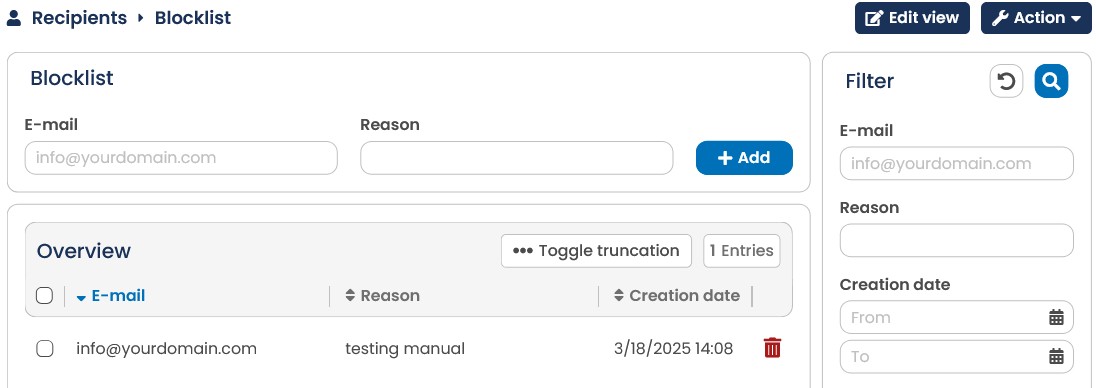
Fig. 6.24: Addresses on the blocklist receive no newsletters even when they are on the relevant mailing list.
You have various options for entering e-mail addresses for the Blocklist. The placeholder % stands for any number of characters.
There are different possibilities to enter new addresses to the Blocklist:
-
pure e-mail address: e.g. somebody@agnitas.de, only this address is entered.
-
placeholder for name: %@agnitas.de, all addresses with @agnitas.de are entered
-
placeholder for domain: somebody@%, all addresses with somebody@ are Blocklisted ,
e.g. somebody@yahoo.com.
-
extended placeholder: %example@agnitas.de, everything connected with example@agnitas.de is Blocklisted (e.g. michael.example@agnitas.de).
-
further extended placeholder: %example%@%, every address containing example, no matter in which domain, is Blocklisted (e.g. m.example@agnitas.de, michael.example@yahoo.com, this_example_too@banned.net).
In addition, in the course of importing recipients, it is now possible to import recipients directly into the Blocklist if many Blocklist entries have to be made. To do so, choose the Blocklist import mode when importing recipients.
Note: Through the use of wildcards, there is the possibility that whole domains are excluded.
If you have marked an address in the Blocklist wrongly or incorrectly, you can remove the entry by clicking the symbol Delete behind the address.
As the list gets bigger, it may become confusing. This is why you have the possibility of searching the Blocklist for specific recipients (johndoe@t-online.de) or recipient groups (@t-online.de). Enter the desired search term in the filter and click on Apply filter.
In addition to this, you can export the Blocklist as a CSV file. To do so, click on Action and select Download Blocklist.
Please note: If you want to place a larger number of email addresses simultaneously on the Blocklist, you can use the E-Marketing Manager import function to do so. Proceed as described in the chapter on Import function for recipient data and in the settings on the import profile in the Mode menu, add the value Add recipients to Blocklist. The import function supports all of the placeholders named above.
Please also note: If you put a specific email address on the Blocklist, it will be blocked for any future sending. This also applies to mailing lists on which the recipient is not yet registered at that time.
If you want to edit the recipients on the Blocklist again, click on the corresponding line. An input window will then open where you can edit the reason.
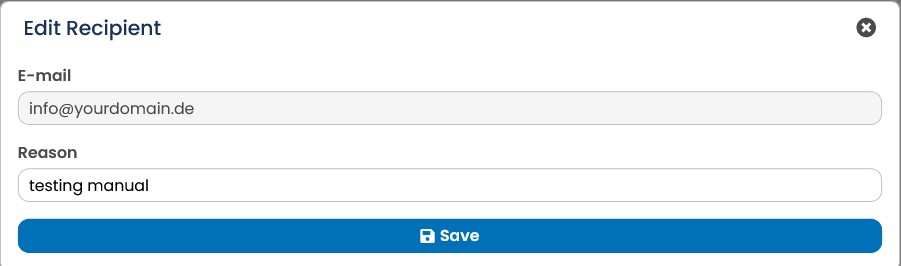
Fig. 6.25: Editing a blocklisted user