3.1 Starting the OpenEMM
The OpenEMM is a web-based service. All actions can be performed via your browser directly on the Internet. The advantage is obvious: it is possible to start or manage the newsletter service at any time from any desktop anywhere in the world, provided an Internet connection is available.
AGNITAS uses the HTTPS protocol for this. The HTTPS protocol, a secure version of HTTP, permits encrypted data transmission between browser and server over the Web. The HTTPS protocol uses the Secure Socket Layer (SSL) standard developed by Netscape (Secure Socket Layer) for secure transmission.
Carry out the following steps to start the OpenEMM:
-
In the browser, enter the URL where you installed OpenEMM, e.g. https://yourcompany.openemm.com. This calls the homepage of the OpenEMM system.You have defined the URL to call the OpenEMM system during the installation, please read the installation instructions for further details.
-
Enter the access data in the User name and Password input fields.For the first login please use admin as user name and openemm as password. For security reasons, please do not forget to change your password as soon as possible (administration -> user).
-
Finally, click on the Login button.
To ensure the security of your data, you should regularly change your login password (see chapter Creating and managing user, changing password). After 90 days without change you will receive a reminder to do so after logging in. For optimal security, a password always contains a combination of letters, numbers and special characters.
If you aren’t sure whether you have typed in the correct password, you can simply check it by clicking on Show. Clicking on Hide will encode your password again. Below the Login button you will find the Reset Password link, which allows you to set a new password, Legal notice related to the usage and the Show system status link, which allows you to check the availability of individual system components. If you click on the latter, the current version of OpenEMM is also displayed.
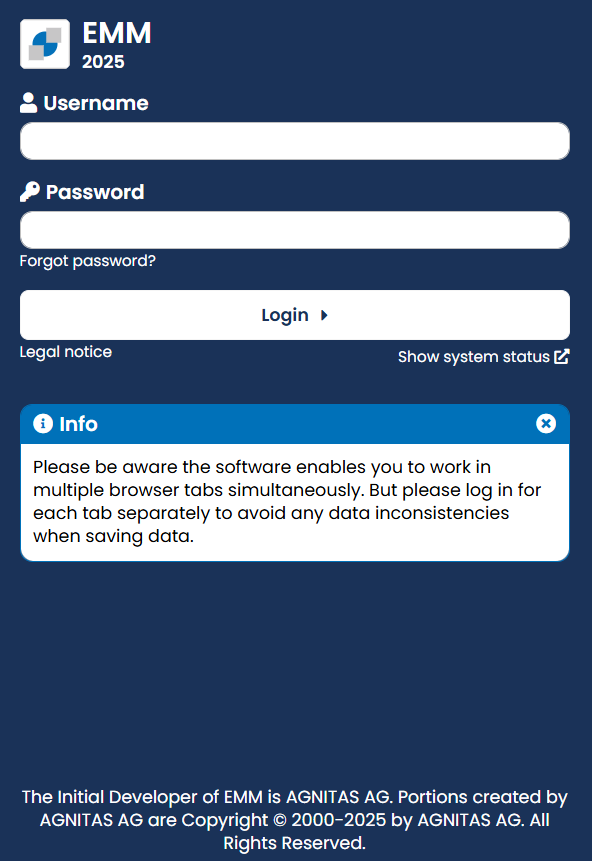 Fig. 2.1: The login screen for the OpenEMM
Integrated Security Mechanisms
To make access to OpenEMM even more secure, the program now contains several security mechanisms. In addition to a login block, OpenEMM also offers protection against Cross-Site-Scripting (XSS) and Code-Injection by means of SQL-commands.
Login Block
After ten failed login attempts, access to OpenEMM is blocked for one minute per default. Here, the following applies:
-
For each attempted and failed login during the one minute blocking period, the blocking time again increases to a full minute for security reasons.
-
If you successfully login to OpenEMM during the blocking time, access still remains temporarily blocked. In contrast to logging in with an incorrect username or password, the blocking time is not again set to one full minute.
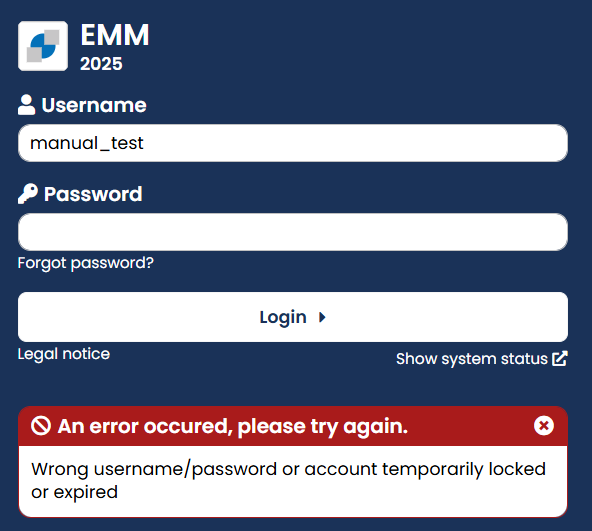 Fig. 2.2: The standard settings block the Login to the OpenEMM after ten failed logins for one minute.
2-way authentication is an especially secure way of registering. It prevents others, who have obtained your access data in an unauthorized manner, from registering with OpenEMM.
2-way authentication works like this:
Option 1:
In principle, a user must confirm that logging on to the system from a specific computer or terminal is legitimate. To do this, the user receives a security code to a stored e-mail address. Alternatively, the security code can also be obtained via an Authenticator app, e.g. Google Authenticator, Microsoft Authenticator or Sophos Authenticator (premium feature, please contact your account manager if you are interested). In this case, the user must authenticate once using a QR code and then receives the 6-digit code via app. The user must enter the security code to log in the device for the first time.
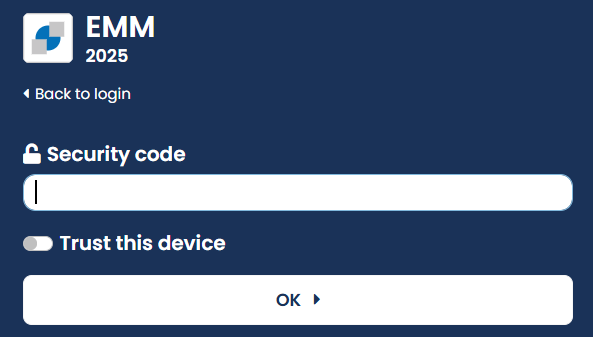 Fig. 2.3: 2-way authentication makes registration even more secure. In this procedure, every computer from which registration utilizing a valid security code has been carried out is registered.
To keep the effort required by the user low, every computer from which registration utilizing a valid security code has been carried out is registered. For these computers the user requires no further security codes. The registration of this computer only applies for this single user. If another user logs in on the same computer, then he must also enter his own security code.
In addition, you have the option to choose trust this device. This sets a cookie when you confirm the question, which remains in place for 180 days and is renewed after each successful login.
Option 2 (Premium):
Option 2 involves two-factor authentication via an Authenticator app on your cell phone. First go to the Administration menu and then to Clients. Activate the 2 factor authentication slider. Once you have activated & saved the setting, a new window will open the next time you log in, providing a QR code to scan.
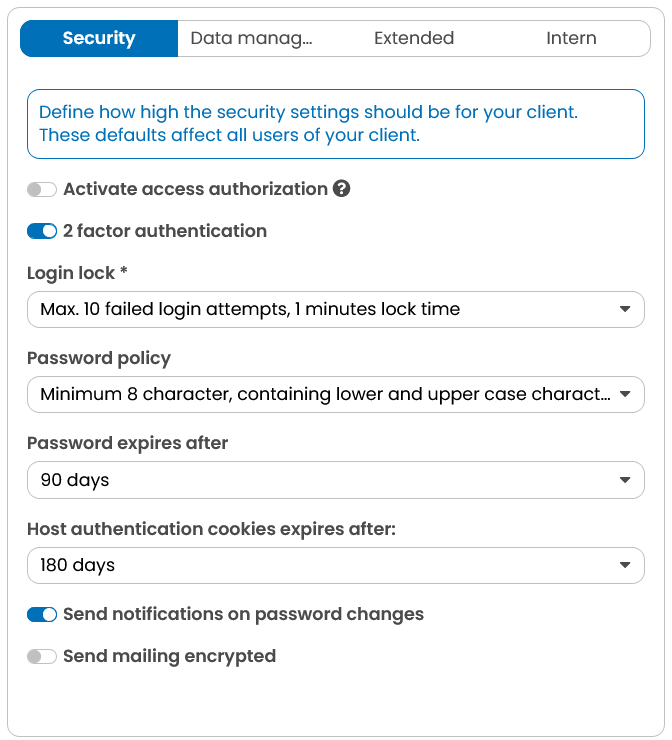 Fig. 2.4: Activate the 2 factor authentication
After you have successfully activated the QR code, you will be asked to enter the code generated on your smartphone when you log in. If you activate trust this device, you will not need to enter the code the next time you log in. Otherwise, you will need both your password and the code for every log-in from now on.
Tip: The approved Authenticator apps are: Google Authenticator, Microsoft Authenticator, Sophos Authenticator.#
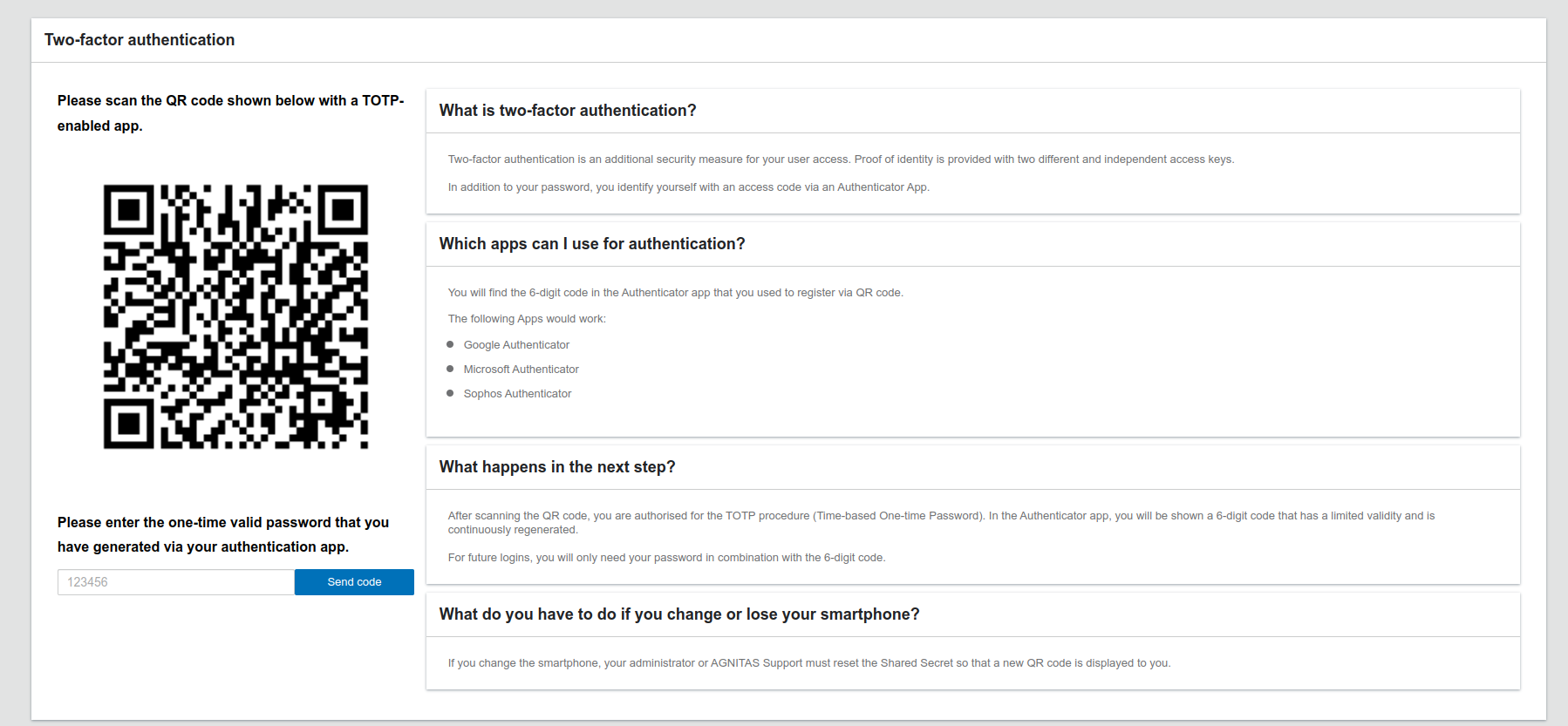 Fig. 2.5: The qr code
Please note: 2-factor authentication is a premium feature. If you are interested in it, please contact your account managers.
Protection against Cross-Site-Scripting and Code-Injection
Protection against cross-site scripting and SQL injection makes OpenEMM even safer. This principally prevents unauthorized persons obtaining information from the OpenEMM database. The protection against Code Injection is permanently active but has no effect on your work. The security check for Cross-Site-Scripting can, in contrast, trigger an alarm.
To exclude unauthorized access to the database, OpenEMM checks, for example, each text field and each entry field for potentially dangerous HTML codes. This concerns the commands Applet, Embed, Form, Object and Script. If OpenEMM detects such a command, an error message appears when sending the input field or when saving the text field.
Please note: The security check for Cross-Site-Scripting generally only applies to HTML contents, i.e. commands between the “<” and “>” delimiter symbols.
After logging in, you can access the OpenEMM system provided. You can conveniently select the individual options via buttons in the navigation area on the left-hand side of the screen. Depending on the access rights assigned, you may not see all of the functions of the system (see chapter Teamwork: Client and User)
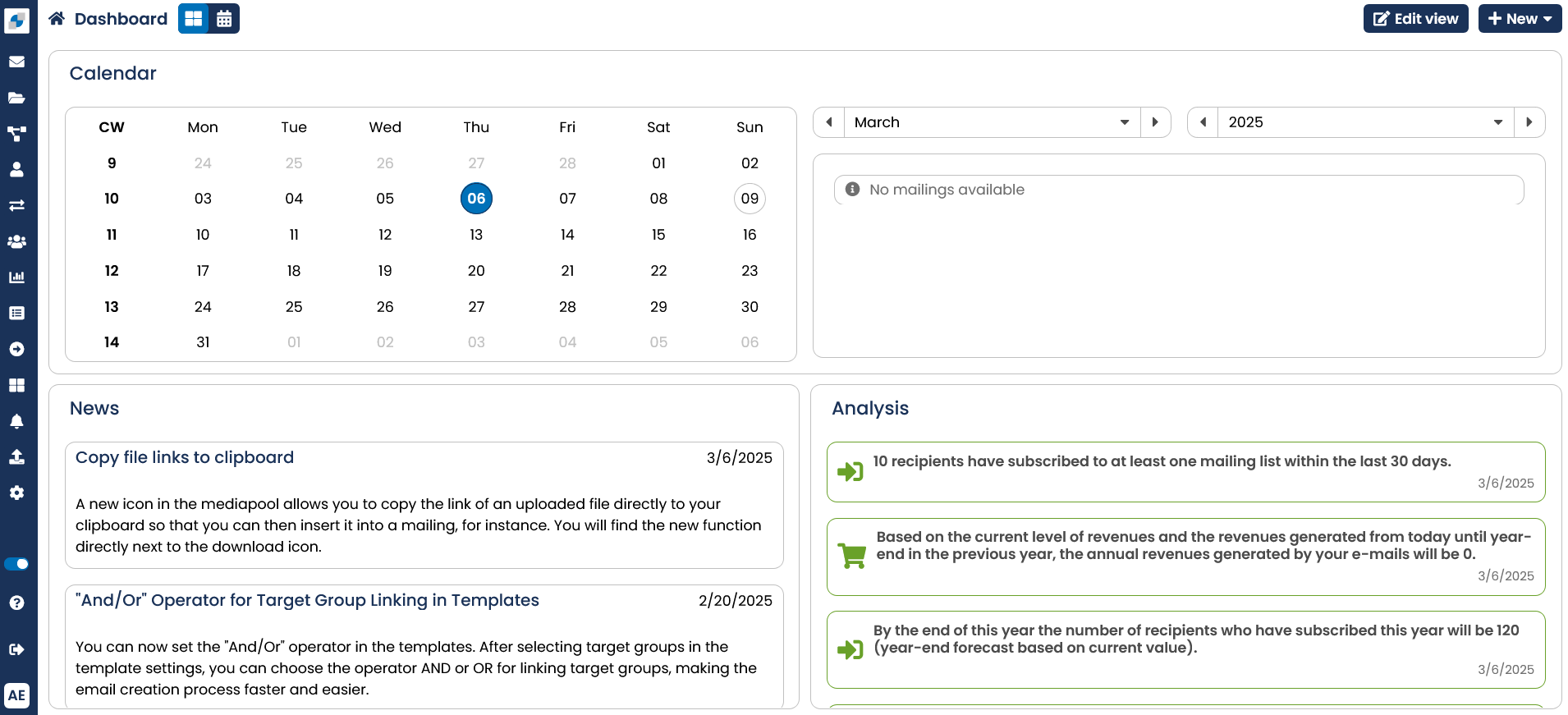 Fig. 2.6: The input screen of the OpenEMM shows the navigation and the dashboard.
Important: To close the session in the OpenEMM, click on the Logout button in the navigation area.
Please note: For security reasons, the system will perform an automatic logout after 30 minutes if you didn’t make entries or change data during this time.
If anyone tries to log into the user account and enters a false password when doing so, on the next successful login OpenEMM shows in the upper right edge of the window how many failed logins there were.
 Fig. 2.7: OpenEMM shows the number of unsuccessful login attempts for the user account.
A click on the note marked in red takes you directly to the User Self-Administration. There you can see, on the right-hand side listed in tabular form, at what time the login attempts were made and in each case from which IP address. You can also make important account settings in User Self-Administration. Read more about this in chapter User Self-Administration.
Note: It can be derived from the EU-GDPR that usage data must generally be exportable. Since this also applies to the User Activity Log, in which your work steps are logged in the EMM, you can now also export this data.
In case you have forgotten the password for your account, the OpenEMM is able to reset it automatically. At the same time you have the possibility to create a new password. In order to reset your password, go to the Login area and click the link Password forgotten? In the following dialog field you may now enter your Username as well as the e-mail address that is stored at the OpenEMM. If the entered data is valid, OpenEMM will send a message to the assigned e-mail address. Following the web link in this e-mail you can now set a new password for your account.
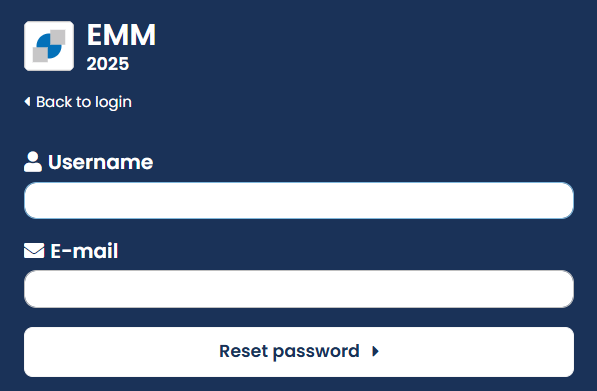 Fig. 2.8: In case you have forgotten your password, you can reset it after clicking on Rest password
Using OpenEMM in several browser windows simultaneously
You can use OpenEMM without problems in several browser windows at the same time, for example in multiple tabs in Microsoft Internet Explorer or Mozilla Firefox. This is helpful when, for example, you are editing in a window in a text building block of a mailing and want to see a preview of this in another window. To do so, you simply have to click on the desired function/site with your mousewheel.
Please note: To be able to work simultaneously in multiple windows with OpenEMM, you must first log in separately in each window to allow OpenEMM to allocate a so-called “session” to each window.
Session time out in the OpenEMM
After being inactive for more than 30 minutes you will be automatically logged out of the OpenEMM. By simply clicking or a hitting a key, the 30 minutes become reset.If the remaining time is lower than 10 minutes, a countdown in the upper left will show up.
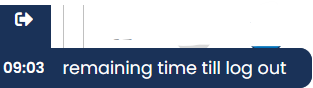 Fig. 2.9: The timer in the upper left corner, tells you how much time you have left before the session's expiration.