3.5 Navigation bar and mailing elements
You can access the individual functions of OpenEMM via the navigation bar on the left-hand side. Click on the relevant button to open the corresponding menu item. If you hover your mouse over a button, OpenEMM will display the name of the menu item and a list of the submenu items. At the bottom left, you can also expand the bar via Expand navigation bar to see the names of the menu items directly. The corresponding button is marked in red in the screenshot below.
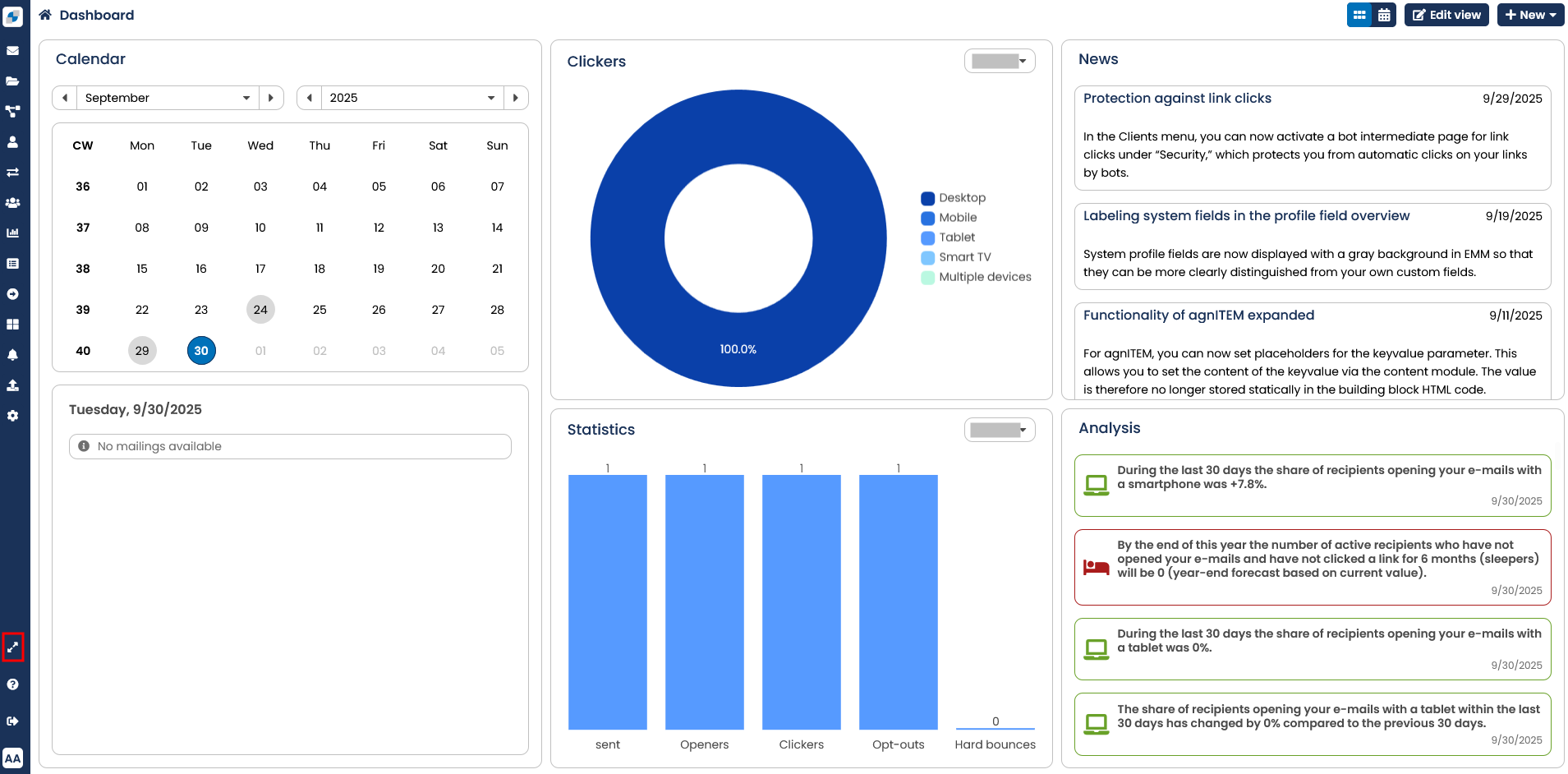 Fig. 2.18: The dashboard
On the right-hand side you will find the contents area. This is where the OpenEMM displays details of the submenu activated – for instance a table with all available mailing lists or all data of an individual recipient. The screenshot shows the dashboard.
In addition, the contents area also shows all major mailing elements available in the OpenEMM:
-
Register: Above the contents area, various tabs appear as for instance in Recipient, New recipient etc. These register tabs are used to call up different areas simply by clicking on them.
-
Entry fields: An entry field is used to enter text – characters, numbers, special characters or wildcards (e.g. *, ?, etc.), according to context. If you make an invalid entry, the system will show an error message after the data have been transmitted.
-
Drop-down lists: A drop-down list shows which selections the system allows you to make. Clicking on the arrow symbol to the right of a drop-down list will display the options available. The OpenEMM will adapt the contents of most drop-down lists to current settings. By using the search function with longer drop-down lists, it is easier to find the desired entry fast.
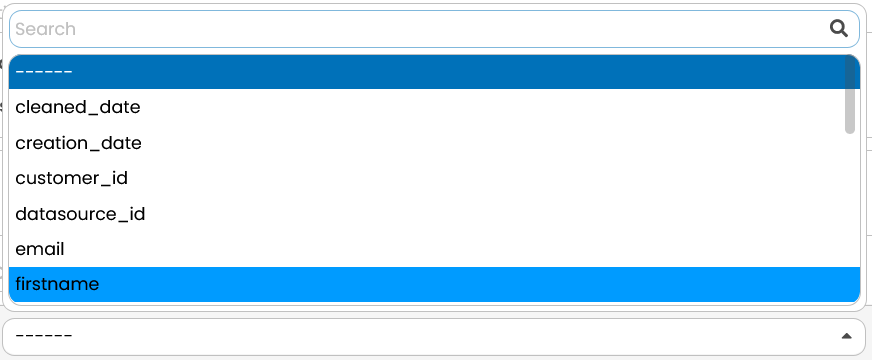 Fig. 2.19: An example of the search function of a drop-down list.
-
Symbols: Graphic symbols will call up frequently-used functions like deleting (
 ). Moving the cursor over the symbol and hovering for a few seconds will open a yellow tool-tip bubble giving a short explanation.
 -
Often times the OpenEMM will display tabs in order to navigate. These appear for example when a saved mailing is called. They are used to open various areas. To do so simply click on the respective tab.
The following table lists the graphic symbols which you will find at various points in the input dialogs of the OpenEMM.
| Symbol | Description |
|---|---|
|
The Delete symbol deletes the highlighted element from the OpenEMM database. Before deleting, you are required to answer a confirmation query in order to prevent inadvertent deleting. |
 |
In the Mailing overview, use this symbol to call the actions linked to the marked mailing. |
 |
The Help symbol allows you to access the OpenEMM’s online help feature (see chapter Online Help). |
 |
If a mailing or template is associated with more than one media type, this arrow symbol allows you to increase the sending priority by one. |
 |
If a mailing or template is associated with more than one media type, this arrow symbol allows you to increase the sending priority to the top priority. |
 |
If a mailing or template is associated with more than one media type, this arrow symbol allows you to decrease the sending priority by one. |
 |
If a mailing or template is associated with more than one media type, this arrow symbol allows you to decrease the sending priority to the lowest priority. |
 |
This symbol starts transmission of data generated by OpenEMM, e.g. statistical-evaluation data, to your PC. |
 |
Individual elements (for example graphics components) can be downloaded. |
 |
With this Icon you can export data from the OpenEMM as a PDF file. |
 |
Mailings may contain links to external websites or web pages. Such links may appear in a summary of trackable links or within statistical evaluations. This symbol allows you to open the link as well as the preview in question in a new browser window in order to check its integrity. |
 |
At some points, OpenEMM offers you tooltips. If you click on the questionmark symbol, a small information box appears that offers direct help. To hide the box again, just click somewhere outside of the box. |
 |
With this icon you can increase the view of the WYSIWYG-editor to the whole desktop. |
The Help button also takes you to the Documents tab. Here you will find some important documents that are available for you to download.
You have the option of integrating the News tile into your dashboard. You will find regular messages and news in this tile. Messages inform you about important changes in OpenEMM. Under News you will find the latest patch notes. If you have not integrated the tile into your dashboard, OpenEMM will display a megaphone at the bottom left of the navigation bar when new notifications are available. If you open the menu, you can view the messages.
In the logout button area see how high the transfer speed of your internet connection is. If the transfer rate is less than 750 Kbit/s, this can have a negative impact on loading times in some areas, the icon will then be displayed in yellow.