11.11 Example form: Fullview
If you would like to offer a link to the browser version of your mailing in your newsletter, you will also need a form. This is very easy to implement - that's why we do it without subchapters here.
First, you need a trigger that generates the mailing for the respective recipient in the form.
-
To do this, call up the item Trigger management and click on New.
-
For example, you can enter fullview as the Name. In the Usage field, select Only for forms, since the mailing can only be displayed in the browser. The Description helps others to understand how the trigger is used.
-
In the Type drop-down menu, select Show archived mailing and confirm with Add.
-
Now store the finished trigger with Save and set the status to active.
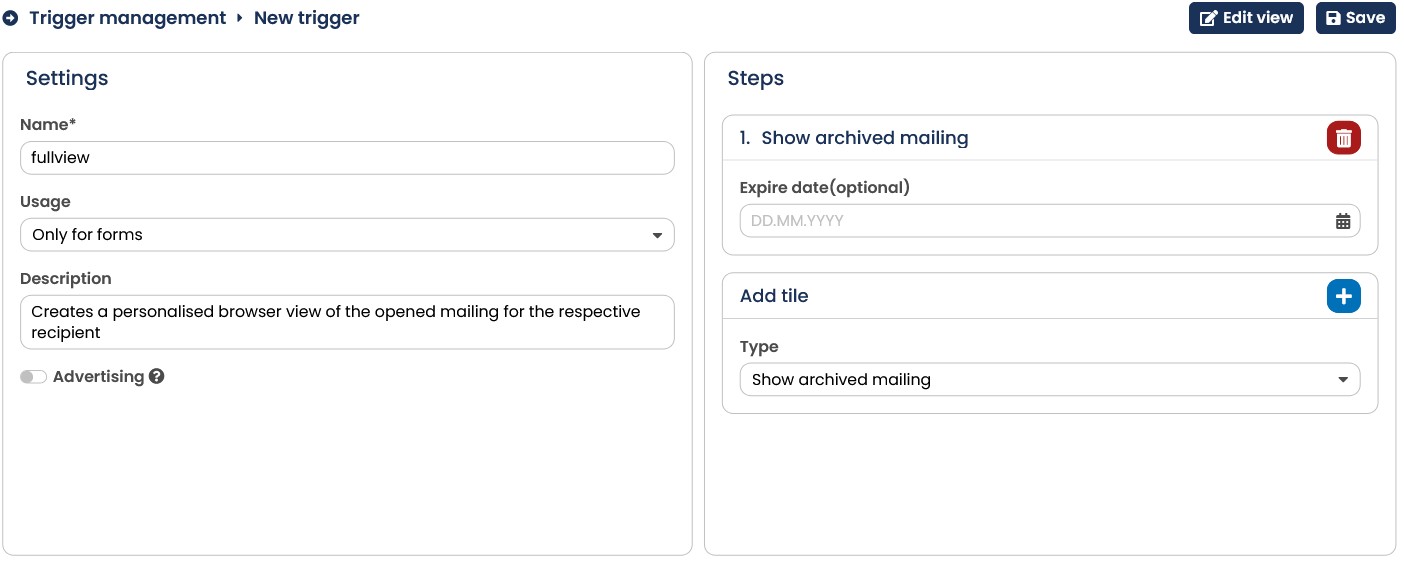
Fig. 10.27: The Fullview trigger generates a personalized browser view of the opened mailing for the recipient.
All you need now is a form, which you can then store in the newsletter under the link Show browser version.
-
Click on New in the Pages & Forms menu.
-
Under Name you also enter fullview. Since this name will later become part of the link to call up the form, you must avoid spaces, umlauts and other special characters.
However, you can use the Description to find out how and where this form is used.
-
In the selection menu Introductory trigger, select the trigger fullview that you have just created.
-
In the Success form you must enter exactly one line: \$archiveHtml. This ensures that the mailing from which the call came is displayed with the recipient data.
-
A Final trigger is not needed.
-
With the Error form you can briefly indicate that an error has occurred. This will only be displayed if the respective recipient has unsubscribed from the newsletter before opening the browser view or if the agnUID was not transmitted in the link.
-
Now Save your form and set the status to active.
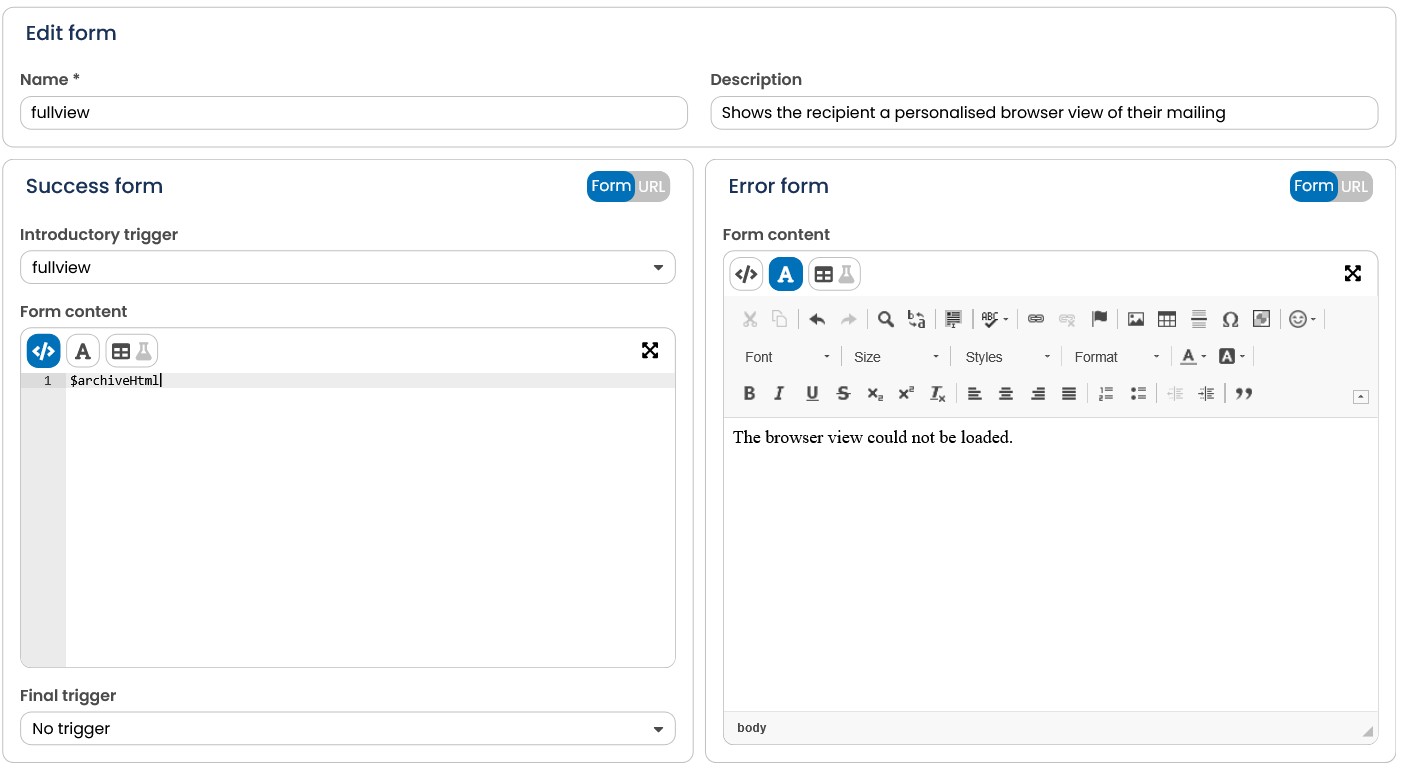
Fig. 10.28: The form for displaying the browser view contains only a single line.
To enable the system to establish a connection to the receiver when the browser view is called up, the AGNITAS user ID (agnUID) must also be transmitted when the browser view is called up. Therefore, the form fullview can only be accessed from a newsletter, otherwise the error form is always displayed. Copy the URL that is displayed below the form name. In addition to the CTOKEN and the form name, the link already contains a parameter for the agnUID. You can include this link directly in the mailing just like any other link.
In this example, the form call could look like this:
agnCTOKEN=xxxxxx&agnFN=fullview&agnUID=##AGNUID##
The placeholder for the agnUID is only matched and replaced with a real recipient profile in the mailing. The agnUID is generated encrypted from the recipient data and can be explicitly assigned to a data record.
So to test the fullview form, you must embed the link in any mailing. Then click on this link in the preview for a test recipient. The browser view for the test recipient you selected should now load in the browser. If your test was successful, you can simply leave the link in the mailing.
Instead of a long URL, you can also use the agnTag for forms. This would look like this in this example:
\<a href=“[agnFORM name="fullview"/]”>Show browser version\</a>
Tip: You can record form calls in the mailing as administrative clicks, then you can see at a glance in the statistics how many clicks have been made on your actual content. You can find out more in chapter Editing links.