16.8 Behavior Tracking with tracking points
Measuring success in e-mail marketing is not only about knowing how many openings or clicks a mailing has generated, but also about key figures such as sales, CPO, contribution margin or return on investment. It's even more exciting when you can follow up with recipients who have abandoned the purchase process or make recommendations to your recipients based on their surfing behavior. For this purpose, the E-Marketing Manager offers the possibility to integrate various numeric, alphanumeric and simple tracking pixels into your website via Behavior Tracking (part of the Retargeting Package).
The key figures, which were determined using individual tracking pixels, can be found on the one hand in the Administration section under Manage tables (table names retargeting_...) and on the other hand in Customer Insights (under Statistics and in the Recipient Profile).
Special feature: The measuring pixel Revenue is also available without Behavior Tracking. With it you can record the revenue generated from your mailings. You can find the sales figures under mailing in the tab Statistics under Revenue. However, the measuring pixel Revenue does not record any further behavioral data. If you are interested in using additional tracking pixels, please contact your account manager, who will be happy to provide you with a non-binding offer for their use.
Note: Behavior tracking also works if a recipient has objected to the tracking. In this case the data will be collected anonymously. This means that if the recipient buys something in the online store after clicking on a link in the mailing, for example, the value and possibly also the product is transferred and tracked as usual, but the recipient is anonymous (customerID 0) and cannot be tracked.
Please note: For Behavior Tracking, current jurisdiction must be taken into account and the consent of recipients or website visitors must be obtained.
16.8.1 What does Behavior Tracking mean?
The Behavior Tracking premium feature offers a way of evaluating certain behavioral patterns (e.g. how long the customer stayed on the web page, which downloads he or she chose or what turnover was generated etc.) seen as a reaction to a mailing campaign. This is the statistical basis for calculating indicators like cost per order, marginal return or return on investment in relation to a specific mailing as well as the detailed evaluation of viewed articles and broken shopping baskets..
This feature is also very useful even if you do not have an online shop but just want to be able to evaluate statistical data like the number of visits on individual web pages, or how much interest was generated in a particular download by a specific mailing.
Before Behavior Tracking is possible, the following preparations are required:
-
E-Marketing Manager must create and install tracking points in the web shop.
-
Tracking codes must be integrated into web pages to be tracked.
-
Trackable links must be configured so that they can send the required parameters for behavior tracking.
So-called cookies are used for behavior tracking. These expire by default when the browser is closed. If you want to track the activities of your recipients over a longer period, please contact AGNITAS Support. They can extend the period for which the cookie is valid.
Note: In both cases the current jurisdiction must be taken into account and the consent of recipients or website visitors must be obtained.
If a newsletter recipient comes to your website with the appropriate cookie, the tracking pixel or measuring point is addressed and it transfers the behavioral data to the EMarketing Manager. For website visitors without a cookie/parameter, no data transmission takes place.
16.8.2 The tracking point Revenue
The measuring point Revenue is a numerical measuring point available as standard. The measuring point allows the formation of key figures such as CPO, contribution margin or return on investment in connection with the respective mailing campaign. It determines which revenue a mailing has generated. In the mailing statistics, for example, you will find the total sales in the statistics summary. Detailed information such as sales over time, conversion rates, number of orders, average values, etc. can be found in the Revenue statistics. In order to use the revenue measurement, you have to add the measuring point Revenue on your order confirmation page in the webshop.
The measuring point Revenue is structured as follows: https://rdir.de/g.action?action=2&ci=xxx&pagetag=revenue&numval= [value]
The individual components briefly explained:
-
https://rdir.de/: The domain varies depending on the system and configuration. Use the domain that is displayed at your links or other measurement points.
-
g.action?action=2: Fixed component that always remains the same. The action ensures that the data is transferred to the E-Marketing Manager when a recipient with an appropriate cookie or URL parameter reaches the order confirmation page.
-
&ci=xxx: This parameter transfers the CompanyID to the system so that the data can be assigned to the correct client. Here, the CompanyID of your client must be used instead of xxx. This can be found, for example, under your user name in the left navigation or in the overview of the Pages & Forms.
-
&pagetag=revenue: This parameter stands for the predefined Page Tag (measuring pixel) Revenue and applies the corresponding settings (No Action, Numerical Measuring Point, Currency €, Format with decimal places) for the transmission of the values.
-
&numval=[value]: With this parameter you transmit the order value to the system. The placeholder [value] must be replaced by a numeric value without currency specifications. By default, the turnover is given in Euro, but you must separate cent amounts with a dot. If you would like to use a different currency (dollar, British pound), please contact your account manager.
You must now insert this URL as an image tag in the header of the desired landing page or website-wide. Example:
\<img src="https://rdir.de/g.action? action=2&ci=123&pagetag=revenue&numval=[value]">
If you want to create additional measuring points, you need to activate Behavior Tracking (part of the Retargeting Package). Please contact your account manager for this.
Note: If you want to use the sales measurement, please contact the support. They will then carry out a functionality test for you.
Please note: For the revenue measurement, the current jurisdiction must be taken into account and the consent of recipients or website visitors must be obtained, as this is personalized tracking.
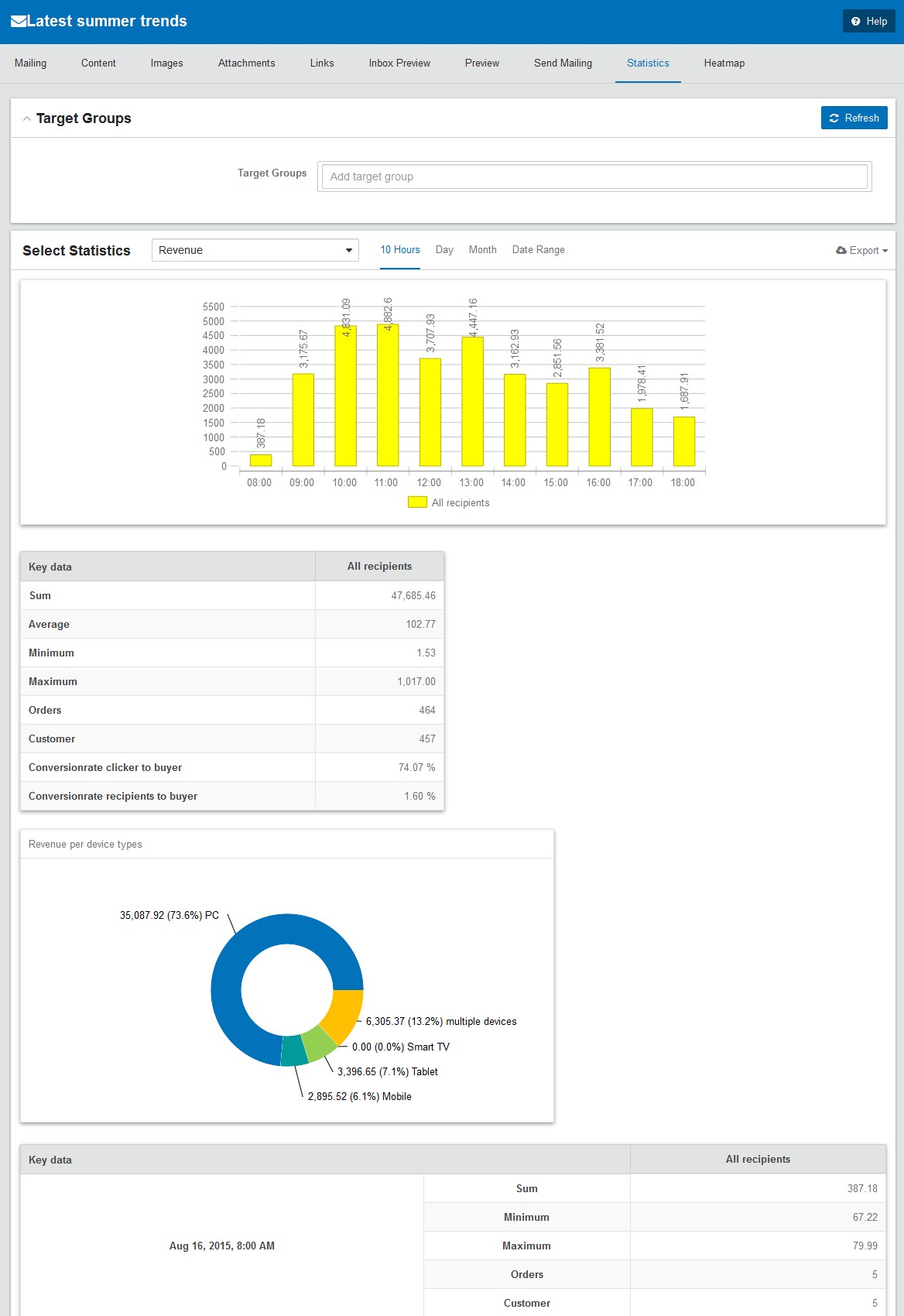
Fig. 15.18: You can find a detailed listing of the revenue tracking point's results in the Revenue statistics.
16.8.3 More types of tracking points (Premium)
In the area of Behavior Tracking there are basically three different types of measurement points:
-
Simple measuring point: This type can count its "own" click. This makes it suitable for counting visitors to a particular landing page or for checking whether a particular recipient has passed this point.
-
Numerical measuring point: This measuring point allows the transmission of numbers. These values can be transmitted as integers or with decimal places and can optionally be marked as currency (€, \$, £).
-
Alphanumeric measuring point: With this type, any content (string) can be transferred to the E-Marketing Manager. In this way, e.g. product names, categories, article numbers, download information etc. can be recorded. In this way, it is possible to determine how often certain products were called up and by which recipients a certain product was viewed.
In addition to the acquisition of measuring point-specific information, an action can also be triggered with each measuring point type. For example, the recipient profile can be changed by incrementing a certain field, or an action-controlled mailing can be sent to the recipient.
Please note: If you want to use the measuring points for retargeting campaigns, please inform the AGNITAS support. Appropriate tables will be created for you under Manage tables (retargeting_alphanumeric, retargeting_numeric, retargeting_simple), which you can use to access the relevant data for your mailings.
16.8.3.1 Manage tracking points
Via the menu item Administration and the submenu item Tracking Points you get a list of all existing tracking points. They are sorted chronologically according to the time of the first creation. The table shows the name and description in the column Tracking Points. You also have the option of deleting the tracking point with the trash can symbol. To call up the details of a tracking point, click on the corresponding entry.

Fig. 15.19: To call up a particular tracking point from the overview, click on its name or description.
Depending on the selected type, the detail view for a measuring point shows the input fields Name, Description, Page Tag, Action and Type as well as the fields Currency and Format, if the measuring point is a numerical measuring point. To change these values, enter the new data and confirm with the Save button. For more information on the individual fields, please refer to the chapter Creating tracking points .
Note: The collected information can also be found in the Retargeting History tab as well as in the Reference Tables tab. The collected data can also be used for target group filters. You can find out more about this in the Reference tables from tracking points chapter.
16.8.3.2 Create and integrate new tracking points
To create a new tracking point, you have to follow these steps:
-
Open the Administration section and click on the sub menu Tracking points.
-
In this entry dialog, click on New in the upper right corner.
-
The entry dialog calls up the Name field where you can enter a short description, e.g. Tracking point 1. The Description should consist of one or two sentences characterizing your new tracking point. This will make tracking management easier once you have many tracking points which are used by several staff members.
-
Now enter a tracking point tag in the Page Tag field. This Page Tag can be whatever you like, but since it needs to be inserted into the website’s URL, it should be as short as possible. It is only required for identifying the tracking point in question and is thus only of importance to the system. If the tracking point has a name, the Page Tag will not appear in the statistical evaluation report.
Please note: The Page Tag may not include neither special letters (e.g.: ä, ö, ü), spaces nor other special characters.
-
If you want a trigger to be linked to and to follow the tracking point – for instance sending out an action-based mailing or incrementing a counter as soon as a particular website or web page was clicked – you may do this in the Action drop-down list. Triggers are created and managed in the Trigger management section. Only triggers that have been approved for use in links are listed.
-
With the help of the selection list in the type you can define the type of measuring point. You can choose between Simple Tracking Point, Numeric Tracking Point and
Alphanumeric Tracking Point. An explanation of the individual types can be found in
Chapter More types of tracking points (Premium). For the Simple Tracking Point and Alphanumeric Tracking Point types, the configuration is now complete and you continue with 9. For the Numeric Tracking Point type, two more fields must be filled in:
-
The Currency field offers you a drop-down list where you can specify which currency the tracked values are in (euros, dollars, swiss franc or pounds). This is only relevant for numerical tracking points.
-
The Format field specifies what format the tracked value has, e.g. Floating point or Integer.
Note: If you want to use decimal places, pass the value with a dot as separator.
- Complete the input by clicking the Save button.
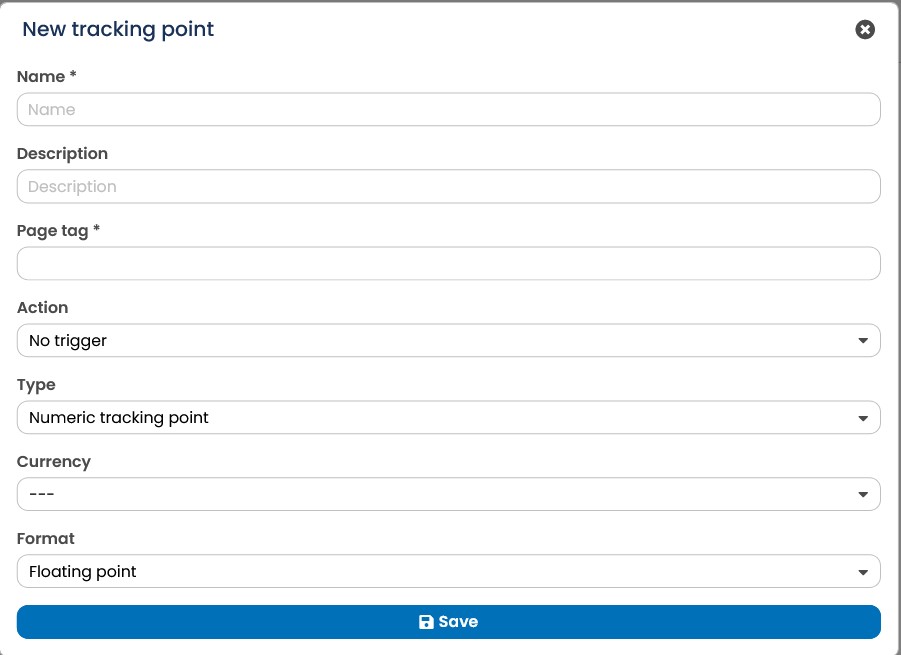
Fig. 15.20: Creating a new tracking point.
Integrate tracking points into website
After saving, a URL is displayed below. You must now insert this URL as an image tag into the header of the desired landing page or website. Example:
\<img src="https://rdir.de/g.action? action=3&ci=123&pagetag=product&alphaval=Text">
Please note: For the types Numeric tracking point and Alphanumeric tracking point you have to replace the placeholder [value] in the URL with the value to be transmitted. If you have any questions, please contact the support. They will also be happy to perform a functionality test for you.
Example Numeric tracking point: https://rdir.de/g.action?action=2&ci=123&pagetag=price&numval=2.54
The parameter numval passes the numerical value to the system - in this case 2.54.
Note: Here the decimal separator for decimal places is the point and not the comma! The page tag for measuring the revenue is revenue (more see chapter The tracking point Revenue).
Example Alphanumeric tracking point: https://rdir.de/g.action?action=3&ci=123&pagetag=product&alphaval=Text
The parameter alphaval passes any content to the system - in this case text.
Note: Spaces and special characters must be correctly URL-encoded!
16.8.4 Preparing a link in a mailing for tracking
Behavior Tracking measures the behavior of a recipient in connection with the received mailing. In order to measure this, the links in the mailing that lead to the website with the tracking points (tracking pixels) must be prepared in such a way that the necessary parameters are also transferred. To do this, go to the Mailings menu, click on the mailing to be measured in the overview list and then on the Links tab.
Here you activate the desired links for tracking:
-
You select the option that suits your needs in the drop-down list directly in the table by the relevant links in the Retargeting column. You can choose Without and set cookie.
-
You can make the same settings in the detail view of a link. Confirm your settings with the Save button.
After saving, the mailing is ready for behavior tracking.
Please note: Behavior tracking is not automatically applied to all mailings and all links contained in them, but must always be activated individually. If you would like to activate behavior tracking generally, please contact Support.
Please note: It is advisable for the user to select cookie tracking since using URL parameters requires interfering with or changing the shop system. Should you wish to use URL parameters for behavior tracking purposes, please contact the AGNITAS Support on this. In both cases, current case law must be taken into account and the consent of recipients or website visitors must be obtained.
Now that the tracking points have been created and integrated into the website and the measurable links for behavior tracking have been prepared, the data obtained via behavior tracking are available for further evaluation in real time in the statistics area of the EMarketing Manager after dispatch of the mailing.