4.3 Overview of existing mailings
This overview is called up each time you wish to edit or send a mailing. It lists all mailings created so far.
-
If you click on Mailings in the navigation bar, the Overview sub-menu opens automatically. A table shows the status and names of the mailings, the description the assigned mailing list (i.e. the recipients) and the date sent. In the upper right of the screen you can call the button New and start creating a new mailing.
-
Calling the drop-down list by clicking on the button Show on the right side above the table, you can choose between five mailing types to be displayed in the overview, in order not to overload the page. The Deleted mailings option allows you to view mailings that you have marked for deletion. These mailings are not clickable, but can be restored using the undo icon at the end of the line. If you use other media types in addition to e-mails in your client, you can also filter by the corresponding type here, e.g. Email, SMS, Post.
-
The creation of mailings is split up into different stages that are normally worked through in the course of a work-flow process. So that you can see at a glance which mailing is in what stage, the Status column shows per icon and mouseover the stage of each mailing:
| Icon | Status | Description |
|---|---|---|
 |
new | newly created mailing |
 |
edit | content was inserted |
 |
admin | admin sending has been done |
 |
test | admin and test sending has been done |
 |
ready | mailing is enabled |
 |
scheduled | mailing sending date is set |
 |
canceled | creation was stopped |
 |
sending | sending is currently running |
|
sent | sending is done |
 or or  |
active / deactivated | status of action- and date-based mailings |
 |
0 recipients | no recipient fits the target group criteria |
By hovering over a mailing within the list, a thumbnail preview of your mailing is being displayed right above the Description column.
-
The icon
 between the status and the title of the mailing shows you that the mailing had been created with the E-mail Creator. The mailing is based on the placement of single content building blocks in a predefined grid. If the mailing is part of a campaign, then you can recognize this by the
  symbol.
 -
You can find out whether a mailing has been scheduled or has already been sent in the last column Sent date. This column also affects the sequence of the mailings in the list. Mailings that have already been sent are sorted at the bottom end of the list in date sequence. Mailings that have been scheduled or have not yet been sent are at the top of the list. It is therefore possible that an older mailing that was never sent is to be found at the start of the list.
-
It is also useful to know what actions are linked to a mailing. Mailings with actions have
another icon ( ) in the last column. Clicking on this takes you to an overview of all actions used in this mailing. You can now call and edit this action or return to the overview with Back.
-
Sort and filter list: To retain an overview for longer lists, you can sort these according to column headers. Additionally, you have the possibility to set a filter for the columns Status, Mailing list, Send date, changed on and Archive allowing you to customize the overview to your wishes. The Reset filter button above the list allows you to remove all filters at once.
-
Number of data records: The number of selected elements is displayed in the mailing overview or the recipient overview.
-
If you no longer need a mailing, you can delete it via the trash symbol in the right-hand column. If you would like to delete several mailings, the collective action Delete selected mailings is recommended. First mark the mailings concerned via the check boxes in the first column and then click the Delete selected mailings command at the lower edge of the screen. Please note that the selection of mailings is only active for the page that is being displayed.
10.The tab Fields (to the right of the Displays drop-down menu) lets you add the columns Created, Template, Subject, Mailing ID, Recipient, Target Groups, changed on, Attachments and Archive to your tables.
Click in the white box and select the relevant columns. Click on Update to confirm your entry. If you want to undo your entry, click on the x in the tab to the left of the field name. You can sort all the columns except for Target Groups. Click on the corresponding field name.
Note: For mailings that have already been sent, the Recipient field represents the number of recipients reached.
11.Furthermore the E-Marketing Manager provides you with the possibility to perform any individual search for a mailing you like. See chapter Searching for mailings for further details.
12. In addition, you have the option to display all created mailings as thumbnails via the Preview tab. Please note that updating the preview images may take a few minutes.
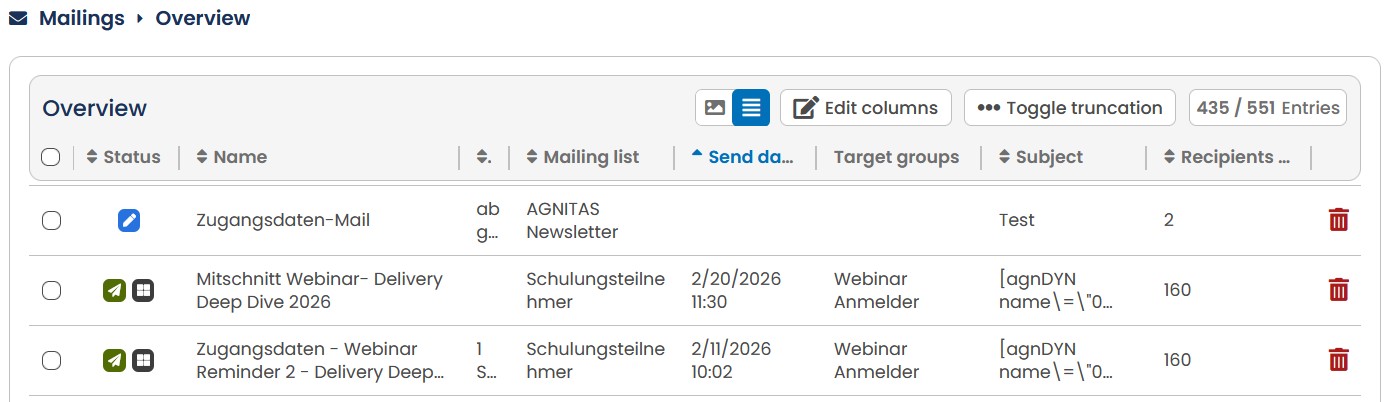
Fig. 3.1: The mailings overview shows the send date – if the mailing has already been sent off.
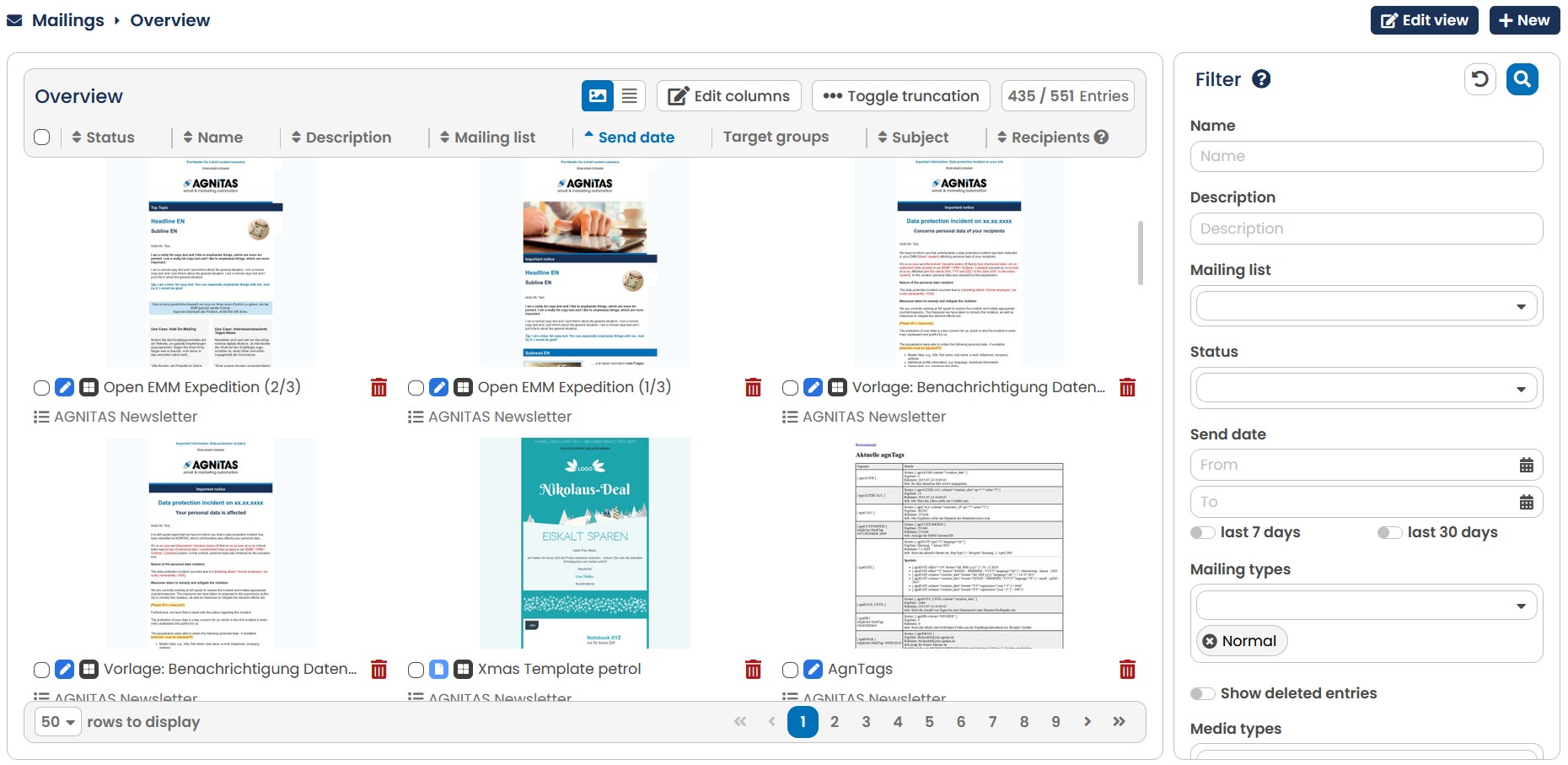
Fig. 3.2: A list with a preview of every mailing created so far
Please note: The list becomes ever longer with time. In order to improve the overview, you could delete older mailings. This will, however, also delete statistical evaluation data for deleted mailings. It is therefore better to assign older mailings to an archive and to manage them in the Archives section. The list of all mailings ever sent will remain intact. Further information on archives is contained in chapter Archives - Grouping mailings.
Please note: When clicking on a mailing which has already been sent to see its details, you will notice that certain data may no longer be changed. They are the drop-down lists Mailing list, Target group and Mailing type. These disabled elements are greyed out by E-Marketing Manager. In case of a normal mailing they can no longer be unblocked and amended. However, sometimes it is useful to make individual changes in certain date- or action-based mailings. Such mailings never actually end – they are sent out automatically as a followup to a specific action by the recipient, or they are date-based. In order to make a change, the mailing must be de-activated first. Open the Send mailing tab and click on the Deactivate mailing link. You may now make any changes you want. Don’t forget to activate the mailing again once you have finished. This is done in the Send mailing tab.
Note: Mailings assigned to mailinglists for which you don't have permission, will also be displayed, since you can still use the mailings as templates. However, you will not be able to make changes to the mailing or the mailinglist. What is not going be displayed is the section "recipients".
4.3.1 Searching for mailings
The mailing search allows you to search using both the Name and Description fields. If you would like to enter multiple terms at the same time then you can use the following options:
Specific search using quotation marks
For example: “We wish”
If two or more terms are enclosed in quotation marks, the E-Marketing Manager will search fields using this specific sequence of words. No results containing only one of the words will be displayed.
Combination using the plus sign
For example: “We wish” + Christmas
If two or more terms are linked by a plus sign, only results containing all terms will be displayed.
Combination using the space bar
For example: Christmas "New Year"
Where two or more terms are separated by a space, this is referred to as an OR search. All hits will be shown that contain at least one of the search terms entered.
Terms in brackets
For example: “We wish” + (Christmas "New Year")
The example displayed would show all hits that both contain the phrase “We wish” and also contain either Christmas or New Year. However, the result must contain at least one of the terms in brackets since these are connected by a plus sign.
It is possible to use the various combination options in any order you wish.
For example: "We wish" + (merry happy) + (Christmas "New Year")
Using question marks in links
For example: "We´re looking for Mrs Renate M?ier"
When we’re not certain if the name Meier should be written using “ai” or “ei” and, as in the example above, the unknown letter has been replaced with a question mark, the EMarketing Manager will display all existing matches that have the specified sequence of letters. A single search term can also use multiple question marks. For example, when Meier could be written using “ei”, “ai”, “ey” or “ay”. The results matching the example above must however contain the words “We’re looking for Ms. Renate”.
Using asterisks and percent signs in searches
For example: "We’re looking for */%"
The asterisk and percent sign are wildcards for any number of characters and may include several words. The example above would display all matches that contain the words “We’re looking for”.
Here you can also use wildcards when searching via the fields. The wildcards * and % represent any number of characters, whereas _ and ? only represent one variable character. Unless using wildcards the exact entry will be searched.