18.3 Example: Standard template CHESS
The default template [Sample] Chess can be found as a template in both the Layout Builder and the E-Mail Creator (EMC). This example will show you how to create an individual template and suitable components. Here you can see the whole package (layouts) as well as the individual available modules and their CSS code.
This template is available as standard content for all new customers of the EMM system and can be further customized. You can find more templates on our homepage or if you ask our support team.
It uses 9 of the 11 available building blocks:
-
[Sample] 01. Header and Fullview
-
[Sample] 02. Hero, Teaser, Banner with link
-
[Sample] 03.2. Image no link (border)
-
[Sample] 04.1 Article
-
[Sample] 05. Headline
-
[Sample] 06. Text only
-
[Sample] 07. Button only
-
[Sample] 10. Space (variable height)
-
[Sample] 11. Footer
A 620px wide grid is used (4 columns of 135px and 20px column spacing). If this template is not available in your mandate, please contact your account manager.
Basics of the template
-
Name of the grid: [Sample] 4 Columns
-
Number of columns: 4
-
Grid width: 620 px
-
Column width: 135 px
-
Column space: 20 px
18.3.1 Frame content
The frame content still uses the HTML code suggested by E-Marketing Manager, which you can find in the Template tab within your template.
\<!DOCTYPE html PUBLIC "-//W3C//DTD XHTML 1.0 Transitional//EN" "http://www. \<html xmlns="http://www.w3.org/1999/xhtml">
\<head>
\<meta http-equiv="Content-Type" content="text/html; charset=utf-8" /> \<meta name="viewport" content="width=device-width, initial-scale=1.0">
\<!--[if !mso]>
\<meta http-equiv="X-UA-Compatible" content="IE=edge" />
\<![endif]-->
\<style type="text/css">
[gridPH name="templateCSS"]
\</style>
\<!--[if (gte mso 9)|(IE)]> \<style type="text/css">
table { border-collapse: collapse; }
\</style>
\<![endif]-->
\</head>
\<body yahoo>
\<table class="wrapper" cellpadding="0" cellspacing="0" border="0"> \<tr>
\<td class="center" align="center" valign="top">
\<div class="webkit">
\<!--[if (gte mso 9)|(IE)]>
\<table width="620" align="center" cellpadding="0" cellspacing="0" b
\<tr>
\<td>
\<![endif]-->
\<table class="content" align="center" cellpadding="0" cellspacing
[gridPH name="layoutBody"]
\</table>
\<!--[if (gte mso 9)|(IE)]>
\</td>
\</tr>
\</table>
\<![endif]-->
\</div>
\</td>
\</tr>
\</table>
\</body>
\</html>
18.3.2 CSS (individual)
The CSS shown here is based on the standard template [Sample] Chess, but can be individually supplemented or adapted. It will be inserted into the Frame content at the appropriate place during mailing generation using the tag [gridPH name="templateCSS"]:
img { display: block; border: 0; height: auto;
}
.div-container { width: 100%; max-width: 600px; font-size: 12px; line-height: 140%; text-align: left;
}
.agn_table_row { width: 100%;
} img {
-ms-interpolation-mode:bicubic;
}
img.g-img + div {
display: none !important;
}
.button-td, .button-a {
transition: all 100ms ease-in;
}
.button-td:hover, .button-a:hover { background: #555555 !important; border-color: #555555 !important;
}
@media screen and (max-width: 600px) {
.email-container { width: 100% !important; margin: auto !important;
}
.email-container p { font-size: 17px !important; line-height: 22px !important;
}
}
18.3.3 Building blocks of the template
In the following, all available standard modules are presented.
Special feature for building blocks: These must be enclosed by a \<div class=„divcontainer“> … \</div>.
18.3.3.1 [Sample] 01. Header and Fullview
With this module you insert a link to the webview and your logo into the mailing. In the finished mailing the module looks like this:
Fig. 18.15: Building block 01. Header and Fullview
CSS classes: · email-container Placeholders:
-
1.0 Fullview text
-
1.1 Fullview link
-
1.2 Fullview font
-
1.3 Fullview text color
-
2.0 Logo
-
2.1 Logo URL
-
2.2 Alternative text
-
2.3 Logo width
-
2.4 Logo alignment
-
3.1 Background color fullview
-
3.2 Background color image
Code:
\<div class="div-container">
\<table bgcolor="[gridPH name="3.1 Background color fullview" type="LABEL"]" role="presentation" cellspacing="0" cellpadding="0" border="0" align="center" width="600" style="margin: auto;" class="email-container">
\<tr>
\<td style="padding: 10px 0; text-align: center"> \<a href="[gridPH name="1.1 Fullview link" type="LINK"]" style="color:[gridPH name="1.3 Fullview text color" type="LABEL"]; font-family:[gridPH name="1.2 Fullview font" type="LABEL"]; font-size: 12px; line-height: 14px;"
target="_blank">[gridPH name="1.0 Fullview text" type="TEXT"]\</a>
\</td>
\</tr>
\</table>
\<table bgcolor="[gridPH name="3.2 Background color image" type="LABEL"]" role="presentation" cellspacing="0" cellpadding="0" border="0" align="center" width="600" style="margin: auto;" class="email-container">
\<tr>
\<td style="padding: 20px 0; text-align: [gridPH name="2.4 Logo alignment" type="LABEL"];">
\<a href="[gridPH name="2.1 Logo URL" type="LINK"]" target="_blank">\<img src="[gridPH name="2.0 Logo" type="IMAGE"]" alt="[gridPH name="2.2 Alternative text" type="LABEL"]" border="0" align="[gridPH name="2.4 Logo alignment" type="LABEL"] !important" style="width: 100%; max-width:[gridPH name="2.3 Logo width" type="LABEL"]; height: auto; background: [gridPH name="3.2 Background color image" type="LABEL"]; font-family:[gridPH name="1.2 Fullview font" type="LABEL"]; display:block; font-size:
15px; line-height: 20px; color: #555555;">\</a>
\</td>
\</tr>
\</table>
\<!-- Email Header : END -->
\</div>
18.3.3.2 [Sample] 02. Hero, Teaser, Banner with link
With this module you can insert an image with a link to any website. You can also specify an alternative text and background color.
In the final mailing the module looks like this:

Fig. 18.16: Building block 02. Hero, Teaser, Banner with Link
CSS classes:
-
email-container
-
g-img
Placeholders:
-
1 Image
-
2 Target URL
-
3 Alternative text · 4 Background color
Code:
\<div class="div-container">
\<table role="presentation" cellspacing="0" cellpadding="0" border="0" align="center" width="600" style="margin: auto;" class="email-container">
\<tr>
\<td bgcolor="[gridPH name="4 Background color" type="LABEL"]" align="center">\<a href="[gridPH name="2 Target URL" type="LINK"]" target="_blank">\<img src="[gridPH name="1 Image" type="IMAGE"]" width="600" height="" alt="[gridPH name="3 Alternative text" type="LABEL"]" border="0" align="center" style="width: 100%; max-width: 600px; height: auto; background: #dddddd; font-family: sans-serif; font-size: 15px; line-height:
20px; color: #555555; margin: auto;" class="g-img">\</a>\</td>
\</tr>
\</table>
\</div>
18.3.3.3 [Sample] 03.2. Image no link (border)
With this module, it is possible to insert an image into the mailing. You can also define an alternative text and a background color.
The finished module looks as follows:

Fig. 18.17: Building block 03.2. Image no link (border)
CSS classes:
- fluid
Placeholders:
-
1 Image
-
2 Alternative text · 3 Background color
Code:
\<div class="div-container">
\<table role="presentation" cellspacing="0" cellpadding="0" border="0">
\<tr>
\<td bgcolor="[gridPH name="3 Background color" type="LABEL"]" style="padding: 10px; text-align: center"> \<img src="[gridPH name="1 Image" type="IMAGE"]" width="100%" alt="[gridPH name="2 Alternative text" type="LABEL"]" border="0" class="fluid" style="height: auto; font-size: 15px; line-height: 20px; color: #555555;">
\</td>
\</tr>
\</table>
\</div>
18.3.3.4 [Sample] 04.1 Article
This block allows you to insert an image, text content and a button. You can format the texts and the button freely.
The finished module looks as follows:
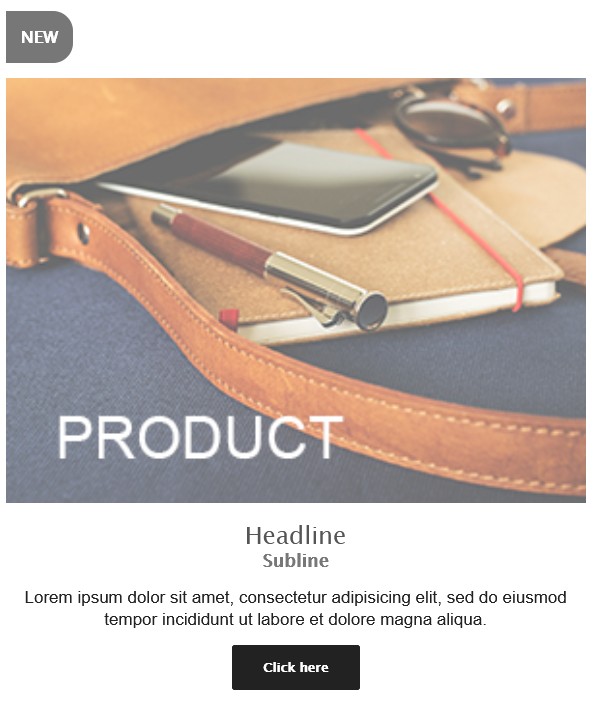
Fig. 18.18: Building block 04.1. Article
CSS classes:
-
email-container
-
button-td
-
fluid · button-a
Placeholders:
-
1.0 Label
-
1.1 Label color
-
1.2 Label text color
-
1.3 Label border radius
-
1.4 Font size (Label, Button)
-
2.0 Image
-
2.1 Alternative text
-
3.0 Headline
-
3.1 Font weight headline
-
3.2 Text color headline
-
4.0 Subline
-
4.1 Font weight subline
-
4.2 Text color subline
-
5.0 Content
-
5.1 Text color
-
6.0 Button text
-
6.1 Button link
-
6.2 Button color
-
6.3 Button text color
-
6.4 Button border radius
-
7.0 Background color
-
7.1 Text alignment
-
7.2 Font (Label, Headlines, Button)
Code:
\<div class="div-container">
\<table role="presentation" cellspacing="0" cellpadding="0" border="0" align="center" width="100%" style="margin: auto;" class="email-container">[gridPH name="1.0 Label" type="LABEL"]
\<tr>
\<td align="left" bgcolor="[gridPH name="7.0 Background color" type="LABEL"]" style="padding: 10px 10px 5px; text-align:
left;">
\<table role="presentation" cellspacing="0" cellpadding="0" border="0" align="left">
\<tr>
\<td style="border-radius: [gridPH name="1.3 Label border radius" type="LABEL"]; border: 15px solid [gridPH name="1.1 Label color" type="LABEL"]; background: [gridPH name="1.1 Label color" type="LABEL"]; text-align: center; font-size: [gridPH name="1.4 Font size (Label, Button)" type="LABEL"]; line-height: 1.1; font-weight: bold; font-family: [gridPH name="7.2 Font
(Label, Headlines, Button)" type="LABEL"];" class="button-td"> \<p style="margin: 0;">\<span style="color:[gridPH name="1.2 Label text color" type="LABEL"];">[gridPHVALUE name="1.0
Label" type="LABEL"]\</span>\</p>
\</td>
\</tr>
\</table>
\</td>
\</tr>[/gridPH name="1.0 Label" type="LABEL"][gridPH name="2.0
Image" type="IMAGE"]
\<tr>
\<td align="center" bgcolor="[gridPH name="7.0 Background color" type="LABEL"]" style="padding: 10px; text-align: center;">\<a href="[gridPH name="6.1 Button link" type="LINK"]" target="_blank">\<img src="[gridPHVALUE name="2.0 Image" type="IMAGE"]" width="100%" alt="[gridPH name="2.1 Alternative text" type="LABEL"]" border="0" class="fluid" style="height: auto; font-size: 15px; line-height: 20px; color: [gridPH name="3.2 Text color headline" type="LABEL"]; font-family: [gridPH name="7.2 Font
(Label, Headlines, Button)" type="LABEL"];">\</a>
\</td>
\</tr>[/gridPH name="2.0 Image" type="IMAGE"]
\<tr>
\<td bgcolor="[gridPH name="7.0 Background color" type="LABEL"]" style="padding: 10px 10px 5px; text-align: [gridPH name="7.1 Text alignment" type="LABEL"];">[gridPH name="3.0
Headline" type="LABEL"]
\<h1 style="margin: 0; font-size: 24px; line-height: 27px; color: [gridPH name="3.2 Text color headline" type="LABEL"]; fontweight: [gridPH name="3.1 Font weight headline" type="LABEL"]; font-family: [gridPH name="7.2 Font (Label, Headlines, Button)" type="LABEL"];">[gridPHVALUE name="3.0 Headline" type="LABEL"] \</h1>[/gridPH name="3.0 Headline" type="LABEL"][gridPH name="4.0
Subline" type="LABEL"]
\<h2 style="margin: 0; font-size: 18px; line-height: 21px; color: [gridPH name="4.2 Text color subline" type="LABEL"]; fontweight: [gridPH name="4.1 Font weight subline" type="LABEL"]; font-family: [gridPH name="7.2 Font (Label, Headlines, Button)" type="LABEL"];">[gridPHVALUE name="4.0 Subline" type="LABEL"]
\</h2>[/gridPH name="4.0 Subline" type="LABEL"]
\</td>
\</tr>[gridPH name="5.0 Content" type="TEXT"]
\<tr>
\<td bgcolor="[gridPH name="7.0 Background color" type="LABEL"]" style="padding: 10px 10px 5px; font-size: 15px; line-height: 20px; color: [gridPH name="5.1 Text color" type="LABEL"]; text-align: [gridPH name="7.1 Text alignment" type="LABEL"];">
\<p style="margin: 0;">[gridPHVALUE name="5.0 Content" type="TEXT"]\</p>
\</td>
\</tr>[/gridPH name="5.0 Content" type="TEXT"][gridPH name="6.1
Button link" type="LINK"]
\<tr>
\<td bgcolor="[gridPH name="7.0 Background color" type="LABEL"]" style="padding: 10px 10px 5px; font-size: 15px; line-height: 20px;">
\<table role="presentation" cellspacing="0"
cellpadding="0" border="0" align="center" style="margin: auto">
\<tr>
\<td style="border-radius: [gridPH name="6.4 Button border radius" type="LABEL"]; background: [gridPH name="6.2 Button color" type="LABEL"]; text-align: center;" class="button-td">
\<a href="[gridPHVALUE name="6.1 Button link" type="LINK"]" style="background: [gridPH name="6.2 Button color" type="LABEL"]; border: 15px solid [gridPH name="6.2 Button color" type="LABEL"]; font-family: [gridPH name="7.2 Font (Label, Headlines, Button)" type="LABEL"]; font-size: [gridPH name="1.4 Font size (Label, Button)" type="LABEL"]; line-height: 1.1; textalign: center; text-decoration: none; display: block; borderradius: [gridPH name="6.4 Button border radius" type="LABEL"]; font-weight: bold;" class="button-a">
\<span style="color: [gridPH name="6.3 Button text color" type="LABEL"];">[gridPH name="6.0 Button text" type="LABEL"]
\</span>
\</a>
\</td>
\</tr>
\</table>
\</td>
\</tr>[/gridPH name="6.1 Button link" type="LINK"] \<tr>
\<td bgcolor="[gridPH name="7.0 Background color" type="LABEL"]" style="padding: 0 10px 5px; font-size: 0; lineheight: 0;">
\<p style="margin: 0;"> \</p>
\</td>
\</tr>
\</table>
\</div>
18.3.3.5 [Sample] 05. Headline
This block inserts a headline. In the mailing it looks like this:

Fig. 18.19: Building block 05 Headline
CSS classes: · email-container Placeholders:
-
1.0 Headline
-
1.1 Text color
-
1.2 Font weight
-
1.3 Font size
-
1.4 Line height
-
1.5 Text alignment
-
1.6 Font family
-
1.7 Background color
Code:
\<div class="div-container">
\<table role="presentation" cellspacing="0" cellpadding="0" border="0" align="center" width="100%" style="margin: auto;" class="email-container">
\<tr>
\<td bgcolor="[gridPH name="1.7 Background color" type="LABEL"]" style="padding: 10px 10px 5px; text-align: [gridPH name="1.5 Text alignment" type="LABEL"]; font-family: [gridPH name="1.6 Font family" type="LABEL"];">[gridPH name="1.0 Headline" type="LABEL"]
\<h1 style="margin: 0; font-size: [gridPH name="1.3 Font size" type="LABEL"]; line-height: [gridPH name="1.4 Line height" type="LABEL"]; color: [gridPH name="1.1 Text color" type="LABEL"]; font-weight: [gridPH name="1.2 Font weight"
type="LABEL"];">[gridPHVALUE name="1.0 Headline" type="LABEL"]
\</h1>[/gridPH name="1.0 Headline" type="LABEL"]
\</td>
\</tr>
\</table>
\</div>
18.3.3.6 [Sample] 06. Text only
With this module you can insert a copy text into your mailing. The text is freely formatable.
In the final version it looks like this:

Fig. 18.20: Building block 06. Text only
CSS classes: · email-container Placeholders:
-
1 Content
-
2.0 Background color
-
2.1 Text color · 2.2 Text alignment
Code:
\<div class="div-container">
\<table role="presentation" cellspacing="0" cellpadding="0" border="0" align="center" width="100%" style="margin: auto;" class="email-container">
\<tr>
\<td bgcolor="[gridPH name="2.0 Background color" type="LABEL"]" style="padding: 5px 10px 5px 10px; font-size: 15px; line-height: 18px; color: [gridPH name="2.1 Text color" type="LABEL"]; text-align: [gridPH name="2.2 Text alignment" type="LABEL"];">
[gridPH name="1 Content" type="TEXT"/]
\</td>
\</tr>
\</table>
\</div>
18.3.3.7 [Sample] 07. Button only
With this building block you insert a button into your mailing, which can be linked to any homepage. The button and text can be formatted freely.
In the mailing it looks like this:

Fig. 18.21: Building block 07. Button only
CSS classes:
-
email-container
-
button-td
-
button-a
Placeholders:
-
1.0 - Button text
-
1.1 Link
-
1.2 Text color
-
1.3 Button color
-
1.4 Button border radius
-
1.5 Background color
-
1.6 Font
Code:
\<div class="div-container">
\<table role="presentation" cellspacing="0" cellpadding="0" border="0" align="center" width="100%" style="margin: auto;" class="email-container">
[gridPH name="1.1 Link" type="LINK"]
\<tr>
\<td bgcolor="[gridPH name="1.5 Background color" type="LABEL"]" style="padding: 10px 10px 5px;; font-size: 15px; line-height: 20px;">
\<table role="presentation" cellspacing="0"
cellpadding="0" border="0" align="center" style="margin: auto">
\<tr>
\<td style="border-radius: [gridPH name="1.4 Button border radius" type="LABEL"]; background: [gridPH name="1.3 Button color" type="LABEL"]; text-align: center;" class="button-td"> \<a href="[gridPHVALUE name="1.1 Link" type="LINK"]" style="background: [gridPH name="1.3 Button color" type="LABEL"]; border: 15px solid [gridPH name="1.3 Button color" type="LABEL"]; font-size: 13px; line-height: 1.1; text-align: center; text-decoration: none; display: block; border-radius: [gridPH name="1.4 Button border radius" type="LABEL"]; fontweight: bold;" class="button-a">
\<span style="color: [gridPH name="1.2 Text color" type="LABEL"]; font-family:[gridPH name="1.6 Font" type="LABEL"];">[gridPH name="1.0 - Button text" type="LABEL"]\</span>
\</a>
\</td>
\</tr>
\</table>
\</td>
\</tr>[/gridPH name="1.1 Link" type="LINK"]
\<tr>
\<td bgcolor="[gridPH name="1.5 Background color" type="LABEL"]" style="padding: 0 10px 5px; font-size: 0; lineheight: 0;">
\<p style="margin: 0;"> \</p>
\</td>
\</tr>
\</table>
\</div>
18.3.3.8 [Sample] 08. Headline, Text and Button
This allows you to insert a headline, a copy text and a button into your mailing. All contents are freely formatable.
In the mailing the module looks like this:
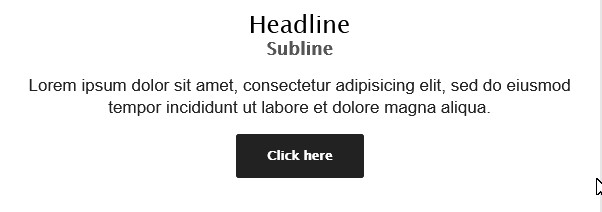
Fig. 18.22: Building block 08. Headline, Text and Button
CSS classes:
-
email-container
-
button-td
-
button-a
Placeholders:
-
1.0 Headline
-
1.1 Font weight headline
-
1.2 Text color headline
-
2.0 Subline
-
2.1 Font weight subline
-
2.2 Text color subline
-
3.0 Content
-
3.1 Text color
-
4.0 Button text
-
4.1 Button URL
-
4.2 Button color
-
4.3 Button text color
-
4.4 Button border radius
-
5.0 Background color
-
5.1 Text alignment
-
5.2 Font family (headlines & button)
Code:
\<div class="div-container">
\<table role="presentation" cellspacing="0" cellpadding="0" border="0" align="center" width="100%" style="margin: auto;" class="email-container">
\<tr>
\<td bgcolor="[gridPH name="5.0 Background color" type="LABEL"]" style="padding: 10px 10px 5px; text-align: [gridPH name="5.1 Text alignment" type="LABEL"]; font-family: [gridPH name="5.2 Font family (headlines & button)"
type="LABEL"];">[gridPH name="1.0 Headline" type="LABEL"] \<h1 style="margin: 0; font-size: 24px; line-height: 27px; color: [gridPH name="1.2 Text color headline" type="LABEL"]; fontweight: [gridPH name="1.1 Font weight headline"
type="LABEL"];">[gridPHVALUE name="1.0 Headline" type="LABEL"] \</h1>[/gridPH name="1.0 Headline" type="LABEL"][gridPH name="2.0
Subline" type="LABEL"]
\<h2 style="margin: 0; font-size: 18px; line-height: 21px; color: [gridPH name="2.2 Text color subline" type="LABEL"]; fontweight: [gridPH name="2.1 Font weight subline"
type="LABEL"];">[gridPHVALUE name="2.0 Subline" type="LABEL"]
\</h2>[/gridPH name="2.0 Subline" type="LABEL"]
\</td>
\</tr>[gridPH name="3.0 Content" type="TEXT"]
\<tr>
\<td bgcolor="[gridPH name="5.0 Background color" type="LABEL"]" style="padding: 10px 10px 5px; font-size: 15px; line-height: 20px; color: [gridPH name="3.1 Text color" type="LABEL"]; text-align: [gridPH name="5.1 Text alignment" type="LABEL"];">
\<p style="margin: 0;">[gridPHVALUE name="3.0 Content" type="TEXT"]\</p>
\</td>
\</tr>[/gridPH name="3.0 Content" type="TEXT"][gridPH name="4.1
Button URL" type="LINK"]
\<tr>
\<td bgcolor="[gridPH name="5.0 Background color" type="LABEL"]" style="padding: 10px 10px 5px;; font-size: 15px; line-height: 20px;">
\<table role="presentation" cellspacing="0"
cellpadding="0" border="0" align="center" style="margin: auto">
\<tr>
\<td style="border-radius: [gridPH name="4.4 Button border radius" type="LABEL"]; background: [gridPH name="4.2 Button color" type="LABEL"]; text-align: center;" class="button-td"> \<a href="[gridPHVALUE name="4.1 Button URL" type="LINK"]" style="background: [gridPH name="4.2 Button color" type="LABEL"]; border: 15px solid [gridPH name="4.2 Button color" type="LABEL"]; font-size: 13px; line-height: 1.1; text-align: center; text-decoration: none; display: block; border-radius: [gridPH name="4.4 Button border radius" type="LABEL"]; fontweight: bold; font-family: [gridPH name="5.2 Font family
(headlines & button)" type="LABEL"]" class="button-a">
\<span style="color: [gridPH name="4.3 Button text color" type="LABEL"];">[gridPH name="4.0 Button text" type="LABEL"]
\</span>
\</a>
\</td>
\</tr>
\</table>
\</td>
\</tr>[/gridPH name="4.1 Button URL" type="LINK"] \<tr>
\<td bgcolor="[gridPH name="5.0 Background color" type="LABEL"]" style="padding: 0 10px 5px; font-size: 0; lineheight: 0;">
\<p style="margin: 0;"> \</p>
\</td>
\</tr>
\</table>
\</div>
18.3.3.9 [Sample] 09. Divider
This block inserts a dividing line. The display can be freely formatted.

Fig. 18.23: Building block 09. Divider
CSS classes: · email-container Placeholders:
-
1.0 Background color
-
1.1 Divider color · 1.2 Divider border style
Code:
\<div class="div-container">
\<table role="presentation" cellspacing="0" cellpadding="0" border="0" align="center" width="100%" style="margin: auto;" class="email-container">
\<tr>
\<td bgcolor="[gridPH name="1.0 Background color" type="LABEL"]" style="padding: 5px 10px 5px 10px; border-bottom: [gridPH name="1.2 Divider border style" type="LABEL"] [gridPH name="1.1 Divider color" type="LABEL"];">
\</td>
\</tr>
\<tr>
\<td bgcolor="[gridPH name="1.0 Background color" type="LABEL"]" style="padding: 5px 10px 5px 10px;">
\</td>
\</tr>
\</table>
\</div>
18.3.3.10[Sample] 10. Space (variable height)
This block inserts freely definable distances between the contents. These can also be highlighted in color.
CSS classes: · email-container Placeholders:
- 1.0 Divider height · 1.1 Background color
Code:
\<div class="div-container">
\<table role="presentation" cellspacing="0" cellpadding="0" border="0" align="center" width="100%" style="margin: auto;" class="email-container">
\<tr>
\<td bgcolor="[gridPH name="1.1 Background color" type="LABEL"]" style="padding: 0px 10px [gridPH name="1.0 Divider height" type="LABEL"] 10px;">
\</td>
\</tr>
\</table>
\</div>
18.3.3.11[Sample] 11. Footer
Through this module, you insert the footer of your mailing. The footer contains an unsubscribe link by default. The text can be formatted freely.
The footer looks as follows:
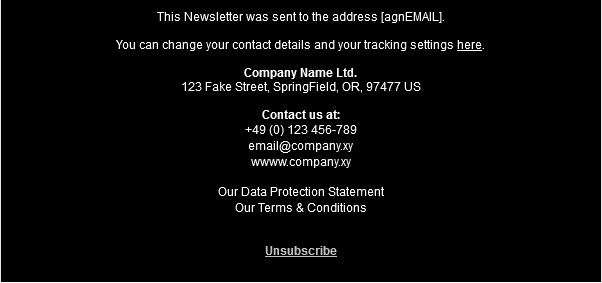
Fig. 18.24: Building block 11. Footer
CSS classes:
-
email-container
-
x-gmail-data-detectors
Placeholders:
-
1.0 Imprint-Text
-
1.1 Font
-
1.2 Text color
-
1.3 Background color
-
1.4 Text alignment
-
2.0 Unsubscribe
-
2.1 Unsubscribe link
-
2.2 Unsubscribe font
-
2.3 Unsubscribe text color
-
2.4 Font weight
Code:
\<div class="div-container">
\<table role="presentation" cellspacing="0" cellpadding="0" border="0" align="center" width="100%" style="margin: auto;" class="email-container">
\<tr>
\<td bgcolor="[gridPH name="1.3 Background color" type="LABEL"]" style="padding: 10px; font-size: 12px; line-height: 14px; text-align: [gridPH name="1.4 Text alignment" type="LABEL"]; font-family: [gridPH name="1.1 Font" type="LABEL"]; color: [gridPH name="1.2 Text color" type="LABEL"];" class="x-gmail-datadetectors">
[gridPH name="1.0 Imprint-Text" type="TEXT"]\<br>\<br> \<a href="[gridPH name="2.1 Unsubscribe link" type="LINK"]" style="color:[gridPH name="2.3 Unsubscribe text color" type="LABEL"]; font-family:[gridPH name="2.2 Unsubscribe font" type="LABEL"]; font-weight: [gridPH name="2.4 Font weight" type="LABEL"]; font-size: 12px; line-height: 14px;" target="_blank">[gridPH name="2.0 Unsubscribe" type="TEXT"]
\</a>\<br>\<br>
\</td>
\</tr>
\</table>
\</div>