16.9 Content source
The E-Marketing Manager can not only enter the content of a new mailing via the input dialog, but also import it directly from a file. This gives you the option to fill mailings completely with external content automatically. The data for the content of a mailing must be available in XML format as a file or as an RSS 2.0 feed. The XML format supports both http and https.
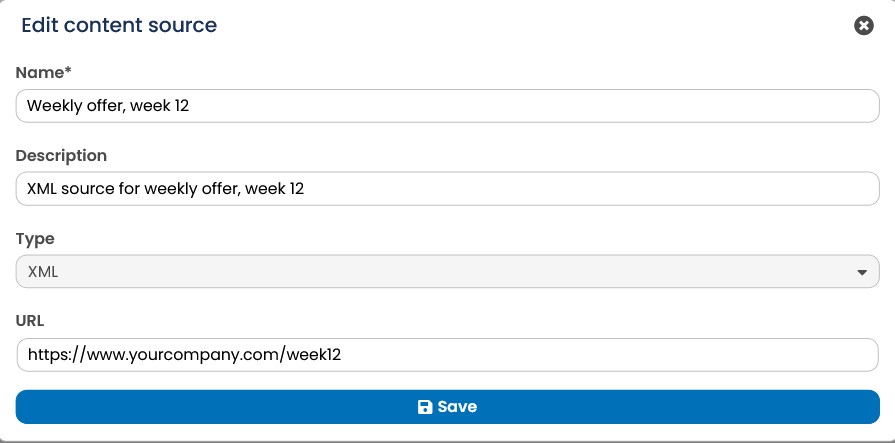
Fig. 15.21: E-Marketing Manager reads in the content of a mailing from an XML source file with the function Content Sources.
The Content Source setting allows you to specify which file the E-Marketing Manager imports as mailing content. When creating a mailing, select the corresponding source in the detail view or in the Content Source selection list when creating a new mailing (see chapter Inserting content). Replace this file for a new mailing with the current content. Only when you click on update does the E-Marketing Manager get a file and evaluate it.
In the XML file to be imported, you can define target groups for individual text blocks using target ID. The target group definitions are automatically transferred to the text blocks of your mailing. You will find your target IDs in the target group overview.
Example XML code with target group assignment:
-
\<CONTENT>
-
\<BLOCK>
\<NAME>01. Headline\</NAME>
\<TARGET_ID>12345\</TARGET_ID>
\<TIMESTAMP>2020-05-26T10:22:00+02:00\</TIMESTAMP>
\<BODY>New on stock\</BODY>
\</BLOCK>
- \<BLOCK>
\<NAME>02. Intro\</NAME>
\<TARGET_ID>12345\</TARGET_ID>
\<TIMESTAMP>2020-05-26T10:22:00+02:00\</TIMESTAMP>
\<BODY>Just arrived - the latest fashion highlights for the
summer\</BODY>
\</BLOCK>
Note: If you want to use the Content Sources function, contact the AGNITAS support. They will tell you more about the required data structure for the XML files.
If you want to use the Content sources function, please contact AGNITAS Support. There you can find out more concerning the required data structure for the XML files.
To use RSS 2.0 feed content sources for mailing content creation, please proceed as follows:
-
Create a new content source by calling up the corresponding dialogue box as previously described. Specify a name under Content sources, Description, Type and a URL for your RSS feed.
-
You can use the new content source by accessing the Content tab in the corresponding mailing. In the content settings area you can now select the new content source under Import content from source and then click Update.
Note: Content sources can also be used in E-Mail Creator mailings. You will find the Import content from source option in the Content tab.
This leads to one of the two following results:
1) If no HTML content has been specified for the mailing yet (= empty or missing "HTMLversion" text block), a basic content is automatically generated that contains ALL the articles in your RSS feed, with the title, description, and link.
This basic content can then be customized at your discretion and you can also remove article components from it again.
2) If there already is content for this mailing, you can view each article in the content areawith a title, description and link as a separate text block. You can then insert these text modules into the desired position in the existing email, just like normal text modules.
Product components are integrated as normal text modules using the following AGN tags:
[agnDYN name="RssFeedArticle_1_title" /]
[agnDYN name="RssFeedArticle_1_description" /]
[agnDYN name="RssFeedArticle_1_link" /]
The numbering (in this example "1") corresponds to the position starting with "1" in your RSS feed at the time of import.
Please note: RSS feed items import is manual only, not automatic.
In addition, the E-Marketing Manager offers you the possibility to upload files in .html format. The E-Marketing Manager will generate the content of your mailing from them.