18.3 Beispiel: Standard-Template CHESS
Das Standard-Template [Sample] Chess finden Sie als Schablone sowohl im Layout Builder als auch im E-Mail Creator (EMC). Anhand dieses Beispiels können Sie nachvollziehen, wie Sie für die Erstellung einer individuellen Schablone und passender Bausteine vorgehen können. Hier erfolgt sowohl die Betrachtung des Gesamtpaketes (Layouts) als auch die der einzelnen verfügbaren Bausteine und deren CSS-Code.
Diese Schablone ist als Standardinhalt für alle Neukunden des EMM-Systems verfügbar und kann weiter individualisiert werden. Weitere Schablonen finden Sie auf unserer Homepage.
Es nutzt 9 von den 11 verfügbaren Bausteinen:
-
[Sample] 01. Header and Fullview
-
[Sample] 02. Hero, Teaser, Banner with link
-
[Sample] 03.2. Image no link (border)
-
[Sample] 04.1 Article
-
[Sample] 05. Headline
-
[Sample] 06. Text only
-
[Sample] 07. Button only
-
[Sample] 10. Space (variable height)
-
[Sample] 11. Footer
Als Raster wird ein 620px breites Raster verwendet (4 Spalten a 135px und 20px Spaltenabstand). Sollte dieses Template in Ihrem Mandaten nicht verfügbar sein, können Sie sich gerne an Ihren Kundenbetreuer wenden.
Grundlagen des Templates
-
Name des Rasters: [Sample] 4 Columns
-
Spaltenanzahl: 4
-
Rasterbreite: 620 px
-
Spaltenbreite: 135 px
-
Spaltenabstand: 20 px
18.3.1 Rahmeninhalt
Der Rahmeninhalt verwendet unverändert den vom E-Marketing Manager vorgeschlagenen HTML-Code, den Sie im Register Schablone innerhalb Ihrer Schablone finden.
<!DOCTYPE html PUBLIC "-//W3C//DTD XHTML 1.0 Transitional//EN" "http://www.w3.org/TR/xhtml1/DTD/xhtml1-transitional.dtd">
\<head>
<meta http-equiv="Content-Type" content="text/html; charset=utf-8" />
<meta name="viewport" content="width=device-width, initial-scale=1.0">
<!--[if !mso]>
<meta http-equiv="X-UA-Compatible" content="IE=edge" />
[gridPH name="templateCSS"]
table { border-collapse: collapse; }
\<![endif]-->
\</head>
\<body yahoo>
<table class="wrapper" cellpadding="0" cellspacing="0" border="0">
<tr>
<td class="center" align="center" valign="top">
<!--[if (gte mso 9)\|(IE)]>
<table width="620" align="center" cellpadding="0" cellspacing="0" border="0">
<tr>
<td>
[gridPH name="layoutBody"]
\<![endif]-->
\</div>
\</body>
18.3.2 CSS (individuell)
Das hier abgebildete CSS liegt dem Standard-Template [Sample] Chess zugrunde, kann aber individuell ergänzt oder angepasst werden. Es wird bei der Mailing-Generierung über das Tag [gridPH name="templateCSS"] an der entsprechenden Stelle in den Rahmeninhalt eingefügt:
img {
display: block;
border: 0;
height: auto;
}
.div-container {
width: 100%;
max-width: 600px;
font-size: 12px;
line-height: 140%;
text-align: left;
}
.agn_table_row {
width: 100%;
}
img {
-ms-interpolation-mode:bicubic;
}
img.g-img + div {
display: none !important;
}
.button-td, .button-a {
transition: all 100ms ease-in;
}
.button-td:hover, .button-a:hover {
background: #555555 !important;
border-color: #555555 !important;
}
@media screen and (max-width: 600px) {
.email-container {
width: 100% !important;
margin: auto !important;
}
.email-container p {
font-size: 17px !important;
line-height: 22px !important;
}
}
18.3.3 Bausteine des Templates
Nachfolgend werden alle verfügbaren Standard-Bausteine vorgestellt.
Besonderheit für Bausteine: Diese müssen von einem \<div class=„div-container“> … \</div> umschlossen sein.
18.3.3.1 [Sample] 01. Header and Fullview
Mit diesem Baustein fügen Sie einen Link zur Webview und Ihr Logo in das Mailing ein. Im fertigen Mailing sieht der Baustein wie folgt aus:
Abb. 18.15: Baustein 01. Header and Fullview
CSS-Klassen:
- email-container
Platzhalter:
-
1.0 Fullview text
-
1.1 Fullview link
-
1.2 Fullview font
-
1.3 Fullview text color
-
2.0 Logo
-
2.1 Logo URL
-
2.2 Alternative text
-
2.3 Logo width
-
2.4 Logo alignment
-
3.1 Background color fullview
-
3.2 Background color image
Code:
\<div class="div-container">
<table bgcolor="[gridPH name="3.1 Background color fullview" type="LABEL"]" role="presentation" cellspacing="0" cellpadding="0" border="0" align="center" width="600" style="margin: auto;" class="email-container">
<tr>
<td style="padding: 10px 0; text-align: center">
</td>
</tr>
</table>
<table bgcolor="[gridPH name="3.2 Background color image" type="LABEL"]" role="presentation" cellspacing="0" cellpadding="0" border="0" align="center" width="600" style="margin: auto;" class="email-container">
<tr>
<td style="padding: 20px 0; text-align: [gridPH name="2.4 Logo alignment" type="LABEL"];">
\<a href="[gridPH name="2.1 Logo URL" type="LINK"]" target="_blank"><img src="[gridPH name="2.0 Logo" type="IMAGE"]" alt="[gridPH name="2.2 Alternative text" type="LABEL"]" border="0" align="[gridPH name="2.4 Logo alignment" type="LABEL"] !important" style="width: 100%; max-width:[gridPH name="2.3 Logo width" type="LABEL"]; height: auto; background: [gridPH name="3.2 Background color image" type="LABEL"]; font-family:[gridPH name="1.2 Fullview font" type="LABEL"]; display:block; font-size: 15px; line-height: 20px; color: #555555;">\</a>
\<!-- Email Header : END -->
\</div>
18.3.3.2 [Sample] 02. Hero, Teaser, Banner with link
Mit diesem Baustein können Sie ein Bild mit Verlinkung auf eine beliebige Website einfügen. Sie können auch einen alternativ Text und eine Hintergrundfarbe festlegen.
Im finalen Mailing sieht der Baustein wie folgt aus:

Abb. 18.16: Baustein 02. Hero, Teaser, Banner with Link
CSS-Klassen:
-
email-container
-
g-img
Platzhalter:
-
1 Image
-
2 Target URL
-
3 Alternative text
-
4 Background color
Code:
\<div class="div-container">
<table role="presentation" cellspacing="0" cellpadding="0" border="0" align="center" width="600" style="margin: auto;" class="email-container">
<tr>
<td bgcolor="[gridPH name="4 Background color" type="LABEL"]" align="center"><a href="[gridPH name="2 Target URL" type="LINK"]" target="_blank"><img src="[gridPH name="1 Image" type="IMAGE"]" width="600" height="" alt="[gridPH name="3 Alternative text" type="LABEL"]" border="0" align="center" style="width: 100%; max-width: 600px; height: auto; background: #dddddd; font-family: sans-serif; font-size: 15px; line-height: 20px; color: #555555; margin: auto;" class="g-img"></a></td>
</tr>
</table>
\</div>
18.3.3.3 [Sample] 03.2. Image no link (border)
Mit diesem Baustein, ist es Ihnen möglich, ein Bild in das Mailing einzufügen. Sie können zusätzlich einen alternativ Text und eine Hintergrundfarbe definieren.
Der fertige Baustein sieht wie folgt aus:

Abb. 18.17: Baustein 03.2. Image no link (border)
CSS-Klassen:
- fluid
Platzhalter:
-
1 Image
-
2 Alternative text
-
3 Background color
Code:
\<div class="div-container">
<table role="presentation" cellspacing="0" cellpadding="0" border="0">
<tr>
<td bgcolor="[gridPH name="3 Background color" type="LABEL"]" style="padding: 10px; text-align: center">
<img src="[gridPH name="1 Image" type="IMAGE"]" width="100%" alt="[gridPH name="2 Alternative text" type="LABEL"]" border="0" class="fluid" style="height: auto; font-size: 15px; line-height: 20px; color: #555555;">
\</div>
18.3.3.4 [Sample] 04.1 Article
Dieser Baustein erlaubt es Ihnen, ein Bild, Textinhalte und einen Button einzufügen. Die Texte und den Button können Sie frei formatieren.
Der Baustein sieht wie folgt aus:
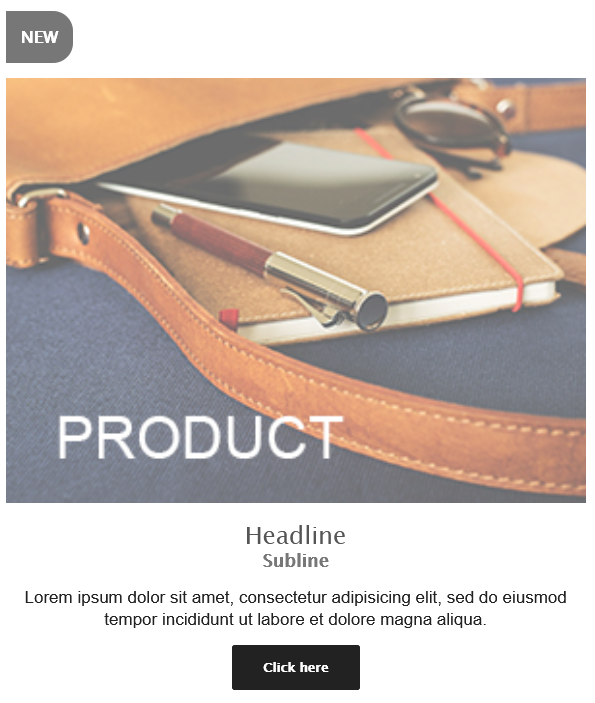
Abb. 18.18: Baustein 04.1. Article
CSS-Klassen:
-
email-container
-
button-td
-
fluid
-
button-a
Platzhalter:
-
1.0 Label
-
1.1 Label color
-
1.2 Label text color
-
1.3 Label border radius
-
1.4 Font size (Label, Button)
-
2.0 Image
-
2.1 Alternative text
-
3.0 Headline
-
3.1 Font weight headline
-
3.2 Text color headline
-
4.0 Subline
-
4.1 Font weight subline
-
4.2 Text color subline
-
5.0 Content
-
5.1 Text color
-
6.0 Button text
-
6.1 Button link
-
6.2 Button color
-
6.3 Button text color
-
6.4 Button border radius
-
7.0 Background color
-
7.1 Text alignment
-
7.2 Font (Label, Headlines, Button)
Code:
\<div class="div-container">
<table role="presentation" cellspacing="0" cellpadding="0" border="0" align="center" width="100%" style="margin: auto;" class="email-container">[gridPH name="1.0 Label" type="LABEL"]
<tr>
<td align="left" bgcolor="[gridPH name="7.0 Background color" type="LABEL"]" style="padding: 10px 10px 5px; text-align: left;">
<table role="presentation" cellspacing="0" cellpadding="0" border="0" align="left">
<tr>
<td style="border-radius: [gridPH name="1.3 Label border radius" type="LABEL"]; border: 15px solid [gridPH name="1.1 Label color" type="LABEL"]; background: [gridPH name="1.1 Label color" type="LABEL"]; text-align: center; font-size: [gridPH name="1.4 Font size (Label, Button)" type="LABEL"]; line-height: 1.1; font-weight: bold; font-family: [gridPH name="7.2 Font (Label, Headlines, Button)" type="LABEL"];" class="button-td">
\<p style="margin: 0;">\[gridPHVALUE name="1.0 Label" type="LABEL"]\</span>\</p>
</td>
</tr>
</table>
</td>
</tr>[/gridPH name="1.0 Label" type="LABEL"][gridPH name="2.0 Image" type="IMAGE"]
<tr>
<td align="center" bgcolor="[gridPH name="7.0 Background color" type="LABEL"]" style="padding: 10px; text-align: center;"><a href="[gridPH name="6.1 Button link" type="LINK"]" target="_blank"><img src="[gridPHVALUE name="2.0 Image" type="IMAGE"]" width="100%" alt="[gridPH name="2.1 Alternative text" type="LABEL"]" border="0" class="fluid" style="height: auto; font-size: 15px; line-height: 20px; color: [gridPH name="3.2 Text color headline" type="LABEL"]; font-family: [gridPH name="7.2 Font (Label, Headlines, Button)" type="LABEL"];"></a>
</td>
</tr>[/gridPH name="2.0 Image" type="IMAGE"]
<tr>
<td bgcolor="[gridPH name="7.0 Background color" type="LABEL"]" style="padding: 10px 10px 5px; text-align: [gridPH name="7.1 Text alignment" type="LABEL"];">[gridPH name="3.0 Headline" type="LABEL"]
\<h1 style="margin: 0; font-size: 24px; line-height: 27px; color: [gridPH name="3.2 Text color headline" type="LABEL"]; font-weight: [gridPH name="3.1 Font weight headline" type="LABEL"]; font-family: [gridPH name="7.2 Font (Label, Headlines, Button)" type="LABEL"];">[gridPHVALUE name="3.0 Headline" type="LABEL"]\</h1>[/gridPH name="3.0 Headline" type="LABEL"][gridPH name="4.0 Subline" type="LABEL"]
\<h2 style="margin: 0; font-size: 18px; line-height: 21px; color: [gridPH name="4.2 Text color subline" type="LABEL"]; font-weight: [gridPH name="4.1 Font weight subline" type="LABEL"]; font-family: [gridPH name="7.2 Font (Label, Headlines, Button)" type="LABEL"];">[gridPHVALUE name="4.0 Subline" type="LABEL"]\</h2>[/gridPH name="4.0 Subline" type="LABEL"]
</td>
</tr>[gridPH name="5.0 Content" type="TEXT"]
<tr>
<td bgcolor="[gridPH name="7.0 Background color" type="LABEL"]" style="padding: 10px 10px 5px; font-size: 15px; line-height: 20px; color: [gridPH name="5.1 Text color" type="LABEL"]; text-align: [gridPH name="7.1 Text alignment" type="LABEL"];">
\<p style="margin: 0;">[gridPHVALUE name="5.0 Content" type="TEXT"]\</p>
</td>
</tr>[/gridPH name="5.0 Content" type="TEXT"][gridPH name="6.1 Button link" type="LINK"]
<tr>
<td bgcolor="[gridPH name="7.0 Background color" type="LABEL"]" style="padding: 10px 10px 5px; font-size: 15px; line-height: 20px;">
<table role="presentation" cellspacing="0" cellpadding="0" border="0" align="center" style="margin: auto">
<tr>
<td style="border-radius: [gridPH name="6.4 Button border radius" type="LABEL"]; background: [gridPH name="6.2 Button color" type="LABEL"]; text-align: center;" class="button-td">
\<a href="[gridPHVALUE name="6.1 Button link" type="LINK"]" style="background: [gridPH name="6.2 Button color" type="LABEL"]; border: 15px solid [gridPH name="6.2 Button color" type="LABEL"]; font-family: [gridPH name="7.2 Font (Label, Headlines, Button)" type="LABEL"]; font-size: [gridPH name="1.4 Font size (Label, Button)" type="LABEL"]; line-height: 1.1; text-align: center; text-decoration: none; display: block; border-radius: [gridPH name="6.4 Button border radius" type="LABEL"]; font-weight: bold;" class="button-a">
\[gridPH name="6.0 Button text" type="LABEL"]\</span>
\</a>
</td>
</tr>
</table>
</td>
</tr>[/gridPH name="6.1 Button link" type="LINK"]
<tr>
<td bgcolor="[gridPH name="7.0 Background color" type="LABEL"]" style="padding: 0 10px 5px; font-size: 0; line-height: 0;">
\<p style="margin: 0;"> \</p>
\</div>
18.3.3.5 [Sample] 05. Headline
Dieser Baustein fügt eine Überschrift ein. Im Mailing sieht dieser wie folgt aus:

Abb. 18.19: Baustein 05 Headline
CSS-Klassen:
- email-container
Platzhalter:
-
1.0 Headline
-
1.1 Text color
-
1.2 Font weight
-
1.3 Font size
-
1.4 Line height
-
1.5 Text alignment
-
1.6 Font family
-
1.7 Background color
Code:
\<div class="div-container">
<table role="presentation" cellspacing="0" cellpadding="0" border="0" align="center" width="100%" style="margin: auto;" class="email-container">
<tr>
<td bgcolor="[gridPH name="1.7 Background color" type="LABEL"]" style="padding: 10px 10px 5px; text-align: [gridPH name="1.5 Text alignment" type="LABEL"]; font-family: [gridPH name="1.6 Font family" type="LABEL"];">[gridPH name="1.0 Headline" type="LABEL"]
\<h1 style="margin: 0; font-size: [gridPH name="1.3 Font size" type="LABEL"]; line-height: [gridPH name="1.4 Line height" type="LABEL"]; color: [gridPH name="1.1 Text color" type="LABEL"]; font-weight: [gridPH name="1.2 Font weight" type="LABEL"];">[gridPHVALUE name="1.0 Headline" type="LABEL"]\</h1>[/gridPH name="1.0 Headline" type="LABEL"]
\</div>
18.3.3.6 [Sample] 06. Text only
Mit diesem Baustein können Sie einen Fließtext in Ihr Mailing einfügen. Der Text ist frei formatierbar. Final sieht dieser wie folgt aus:

Abb. 18.20: Baustein 06. Text only
CSS-Klassen:
- email-container
Platzhalter:
-
1 Content
-
2.0 Background color
-
2.1 Text color
-
2.2 Text alignment
Code:
\<div class="div-container">
<table role="presentation" cellspacing="0" cellpadding="0" border="0" align="center" width="100%" style="margin: auto;" class="email-container">
<tr>
<td bgcolor="[gridPH name="2.0 Background color" type="LABEL"]" style="padding: 5px 10px 5px 10px; font-size: 15px; line-height: 18px; color: [gridPH name="2.1 Text color" type="LABEL"]; text-align: [gridPH name="2.2 Text alignment" type="LABEL"];">
[gridPH name="1 Content" type="TEXT"/]
\</div>
18.3.3.7 [Sample] 07. Button only
Durch diesen Baustein fügen Sie einen Button in Ihr Mailing ein, welcher auf eine beliebe Homepage verlinkt werden kann. Der Button und Text sind frei formatierbar.
Im Mailing sieht dieser wie folgt aus:

Abb. 18.21: Baustein 07. Button only
CSS-Klassen:
-
email-container
-
button-td
-
button-a
Platzhalter:
-
1.0 - Button text
-
1.1 Link
-
1.2 Text color
-
1.3 Button color
-
1.4 Button border radius
-
1.5 Background color
-
1.6 Font
Code:
\<div class="div-container">
<table role="presentation" cellspacing="0" cellpadding="0" border="0" align="center" width="100%" style="margin: auto;" class="email-container">
[gridPH name="1.1 Link" type="LINK"]
<tr>
<td bgcolor="[gridPH name="1.5 Background color" type="LABEL"]" style="padding: 10px 10px 5px;; font-size: 15px; line-height: 20px;">
<table role="presentation" cellspacing="0" cellpadding="0" border="0" align="center" style="margin: auto">
<tr>
<td style="border-radius: [gridPH name="1.4 Button border radius" type="LABEL"]; background: [gridPH name="1.3 Button color" type="LABEL"]; text-align: center;" class="button-td">
\<a href="[gridPHVALUE name="1.1 Link" type="LINK"]" style="background: [gridPH name="1.3 Button color" type="LABEL"]; border: 15px solid [gridPH name="1.3 Button color" type="LABEL"]; font-size: 13px; line-height: 1.1; text-align: center; text-decoration: none; display: block; border-radius: [gridPH name="1.4 Button border radius" type="LABEL"]; font-weight: bold;" class="button-a">
\[gridPH name="1.0 - Button text" type="LABEL"]\</span>
\</a>
</td>
</tr>
</table>
</td>
</tr>[/gridPH name="1.1 Link" type="LINK"]
<tr>
<td bgcolor="[gridPH name="1.5 Background color" type="LABEL"]" style="padding: 0 10px 5px; font-size: 0; line-height: 0;">
\<p style="margin: 0;"> \</p>
\</div>
18.3.3.8 [Sample] 08. Headline, Text and Button
Hiermit fügen Sie eine Überschrift, einen Fließtext und einen Button in Ihr Mailing ein. Alle Inhalte sind frei formatierbar.
Im Mailing sieht der Baustein folgendermaßen aus:
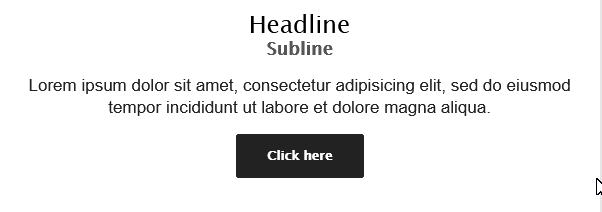
Abb. 18.22: Baustein 08. Headline, Text and Button
CSS-Klassen:
-
email-container
-
button-td
-
button-a
Platzhalter:
-
1.0 Headline
-
1.1 Font weight headline
-
1.2 Text color headline
-
2.0 Subline
-
2.1 Font weight subline
-
2.2 Text color subline
-
3.0 Content
-
3.1 Text color
-
4.0 Button text
-
4.1 Button URL
-
4.2 Button color
-
4.3 Button text color
-
4.4 Button border radius
-
5.0 Background color
-
5.1 Text alignment
-
5.2 Font family (headlines & button)
Code:
\<div class="div-container">
<table role="presentation" cellspacing="0" cellpadding="0" border="0" align="center" width="100%" style="margin: auto;" class="email-container">
<tr>
<td bgcolor="[gridPH name="5.0 Background color" type="LABEL"]" style="padding: 10px 10px 5px; text-align: [gridPH name="5.1 Text alignment" type="LABEL"]; font-family: [gridPH name="5.2 Font family (headlines & button)" type="LABEL"];">[gridPH name="1.0 Headline" type="LABEL"]
\<h1 style="margin: 0; font-size: 24px; line-height: 27px; color: [gridPH name="1.2 Text color headline" type="LABEL"]; font-weight: [gridPH name="1.1 Font weight headline" type="LABEL"];">[gridPHVALUE name="1.0 Headline" type="LABEL"]\</h1>[/gridPH name="1.0 Headline" type="LABEL"][gridPH name="2.0 Subline" type="LABEL"]
\<h2 style="margin: 0; font-size: 18px; line-height: 21px; color: [gridPH name="2.2 Text color subline" type="LABEL"]; font-weight: [gridPH name="2.1 Font weight subline" type="LABEL"];">[gridPHVALUE name="2.0 Subline" type="LABEL"]\</h2>[/gridPH name="2.0 Subline" type="LABEL"]
</td>
</tr>[gridPH name="3.0 Content" type="TEXT"]
<tr>
<td bgcolor="[gridPH name="5.0 Background color" type="LABEL"]" style="padding: 10px 10px 5px; font-size: 15px; line-height: 20px; color: [gridPH name="3.1 Text color" type="LABEL"]; text-align: [gridPH name="5.1 Text alignment" type="LABEL"];">
\<p style="margin: 0;">[gridPHVALUE name="3.0 Content" type="TEXT"]\</p>
</td>
</tr>[/gridPH name="3.0 Content" type="TEXT"][gridPH name="4.1 Button URL" type="LINK"]
<tr>
<td bgcolor="[gridPH name="5.0 Background color" type="LABEL"]" style="padding: 10px 10px 5px;; font-size: 15px; line-height: 20px;">
<table role="presentation" cellspacing="0" cellpadding="0" border="0" align="center" style="margin: auto">
<tr>
<td style="border-radius: [gridPH name="4.4 Button border radius" type="LABEL"]; background: [gridPH name="4.2 Button color" type="LABEL"]; text-align: center;" class="button-td">
\<a href="[gridPHVALUE name="4.1 Button URL" type="LINK"]" style="background: [gridPH name="4.2 Button color" type="LABEL"]; border: 15px solid [gridPH name="4.2 Button color" type="LABEL"]; font-size: 13px; line-height: 1.1; text-align: center; text-decoration: none; display: block; border-radius: [gridPH name="4.4 Button border radius" type="LABEL"]; font-weight: bold; font-family: [gridPH name="5.2 Font family (headlines & button)" type="LABEL"]" class="button-a">
\[gridPH name="4.0 Button text" type="LABEL"]\</span>
\</a>
</td>
</tr>
</table>
</td>
</tr>[/gridPH name="4.1 Button URL" type="LINK"]
<tr>
<td bgcolor="[gridPH name="5.0 Background color" type="LABEL"]" style="padding: 0 10px 5px; font-size: 0; line-height: 0;">
\<p style="margin: 0;"> \</p>
\</div>
18.3.3.9 [Sample] 09. Divider
Dieser Baustein fügt eine Trennlinie ein. Die Darstellung ist frei formatierbar.

Abb. 18.23: Baustein 09. Divider
CSS-Klassen:
- email-container
Platzhalter:
-
1.0 Background color
-
1.1 Divider color
-
1.2 Divider border style
Code:
\<div class="div-container">
<table role="presentation" cellspacing="0" cellpadding="0" border="0" align="center" width="100%" style="margin: auto;" class="email-container">
<tr>
<td bgcolor="[gridPH name="1.0 Background color" type="LABEL"]" style="padding: 5px 10px 5px 10px; border-bottom: [gridPH name="1.2 Divider border style" type="LABEL"] [gridPH name="1.1 Divider color" type="LABEL"];">
</td>
</tr>
<tr>
<td bgcolor="[gridPH name="1.0 Background color" type="LABEL"]" style="padding: 5px 10px 5px 10px;">
</td>
</tr>
</table>
\</div>
18.3.3.10 [Sample] 10. Space (variable height)
Dieser Baustein fügt frei definierbare Abstände zwischen den Inhalten ein. Diese können Sie auch farbig hinterlegen.
CSS-Klassen:
- email-container
Platzhalter:
-
1.0 Divider height
-
1.1 Background color
Code:
\<div class="div-container">
<table role="presentation" cellspacing="0" cellpadding="0" border="0" align="center" width="100%" style="margin: auto;" class="email-container">
<tr>
<td bgcolor="[gridPH name="1.1 Background color" type="LABEL"]" style="padding: 0px 10px [gridPH name="1.0 Divider height" type="LABEL"] 10px;">
</td>
</tr>
</table>
\</div>
18.3.3.11 [Sample] 11. Footer
Durch diesen Baustein, fügen Sie den Footer Ihres Mailings ein. Der Footer enthält standardmäßig einen Abmeldelink. Die Text sind frei formatierbar.
Der Footer sieht wie folgt aus:
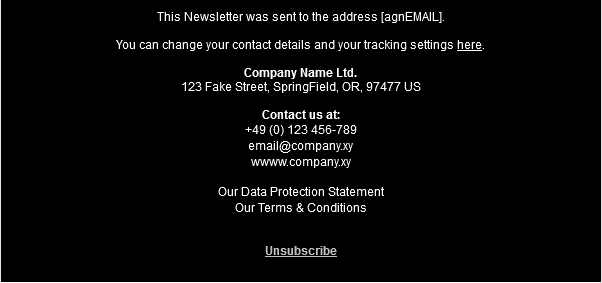
Abb. 18.24: Baustein 11. Footer
CSS-Klassen:
-
email-container
-
x-gmail-data-detectors
Platzhalter:
-
1.0 Imprint-Text
-
1.1 Font
-
1.2 Text color
-
1.3 Background color
-
1.4 Text alignment
-
2.0 Unsubscribe
-
2.1 Unsubscribe link
-
2.2 Unsubscribe font
-
2.3 Unsubscribe text color
-
2.4 Font weight
Code:
\<div class="div-container">
<table role="presentation" cellspacing="0" cellpadding="0" border="0" align="center" width="100%" style="margin: auto;" class="email-container">
<tr>
<td bgcolor="[gridPH name="1.3 Background color" type="LABEL"]" style="padding: 10px; font-size: 12px; line-height: 14px; text-align: [gridPH name="1.4 Text alignment" type="LABEL"]; font-family: [gridPH name="1.1 Font" type="LABEL"]; color: [gridPH name="1.2 Text color" type="LABEL"];" class="x-gmail-data-detectors">
[gridPH name="1.0 Imprint-Text" type="TEXT"]\<br>\<br>
\<a href="[gridPH name="2.1 Unsubscribe link" type="LINK"]" style="color:[gridPH name="2.3 Unsubscribe text color" type="LABEL"]; font-family:[gridPH name="2.2 Unsubscribe font" type="LABEL"]; font-weight: [gridPH name="2.4 Font weight" type="LABEL"]; font-size: 12px; line-height: 14px;" target="_blank">[gridPH name="2.0 Unsubscribe" type="TEXT"]\</a>\<br>\<br>
\</div>