16.3 Response processing
Response processing allows you to set up actions to be performed when an e-mail response to a newsletter or mailing is received. If a reply is received at the corresponding sender address, autogenerated e-mails are first filtered and deleted within the framework of response management. The actions of the response processing are applied to the remaining e-mails. Possible actions are forwarding to a mailbox you manage or sending an autoresponder mail to the sender, e.g. informing the sender that replies to this mailbox will not be read.
You can find an overview of your response processes under Administration. By clicking on an entry you can call up the details of an already existing response processing. Use the Delete icon to remove an existing response processing.
To create a new response processing, click on New in the upper right corner. On the pages that follow, you can enter the following information:
-
Name: The internal designation of a response processing. Here it is recommended to use the sender address for which the response processing is set up, e.g. news@domain.com.
-
Description:Describe here how the response processing works so that others can quickly understand what the it does.
-
Set individual filter address: Filtering of bounces is carried out under this address. See below for more details. The filter address can be filled in two ways:
-
You choose default by not entering an address. In this case the E-Marketing Manager
automatically generates a filter address when the response processing is created.
- You choose individual and enter a filter address manually. The manual filling of the
filter address is only relevant if you have entered the filter server from E-Marketing Manager (filter.agnitas.de) as mail receiving server in your DNS (Domain Name System). For further details you can contact the AGNITAS support.
-
Forwarding address:If you want incoming emails (e.g. for manual reply) to be forwarded to an email address, activate the Forward filtered e-mails slider. A box will then appear in which you can enter the forwarding address(es). Only emails that the response processing has not previously sorted out as irrelevant are forwarded. You can also enter several addresses. These must be separated by either ; , or a space.
-
Autoresponder mailing: You can automatically provide the people who responded to your newsletter with an autoresponder mailing. One way could be to inform them that the email has been received and will be processed shortly, but they can also indicate that this mailbox will not be read and offer an alternative way of contact. If you activate the Autoresponder mailing slider, a selection menu for the mailing appears. It lists all activated action-based mailings.
-
The autoresponder only reacts to reply emails sent via the E-Marketing Manager. This means that directly sent test mails or spam mails are not followed by an autoresponder mailing.
-
The autoresponder responds only once within 24 hours for normal recipients. For admin and test recipients, however, a response is triggered each time.
-
The autoresponder will only be executed for the mailing list that was selected in the
action-based mailing. If the autoresponder is to be sent for multiple mailing lists, you must create a separate entry for each mailing list with its own action-based mailing under Response processing.
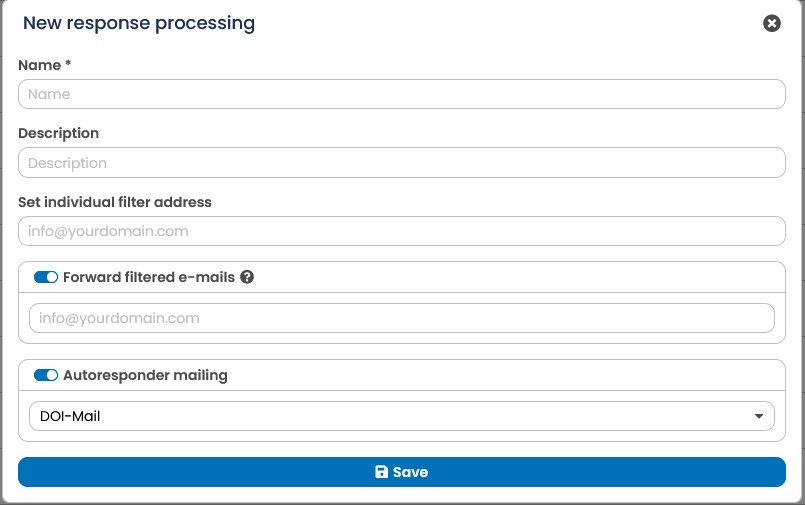
Fig. 15.5: The response processing determines actions for incoming replies and filters them.
The filter address you have entered now appears in the overview. The actions defined in the corresponding response processing are used on all emails sent to the address given here. A last step is therefore necessary to complete the setting up of the response processing:

Fig. 15.6: After the response processing has been set up the filter address appears in the overview.
All reply emails of a mailing will be sent to the sender’s address or the reply-to address (if defined) of the mailing, for example newsletter@mycompany.com. Now set up a forwarder to the filter email address stated in the overview (xxx@filter.mycompany.com) in your email client. Only if this forwarder has been set up, the response management can filter all automatically generated replies and forward the remaining emails according to the settings of the response processing and/or reply them via the Autoresponder.