10.3 Comparing mailings
In the Statistics submenu Mailing (Comparison), the E-Marketing Manager provides you with the possibility to compare up to ten different mailings at a glance.
In order to do so, go to the respective submenu. E-Marketing Manager now presents you an overview of all already sent mailings indicating the name of the Mailing, its
Description, the Archive and Send date. In the column on the left-hand side, you will find a check box for every mailing. Select the mailings that you want to compare by clicking on the corresponding check boxes. Then click on the Compare button in the upper right of the overview area. To start the comparison, you must select at least two mailings, a maximum of 10 mailings is possible.
After a few moments, E-Marketing Manager displays the most important key indicators for the mailings
Tip: E-Marketing Manager can, if desired, export the statistics data in a CSV file. To do so, click on Action in the upper right of the Overview area and then click on Export as CSV.
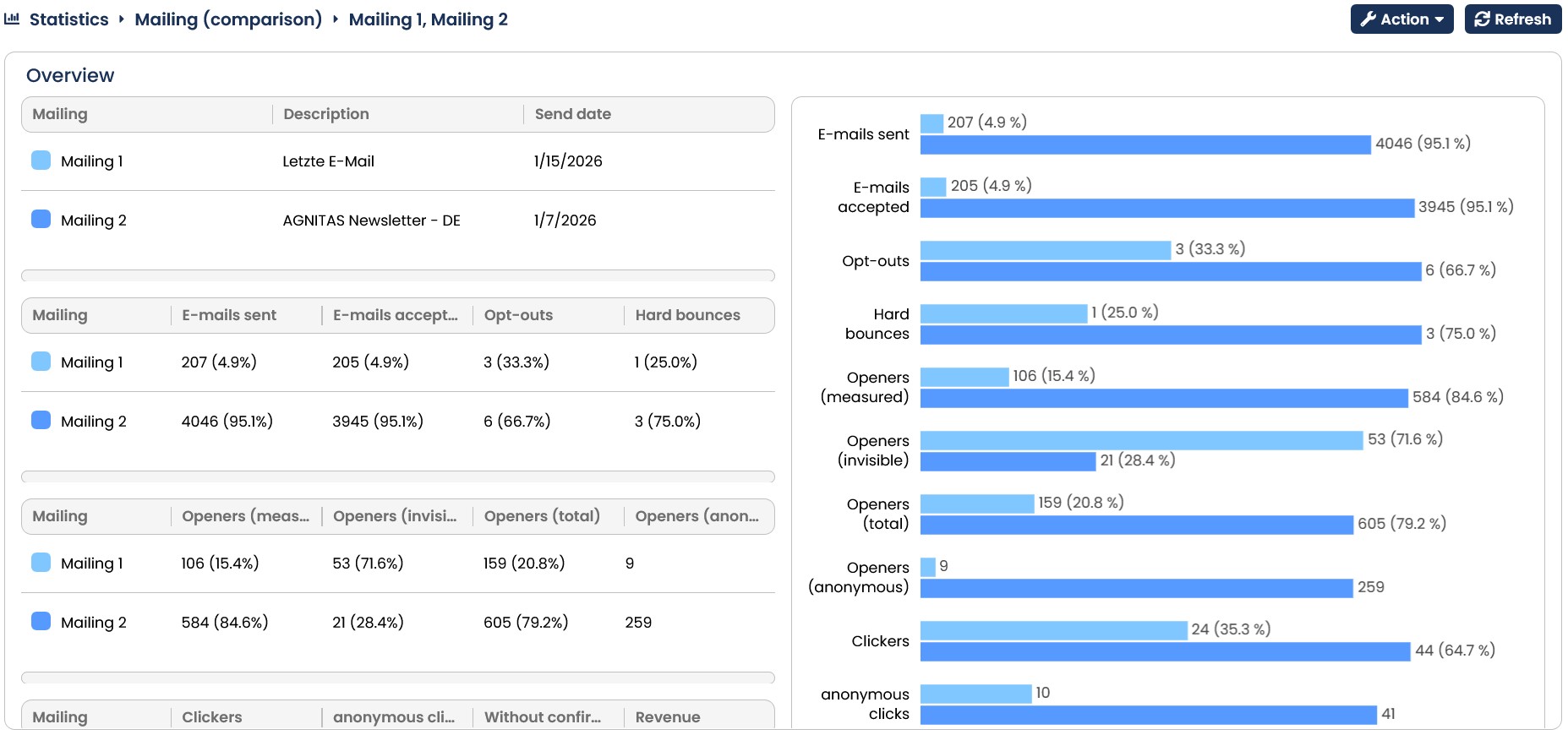
Fig. 9.18: In the Mailings (Comparison) submenu you can easily compare up to ten different mailings at a glance (scroll to see all the data).
If you wish to get more detailed information on the statistics of an individual mailing you can do so by clicking on the corresponding mailing entry in the Mailing (Comparison)‘s overview or by going to the Mailing (separate) submenu. For further information on this, go to chapter Mailing statistics.