13.1 What is the Layout Builder?
The Layout Builder is a design and developer tool for creating drag & drop templates and building blocks for the Email Creator. The user can later freely place these building blocks on a kind of canvas and thus flexibly design his mailing. Programming work is reduced to a minimum or even completely unnecessary compared to mailing creation with the standard method.
In E-Marketing Manager there are two technologically different layout builder tools - one is the layout builder with grid and the other is the layout builder without grid, which can be recognized and distinguished as follows:
1. Layout Builder with grid: The grid-based approach is the original variant of the Layout Builder. Longer existing clients therefore almost always have this variant in use. You can recognize this in the by the following features: o The symbol ( ) in the navigation at Layout Builder shows a three-column grid. o The submenu item Grid is present.
o Several differences can be seen in the template: The Styles tab is included, there is a Show Spacing option in the Content tab on the left, and rows are multi-column.
2. Layout Builder without grid: The gridless variant has been added subsequently and can be recognized in the as follows: o The symbol ( ) in the navigation at Layout Builder is simplified. o The submenu item Grid is not present.
o Several differences can be seen in the template: There is no Styles tab, there is no Show Spacing option in the Content tab on the left side, and rows are always singlecolumn.
Note: Switching between the two Layout Builder variants is not easily possible, as the technology in the background is different. Should you nevertheless decide to switch, this means that you can no longer copy old newsletters as a basis and continue to edit them, that you have to create new building blocks that are optimized for the respective variant, and that the existing templates can no longer be used and new ones have to be created. For this reason, we would like to once again transparently show you the advantages of each variant so that you can decide from the outset for the variant that best suits your way of working:
| Advantages Layout Builder with Grid | Advantages Layout Builder without Grid |
|---|---|
| · Fewer different building blocks are needed because the grid allows content to be placed more flexibly, e.g. image left / right, image single-column / doublecolumn / n-column / full-column, etc. · The basic design for backgrounds can also be quickly adapted in the mailing via the Styles tab and does not require any change to the CSS specifications. |
· No binding to a fixed grid, you can realize any one-, two-, three-, four-column designs with multi-column modules and combine them flexibly. · Simpler and "slimmer" HTML without DIV containers ensures less data traffic and better performance due to smaller shipping size. · Better control over Responsive settings for different browsers, clients and devices more easily. |
Once you have decided on one of the two variants, the operation is very similar in both cases:
-
Creation of all required building blocks
-
Creation of a grid (only in the variant with grid)
-
Definition of formatting and styles of your template by CSS defaults
-
Design of the template by placing the building blocks via drag & drop on the canvas
-
Prefilling of recurring content as far as possible
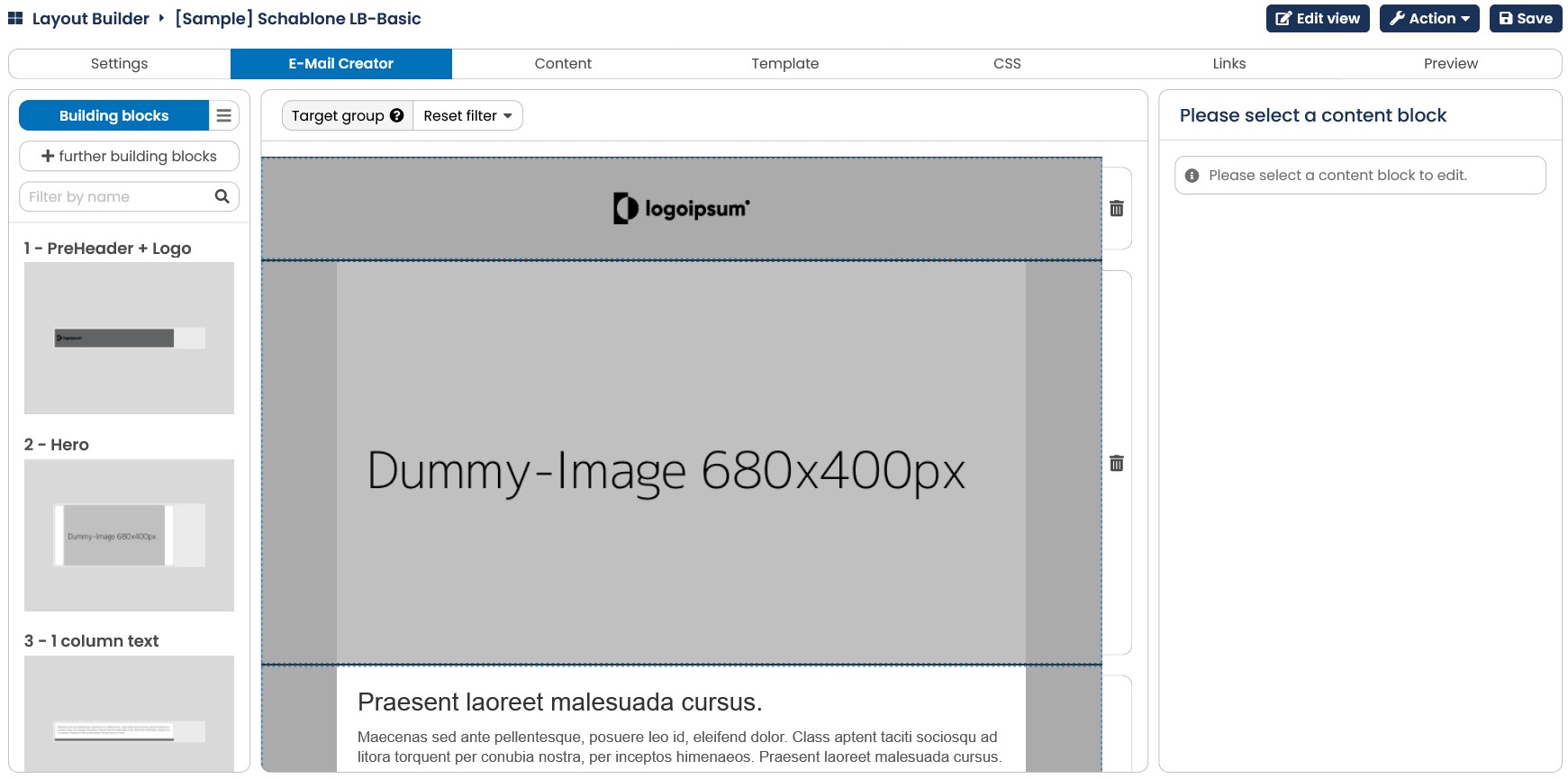
Fig. 12.1: The Layout Builder works according to the drag & drop principle - shown here the variant without grid.
Creating a template with the Layout Builder is child's play: First, you create all the building blocks you need for the future presentation of your content and drag and drop them to the desired position in your layout. You can open the individual building blocks with a doubleclick and edit and pre-fill the content. This procedure gradually creates a template that your users can then use in the Email Creator to build newsletters.
Note: By using the E-mail creator you can also use layouts for your newsletters. If you want to learn more about this possibility, take a look at the chapter Create a mailing with the E-Mail Creator.