11.2 Managing forms
If you click on Pages & Forms in the main menu, the overview of the existing forms opens directly. In this area you can manage existing forms, create new ones or remove obsolete ones.
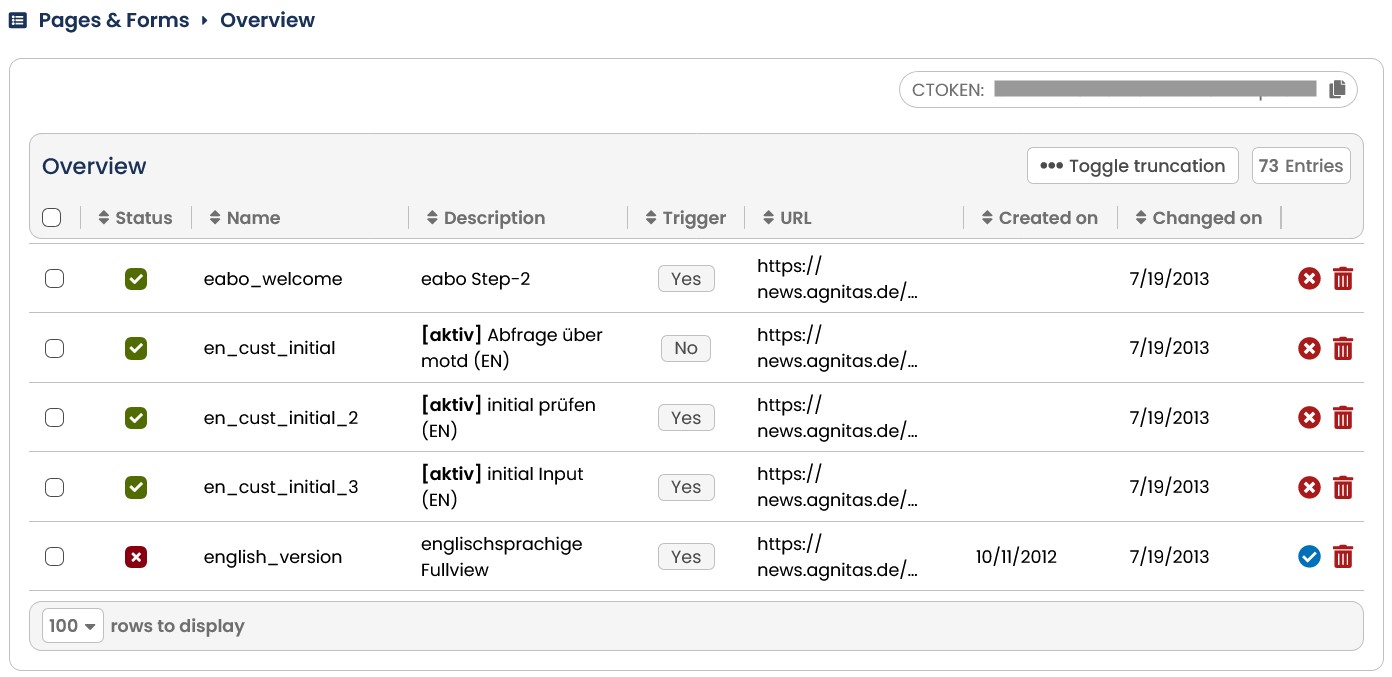
Fig. 10.2: The system shows you all existing web forms in the overview.
-
The overview is structured as follows: In the Status column, you can see whether the respective form is still in use and you can also adjust the status directly in the overview. The Name column contains the name of the respective form and under Description you can see explanations for the use. In the column Trigger you can see whether the form is linked to triggers. If the answer is Yes, the name of the trigger(s) used is also displayed directly when you move the mouse on it. The URL column lists the link to the form. The columns Created on and changed on show you the corresponding date.
-
To retain an overview of a longer list, you can sort it by the column headers. Click on the column header to sort the entries alphabetically. For the status, you also have the option of filtering only active or inactive entries by clicking on the small funnel.
-
To edit an already created form, simply click on the entry. The E-Marketing Manager will then automatically display the contents of the form.
-
You can also copy an existing form after you have accessed it. To do this, simply click on the Action button at the top right and then on Copy.
-
If you want to use forms that were created outside your client, e.g. by AGNITAS, you can simply paste them into your system by using the + Import form function. For more details, please refer to the chapter Importing templates.
-
If you no longer need a form, you can delete it using the trashcan icon in the right-hand column. If you want to delete several forms, we recommend the bulk action Delete selected forms. First select the forms concerned using the checkboxes in the first column and then click on Delete Selected Forms in the header of the table. Please note that the selection of forms is only active for the displayed page.
-
You can mark forms that you currently no longer need but do not want to delete as inactive. The status is displayed both in the overview and in the form. In this way, you maintain an overview of your active forms and can retain the contents for verification purposes or for quick reactivation.
-
The New button opens the input dialog for a new form to be defined.
-
You can also export each form. To do this, go to the relevant form, click Action and then Export form.