10.2 Mailing statistics (separate)
The statistical overview gives you a list of all newsletters sent so far, in the Mailing (separate) section. You can either filter out one of your newsletters by using the Filter feature or simply click on one of the mailings in the Mailing column to select it for evaluation.
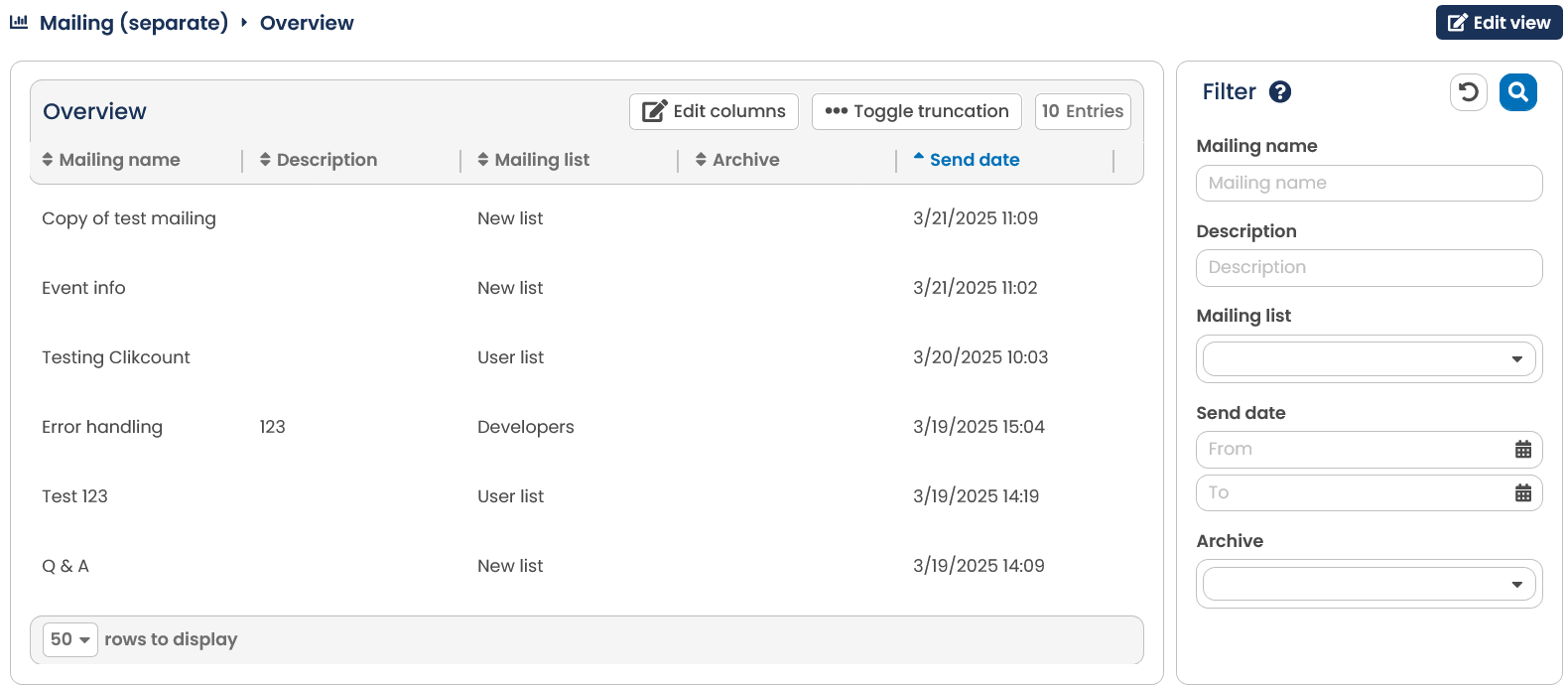 Fig. 9.2: The OpenEMM lists all available mailings in the overview of the Mailing (seperate) submenu.
Please note: The key figure accepted mails in the mailing summary will be hidden due to the data being only archived for 90 days. 90 days is the default setting but can be changed individually. If you are interested in changing the default settings, please contact our support.
You have the possibility to filter the displayed mailings according to mailing lists.
By clicking on the Edit columns button, you can add further columns to the overview. You can choose from: created on, template, subject, target groups, mailing ID and recipient. Select as many as you like and then click on Save columns.
10.2.1 Summary
The OpenEMM mailing statistics is subdivided into several sections, that can be evaluated individually via a drop-down menu. After selecting a mailing, you see as standard the Summary section that presents you with the most important indicators. Calling the drop-down menu next to Select Statistics you can furthermore choose to see the following statistics: Click statistics per link, Progress of clicks, Progress of openings, End device statistics, Bounces, Top Domains, Revenue (only visible if you have integrated the measuring pixel Revenue on your order confirmation page), Progress of delivery and Benchmark.The section Click statistics per link will be presented in detail further on in this chapter. You can read more on the sections ** Progress of clicks as well as Progress of openings in chapters Opening rate and Progress of Clicks. Chapter Bounce statistics concerns Bounces** .
Please note: If desired the Summary is not loaded by default after selecting the mailing, but only after clicking on the entry in the selection menu. This is useful when other statistics are often needed because the overall loading times are shortened in this way. You can make this setting yourself or an administrator under Administration in your user settings in the Statistics summary field.
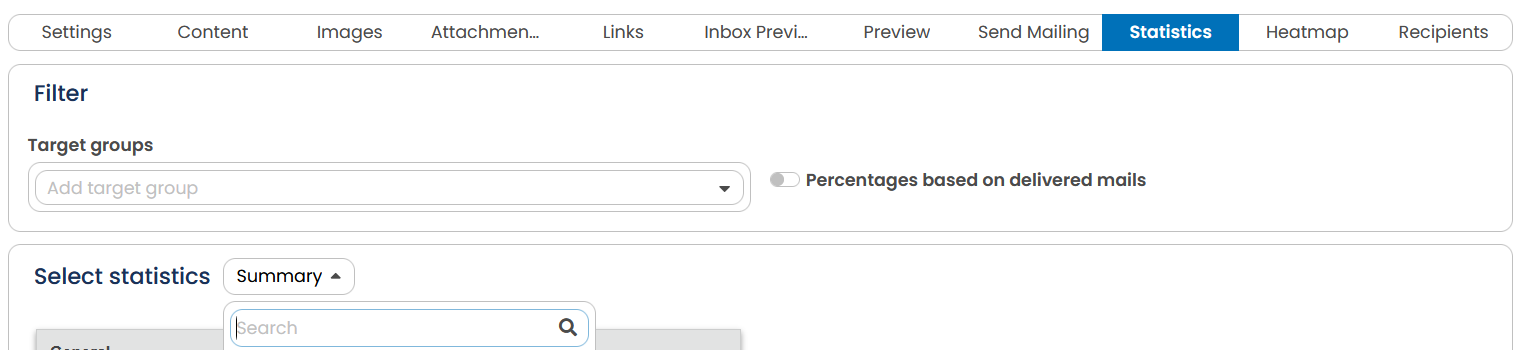 Fig. 9.3: In the upper part of the statistics tabs you can define your target group and use sent mailings as a base for percentage values.
Your target group can be entered at the upper part for the mailing statistics. By clicking on Refresh, the following tables are supplemented with additional columns for each target group. These can be used to evaluate the recipient behavior for this particular target group and, for example, compare it with the overall distributor. If you only want to analyze the target group you have written to, you do not have to make any restrictions here. You can also use the Percentages based on delivered mailings option for the Summary statistics. To do so, enable the slider control with the same name. By default, the percentage values will be calculated for Opened, Clicked and Logged Off based on the email messages sent. In the Select statistics drop-down menu, the Summary is loaded first by default. Here you can also switch to the other statistics. The Action button offers the options to save the statistics data as CSV or to get a standard report with the Generate PDF Report button.
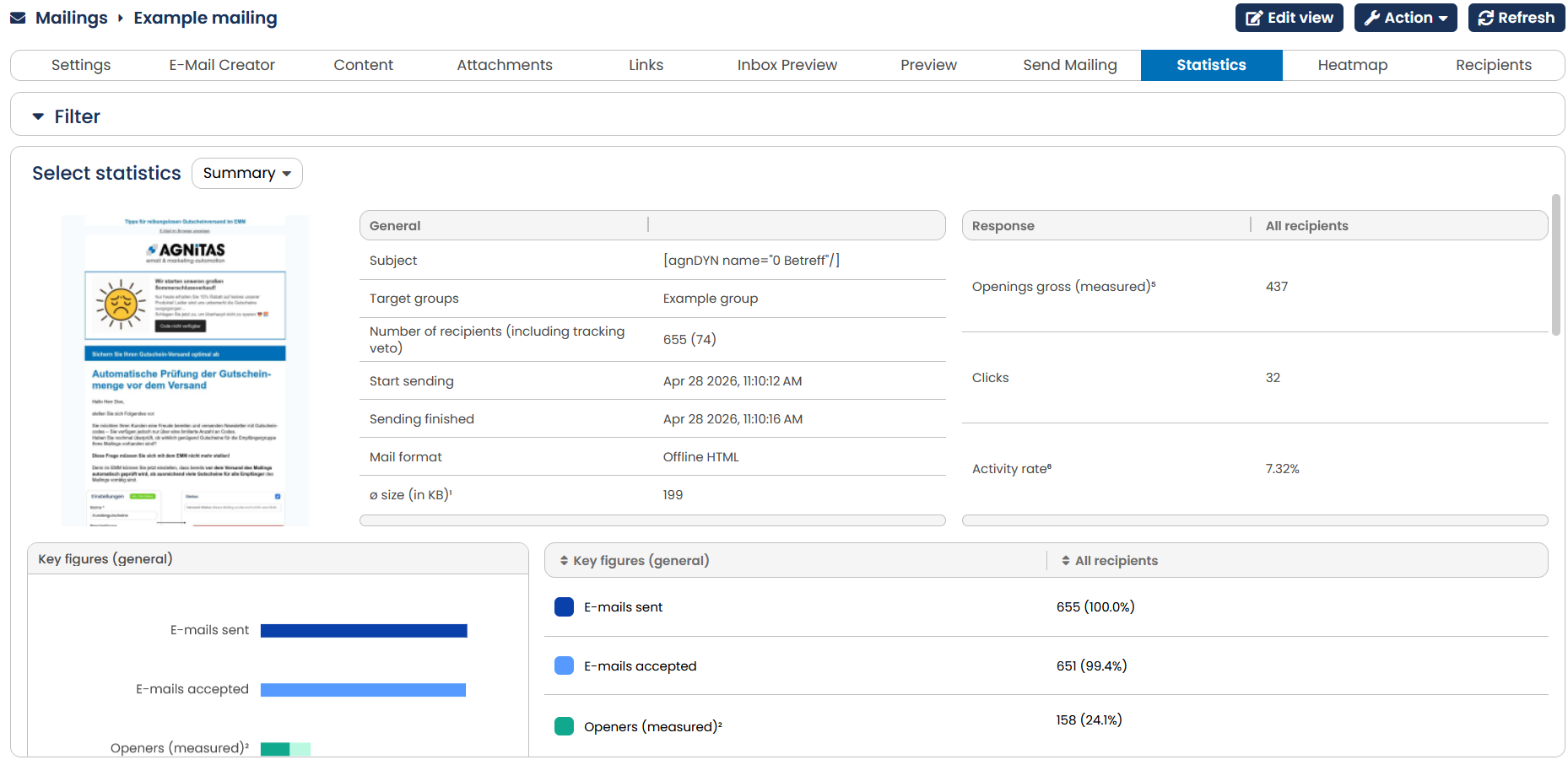 Fig. 9.4: The Mailing statistics show important indicators concerning a selected mailing. Scroll to see all the data.
OpenEMM displays the most important statistics for the selected mailing in the Summary.
The first tables show the most important facts of the mailing, like subject, used target groups, Number of recipients (including tracking veto), Start sending, mail format and size are shown. In the case of date-, action- and interval-based mailings, the evaluation period for the statistics and when the mailing was sent for the very first time are also specified. In addition, above the first table, when selecting Day, Month and Period, a possibility to select the period is displayed.
Action-based, date-based and interval-based mailings offer the additional possibility of setting a time range. The respective tabs appear to the left of the Select Statistics drop-down menu.
This is followed by a bar chart showing the relevant key data. OpenEMM distinguishes between E-mails sent, E-mails delivered, Openers (total, measured and invisible), Clickers, Opt-outs, E-Mails sent and accepcted, without confirmation of receipt and Revenue. You can find out more on the subject of soft- and hardbounces in chapter Bounce statistics.Note: Outside the retention period, no values can be determined for Without confirmation of receipt. All deliveries without a hard bounce are then considered delivered.
After the first bar chart, OpenEMM delivers the numeric information in a tabular overview (absolute and percentage values). Here you also find information on accepted e-mails and hardbounces. In addition you see how high the opening and click rates in your mailing are. The figures for opener and clicker refer to recipients who have opened or clicked at least once, but may have opened or clicked several times. The recipient is counted only once here, in contrast to openings and clicks over time - here a recipient can be counted several times. OpenEMM distinguishes between measured openers and invisible openers for the openers value. The value Openers (measured) contains all the recipients, who opened the mailing with images at least once. The dark green part of the bar indicates the proportion of proxy openers. These are, for example, openers of Apple operating systems or Yahoo Mail Proxy. Since proxy servers load images automatically, it is possible that no real opening has taken place. The value Openers (invisible) is an extrapolation of the clicking recipients who opened the mailing with suppressed images. The value Openers (total) is the sum of both values. If desired, softbounces can be shown next to the hardbounces in this statistic. Anonymous openings is the number of people who opened the mailing but activated the tracking veto. You can also see from the statistics how many clickers responded to your mailing and the number of unsubscribers. The values for sales are only displayed if you have stored the Revenue measurement pixel on your order confirmation page.
Please note: The key figure Revenue is only available in the full commercial version of the EMM. If you are interested, please contact our customer advisors.
Note: Please be aware that follow up mailings and campaigns based on opens can be significantly skewed by proxy opens if the percentage of Apple recipients is very high. It may be that incorrect content is delivered for these recipients, since the recipient himself has not actually opened. Particularly in the case of longer-running mailings such as date- or action-based mailings, special effects such as an open rate of over 100 percent can occur in the statistics due to time shifts, e.g. dispatch at the end of June, opening/click at the beginning of July. Unfortunately, the evaluation periods for these mailing types cannot be linked to the dispatch.
Please note: The value for E-mails accepted is the current number of e-mails sent minus the temporarily not-deliverable e-mails and the hardbounces. OpenEMM continues to attempt to deliver these e-mails within the next day. This value is only stored 180 days in your OpenEMM.
In the table devices, OpenEMM differentiates openings and clicks for device types A distinction is made between recipients who responded to the mailing with only one device type (PC, Tablet, Mobile, Smart TV) and recipients who opened or clicked on the mailing with more than one device type (multiple devices). Recipients who have used multiple devices no longer appear in the key figures of the other device types, the program shows a graphic representation of this opening behavior on the right next to the numbers material.
Note: The OpenEMM makes no distinction between end device types. All device types are automatically assigned to the type PC.
Furthermore, at the very end you will receive information on all reactions: The OpenEMM gives you the gross openings, gross clicks as well as an activity rate that corresponds to a click-through rate and puts the clicks in relation to all openings.
10.2.2 Click statistics per link
If you want to evaluate the measurable links of your mailing more precisely, click on the link Click statistics per link in the selection menu. On the following page, the OpenEMM displays both the clicks and clickers (in percent and absolute values) for each measurable link in the mailing. The clicks also include recipients who have clicked the link several times. The clickers, on the other hand, record how many recipients clicked on the measurable link; double clicks do not count. Recipients with tracking veto are excluded here. Unfortunately, it is not possible to determine how many different people clicked anonymously, so only the number of all clicks can be determined here. In the statistics, you can also see how high the proportion of mobile link clicks per link is.
For the OpenEMM there is no distinction regarding end devices. All clicks are assigned to the type PC.
In the Click Statistics per Link menu OpenEMM will differentiate between Administrative links and Production links. Links to your offers will be included in this last category, Production links. Administrative links means links that do not have a direct association with the mailings content, such as logging off or opening a Full Screen view. You can designate any number of measurement links as Administrative links, such as a link to the General Terms and Conditions page or the Legal Disclosure page. OpenEMMwill treat all other measurement links as Production links. The Editing links and Preparing trackable links for mailing statistics chapters contain more information about these issues.
To improve transparency, the link descriptions (if provided under Tracking Links) or the Alt-text for the link (if specified in the HTML code when the mailing was created) will be dissplayed instead of the entire link.
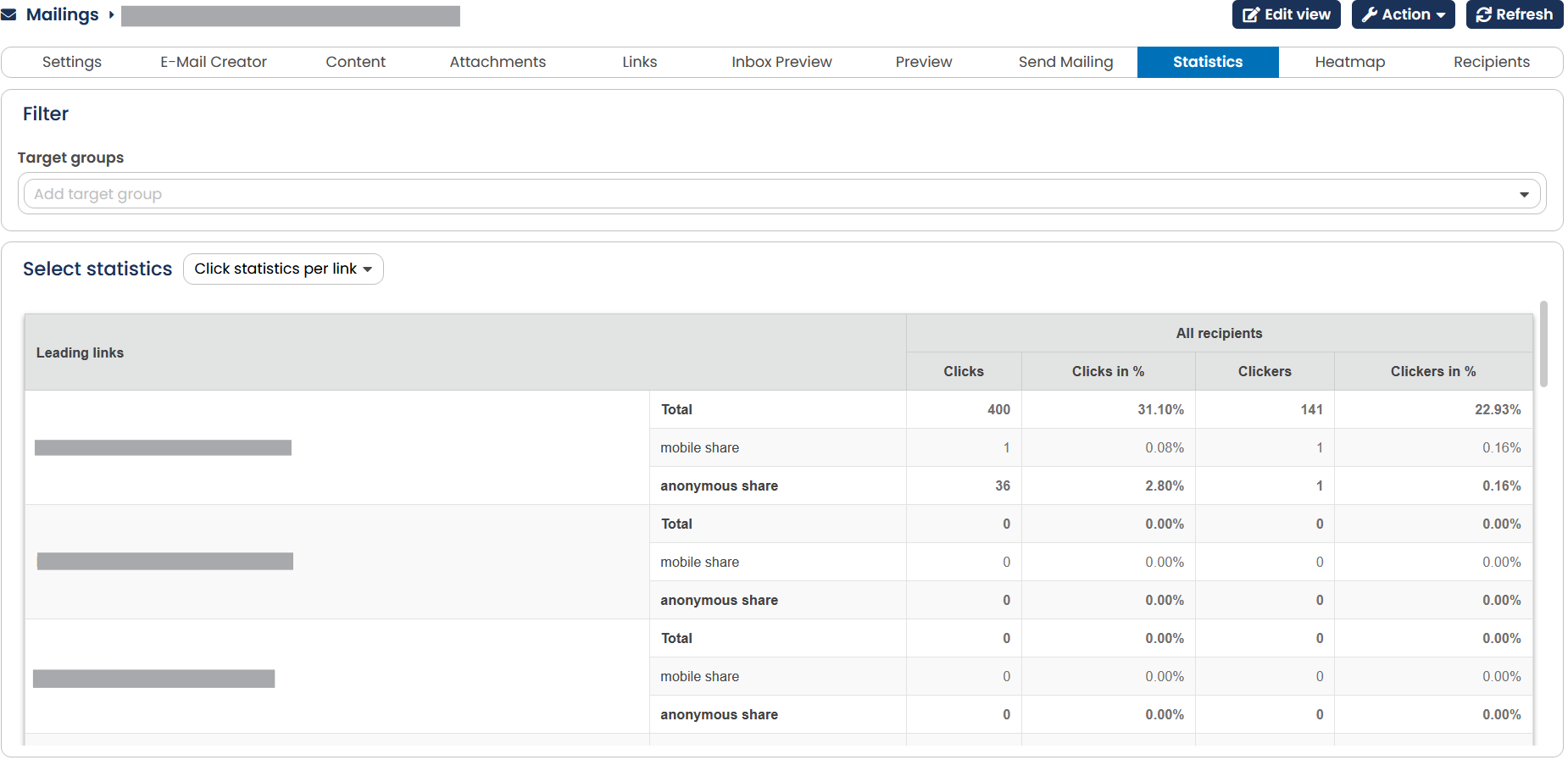 Fig. 9.5: The OpenEMM shows the clicker and click rates for every trackable link (scroll to see all the data).
Selection can also be restricted to a certain demographic (or target group) in turn. Simply select the corresponding target group from the selection list. Once the selection has been made, click Refresh.
10.2.3 Progress of delivery
OpenEMM will show the period of time over which your mailing has been delivered if you so desire. The use of statistics provides you with important mailing information since not all mailings can be delivered at the same time. Some can, for example, come back as softbounces because the recipient's mailbox is full or the server concerned is temporarily unavailable.
To select the delivery statistics, under Mailing (separate) select the desired mailing and then, on the Statistics tab shown as standard, click on the Progress of delivery option in the drop-down menu next to Select Statistics. OpenEMM will now show you the delivered emails sorted according to date. You can choose whether you want the see delivery progress of the last 10 hours, the last day, the last month or for a certain period of time.
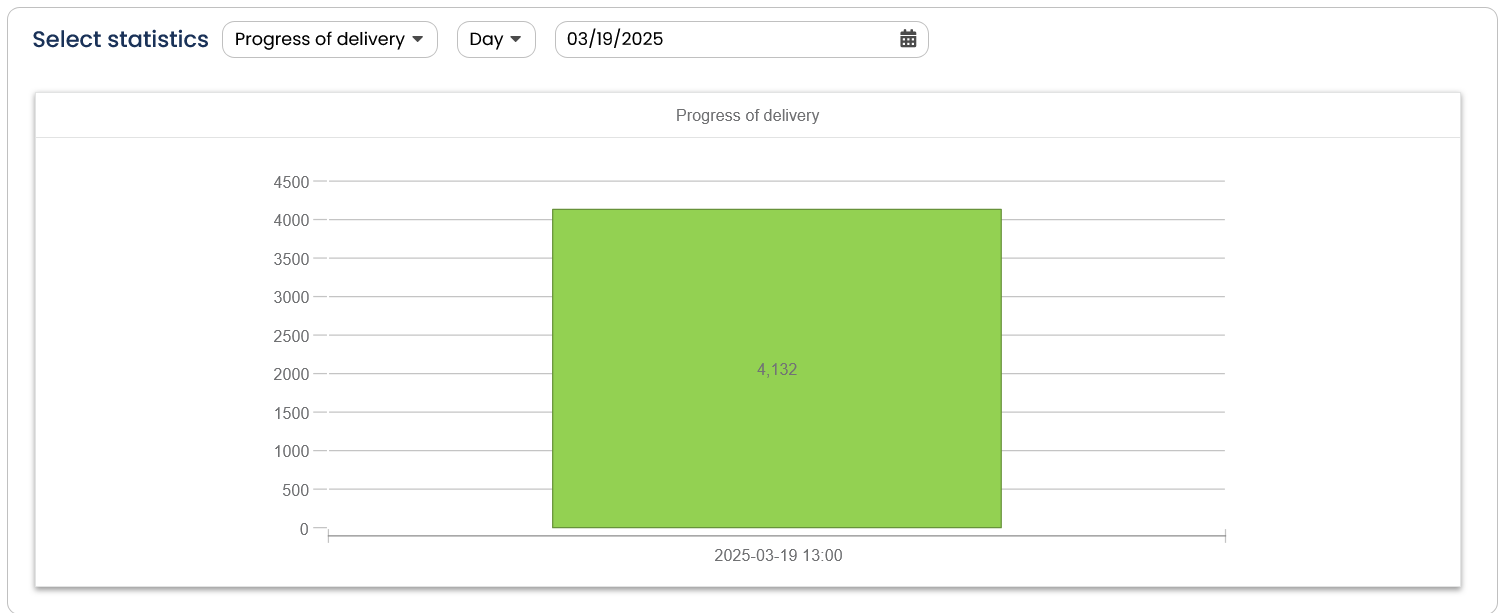 Fig. 9.6: OpenEMM shows the period of time over which a mailing has been delivered.
10.2.4 Progress of openings
If you want to figure out how many emails have been opened by the recipients, you must use the mailing in HTML format. You can decide whether you want to measure the open rate in the drop-down menu Measure opening rate (see chapter Entering basic mailing data) or you can insert into the text of the HTML version of the AGNITAS tag [agnONEPIXEL] yourself (see chapter Creating customized mailings). In both cases, a picture of 1x1 pixel size added. This image file is saved on the AGNITAS server. When the recipient opens the mailing the e-mail program loads this image file, the AGNITAS server registers this and knows that the mailing is opened. For text mailings this procedure is not possible and if the mailing was opened with image suppression, no opening can be measured either. In a mailing with mixed format the opening rate is only a hint and not the number of all opened mailings.
If you want to analyze the openings of the invididual target groups, choose a target group in the Target group drop-down. Confirm your settings with a click on the Refresh button.
Please note that OpenEMM displays openings across time for all device types in a separate diagram when one or more target groups are selected. Only when no target group is selected does the information for all device types appear in the same diagram.
You can display the gross and net click rates of each trackable link with the two links Progress of clicks and Progress of openings respectively for a self-defined period of time, the previous day or over the entire previous month both numerically and graphically. To do so, select Period, Day or Month in the drop-down menu. Selecting Period lets you choose an individual time range.
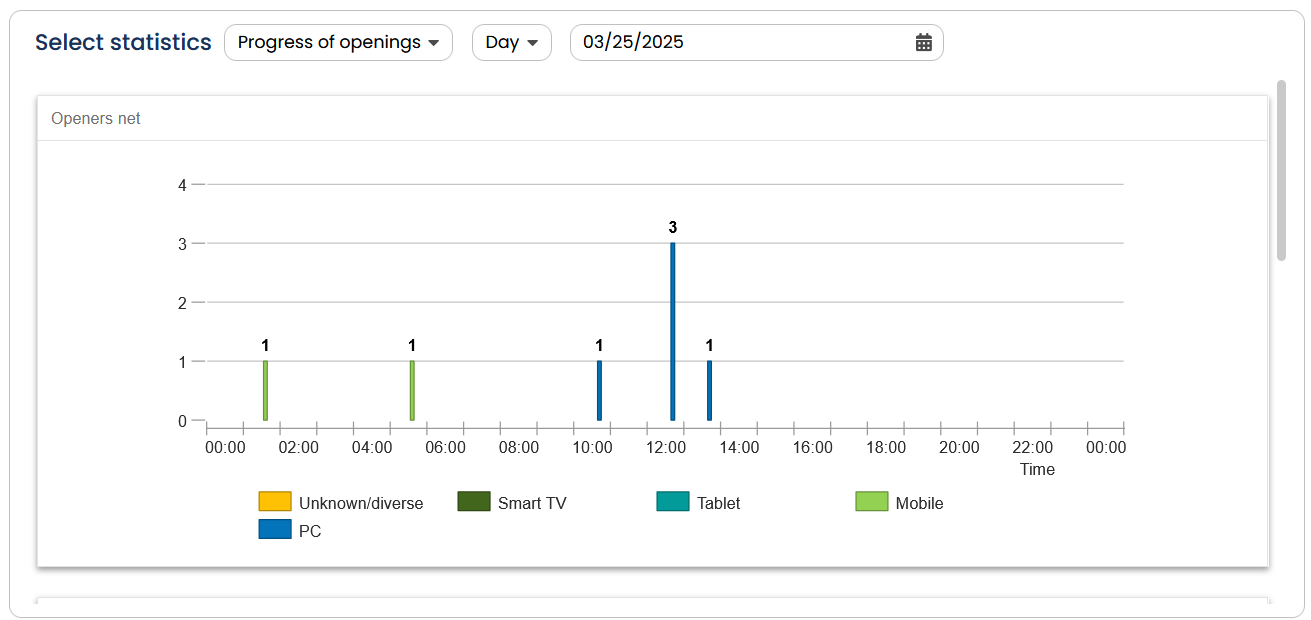 Fig. 9.7: The OpenEMM shows the chronological sequence of the opening rates per hour, per day or per month (scroll to see all the data).
If no target group is selected, OpenEMM shows the openings across time, split for the different devices. If a target group is selected, the program creates a separate diagram for different device type data.
Please note: You can export this statistic by clicking on the corresponding button under Action.
10.2.5 Progress of clicks
The click statistics over time show you the distribution of clicks over the selected period. The diagram can only show you values if you use measurable links in your mailing.
If you want to analyze the clicks for individual target groups, select the desired target groups from the selection list. Click the Refresh button to confirm your choices.
Please note that OpenEMM will display clicks over time using a separate graph for mobile end devices when one or more target groups have been selected. The information for mobile end devices and traditional PCs will only be displayed using the same graph when a target groups has not been selected.
Note: In the OpenEMM no distinction is made between different end devices. All devices are assigned to the type PC.
Note that if you select one or more target groups, the OpenEMM displays the clicks over time for mobile device types in a separate diagram. Only if no target group is selected do the specifications for all device types appear in the same diagram.
The click statistics over time can be viewed for different time periods. To do this, click on Day or Month. Optionally, a time period can also be specified.
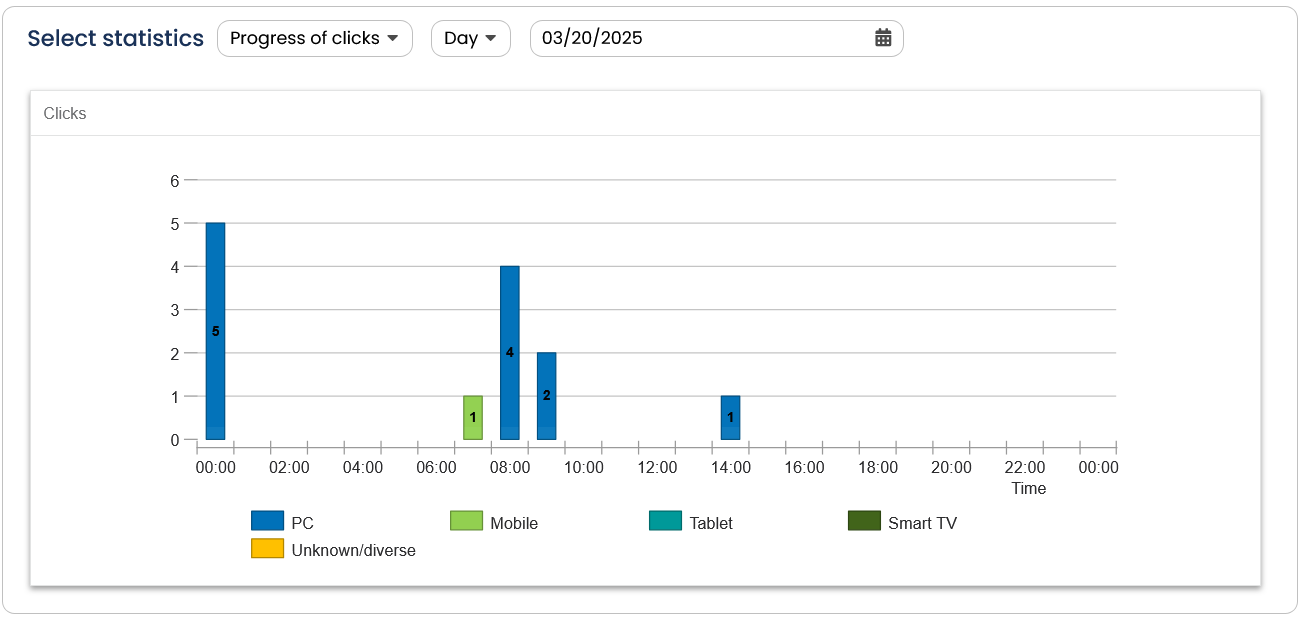 Fig. 9.8: The click statistic will either be displayed by the day, the month or a self-defined period of time (scroll to see all the data).
As long as no target group is selected, the OpenEMM shows the Progress of clicks separated in multiple devices, PC, mobile, tablet and smart TV. After you chose a target group the OpenEMM creates a separate statistic which includes the data of all devices.
Note: You can export this statistics by clicking Action and there save as CSV-file.
10.2.6 Top Domains
The Top Domains statistics is a great OpenEMM tool providing you detailed information on the most important email domains of your recipients.
In the upper area you can set the amount of domains you would like to see. Choose between 5, 10 or 15 domains. When ticking the check box Top Level Domains, the OpenEMM will show you the statistics based on the domains' endings. In addition, you can select a target group.
The display is always the same: You first see a bar chart and a table which indicates the recipient number (in absolute and percentage values) in addition. In total you can therefore evaluate the values the E-mails sent, Hardbounces and Softbounces as well as Openers and Clickers. Clicking on the Action button in the upper right, gives you the possibility to export this statistics as CSV.
If you wish to receive data on non-mailing affiliated domain info, just go to the Statistics sub-menu point Domain Overview. You can find detailed information on this in chapter Domain overview.
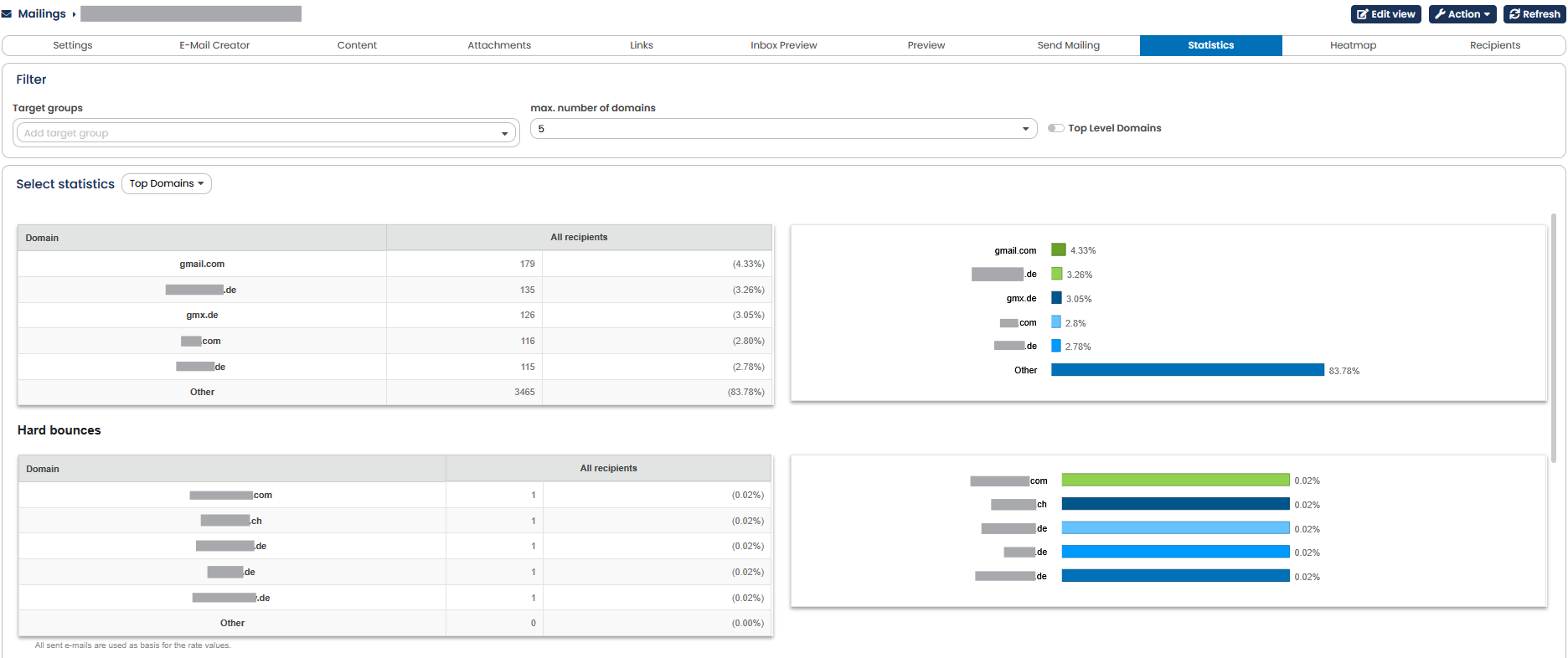 Fig. 9.9: The Top Domains statistics shows you an overview of the most important domains your mailing has reached (scroll to see all the data).
10.2.7 End device statistic
The end device statistics are part of our commercial version of the EMM. The statistics give you an insight into which devices were used to open or click on your mailing most frequently.
If you are interested in the full version of the EMM, please contact our customer customer advisors.
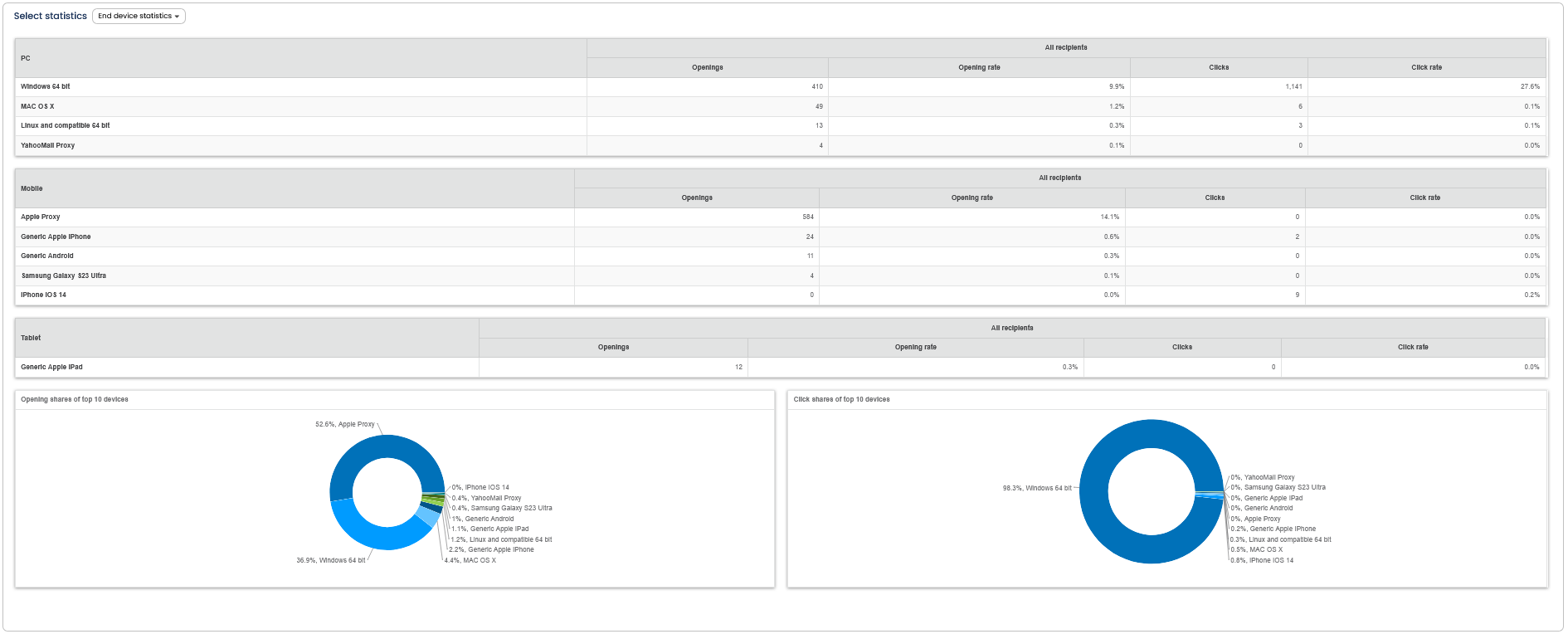 Fig. 9.10: By using the end device statistics you gain a broad view over the most important end devices with which your mailing was opened (scroll to see all the data).
10.2.8 Bounces
OpenEMM also provides you with additional information on bounces. Choose Bounces in the selection menu. The statistics Bounces shows you the causes for undeliverability and delivers a graphical overview of the bounces. OpenEMM distinguishes between two types of bounces:
Softbounces:
-
Problems with mailbox (e.g. mailbox full)
-
Problems with recipient (e.g. temporarily unavailable)
-
Other softbounces (all other softbounces)
-
Total (qualified softbounces): Sum of the first three types of softbounces
-
Dispatched without confirmation of receipt (including softbounces)
Hardbounces:
-
Unknown address (e-mail address non-existent).
-
Unknown domain name (domain non-existent).
-
Other hardbounces (all other hardbounces).
You can download the bounce statistics as a CSV file. To do so, simply on the Action button and then on save as CSV file. An export as a CSV file even tells you which email addresses have been bounced.
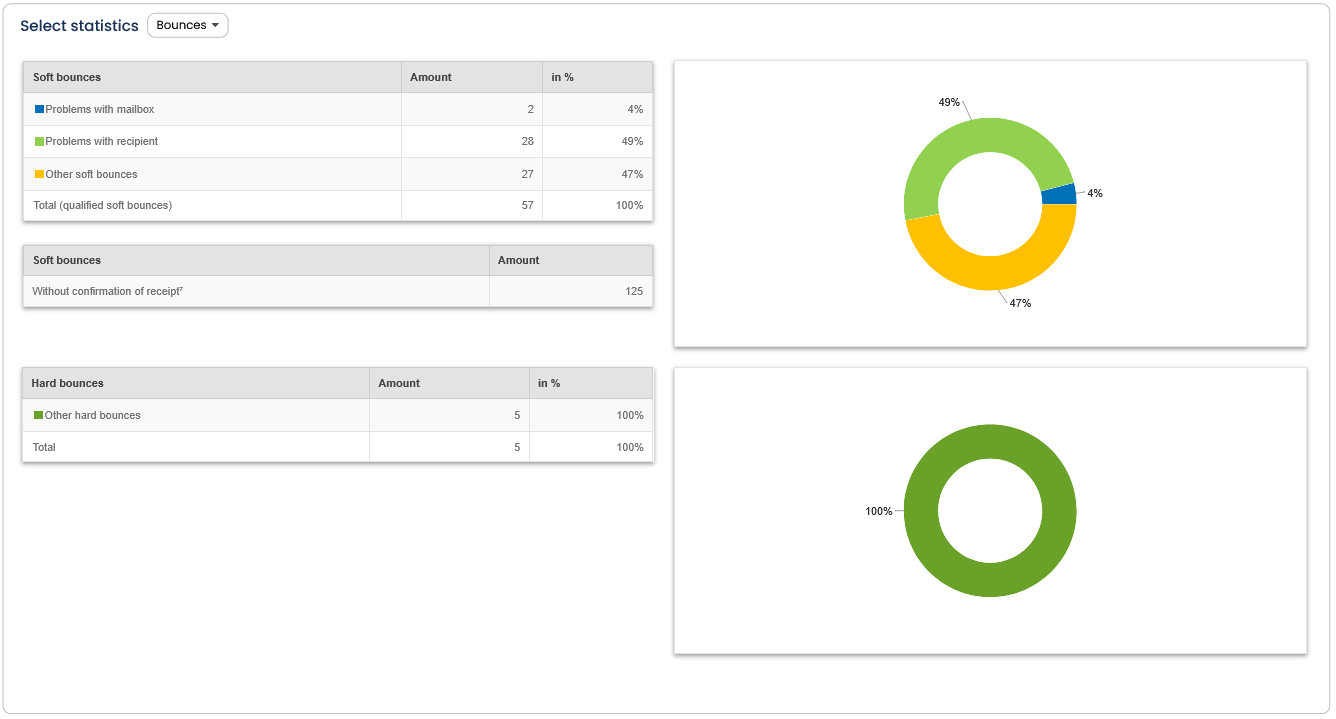 Fig. 9.11: OpenEMM displays single bounces graphically and thus delivers important mailing information at a glance (scroll to see all the data).
Note: The Advanced Hardbounce Validation (part of the Delivery Package) only tries to reactivate recipients that have not been marked as bounce for more than 180 days. Since unused mailboxes are reassigned by the providers after a certain period of time, there is otherwise a risk that a recipient who has not granted you permission will accidentally slip into your distribution list.
10.2.9 Revenue
The revenue statistic is part of the commercial version of the EMM. If you click on the Sales tab, a detail page is displayed which graphically and tabularly reflects the chronological course of the measurement of the sales generated by a mailing. If you are interested in the commercial version of the EMM, please contact our customer advisors.
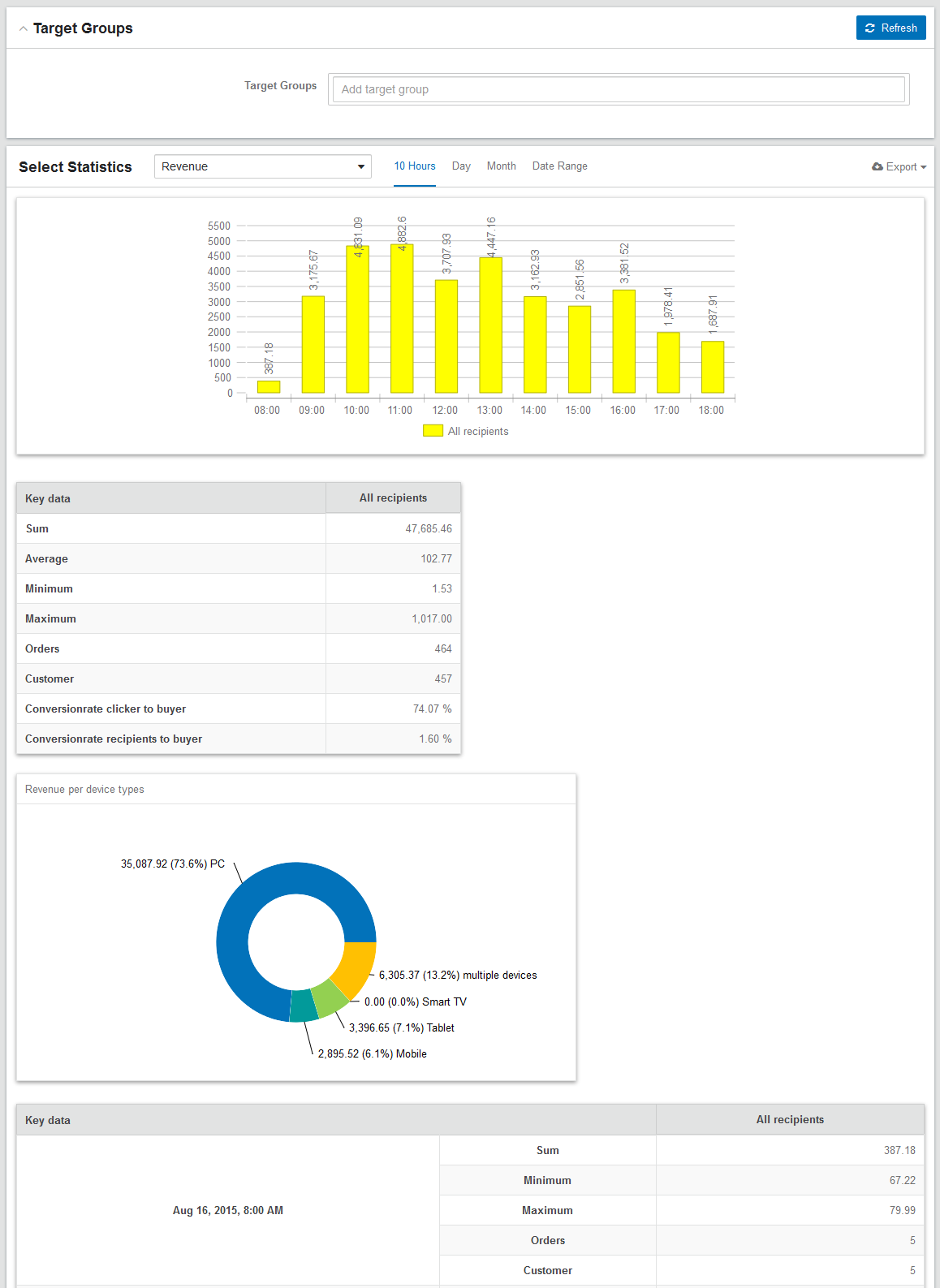 Fig. 9.12: Display of the Revenue statistics - it allows you to determine the success of a mailing
If the tracking process is continued into the shopping basket, and if a simple or a numeric tracking point has been set there, an additional statistical evaluation of the turnover generated by a mailing is shown below the delivery statistics.
It is also possible to display the data by target groups.
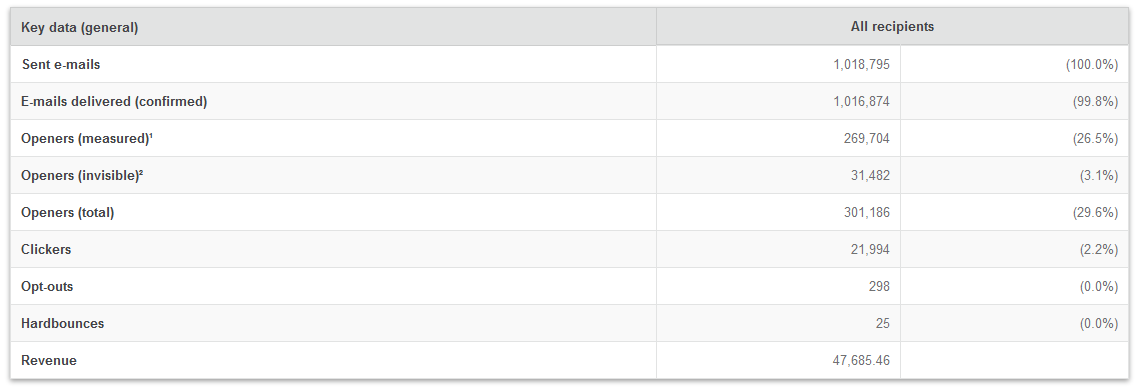 Fig. 9.13 The illustration of mailing statistic with activated Behavior Tracking.
10.2.10 Benchmark
The benchmark statistics are part of our commercial version of the EMM. The statistics will give you an idea of how well your Mailign compares to the competition. The average values achieved within this industry are compared. If you are interested in the full version of the EMM, please contact our account managers.
10.2.11 Comparing target groups
In the default preset condition, the mailing statistics show the data for all recipients of the mailing. You can, however, only show the data for recipients in a specific target group. You can also show the data for multiple target groups, thus allowing you to compare the data. Any number of target groups can be shown in parallel.
-
First select the desired target group via the Target groups list.
-
If you want to compare several target groups, you can select these in the list by simply clicking on one after another. OpenEMM automatically adds them to the list. Update the display with Refresh.
-
OpenEMM now shows the click statistics of the ticked target groups in numerical format.
-
After selecting, you can delte individual target groups by clicking on the small radio button with a X icon on the left to the target-group name. Confirm the selection with Refresh. The target groups no longer appear in the comparison statistics.
 Fig. 9.14: With the Target groups drop-down you add more target groups to your statistic.
Please note: If an activated target group has no results, it will not be shown.